
API keys are secret tokens that authenticate your requests to the Teamfluence API. You create one whenever you want to connect Pulse to something outside the app. Keep them secret and never share them.
Why you might need one
An API key lets an outside tool or agent read and act on your workspace data through the API. You need one to:
- Connect an AI agent or a custom script to your workspace.
- Build your own integration on the Teamfluence API.
If you only want to ask questions about your data inside Pulse, use AI Testing instead. No key required. If you want to push signals into another tool the moment they happen, webhooks may be the simpler option.
Create an API key
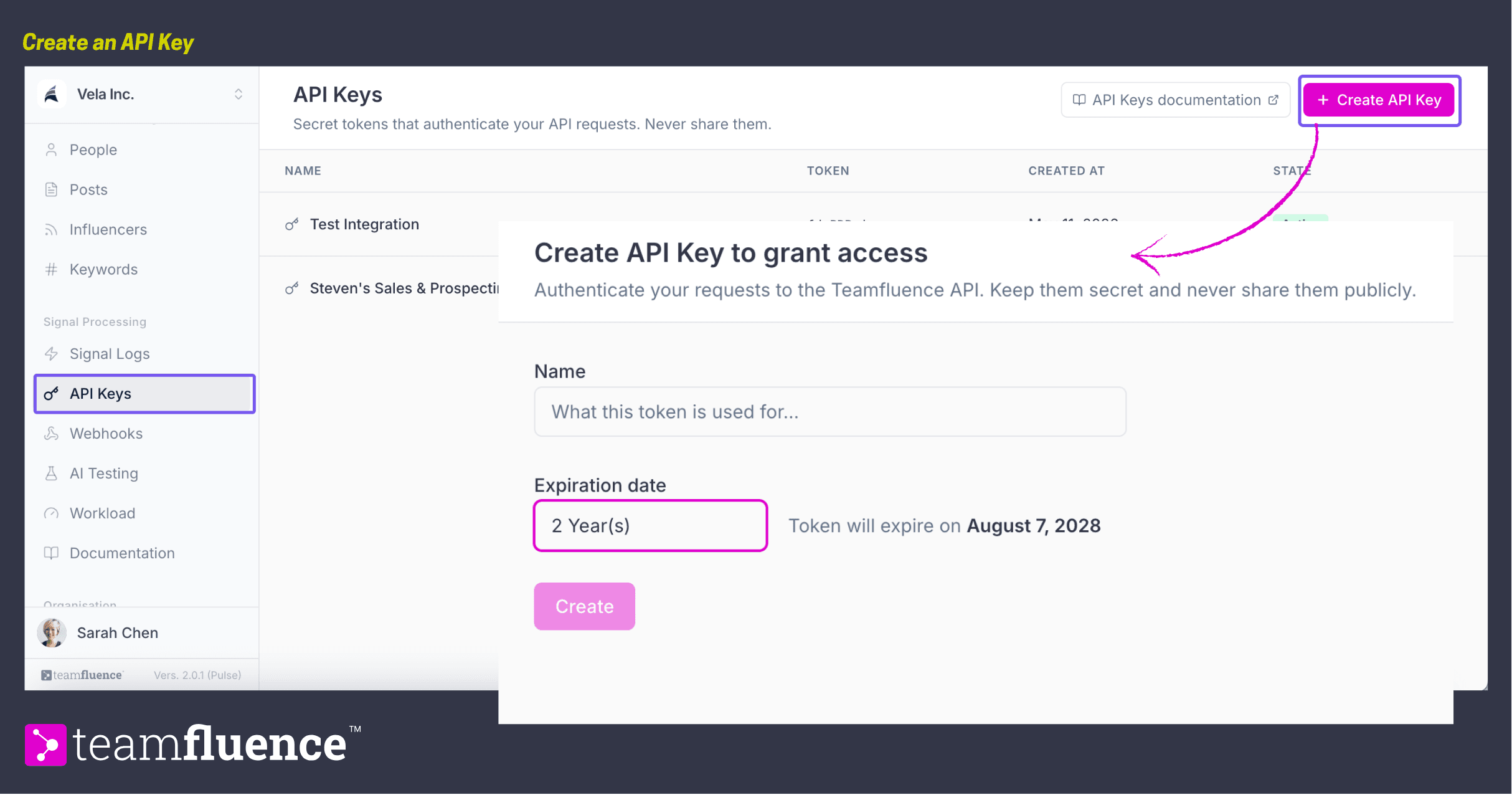
- Go to API Keys under Signal Processing.
- Click Create API Key.
- In Name, describe what the key is for, for example "LinkedIn Prospecting". This is just a label to help you recognise it later.
- Choose an Expiration date. Pulse shows the exact date the key will expire.
- Click Create.
Copy your key and store it somewhere safe. Treat it like a password, since you will not be able to see it in full again.
Manage your keys
The API Keys list shows each key's name, a shortened version of the token, when it was created, and its state. Active keys are live and ready to use.
To manage a key, use the menu on its row. This is where you revoke a key you no longer need.
Keep your keys safe
- Never share a key or put it in public code.
- Give each integration its own key, so you can revoke one without breaking the others.
- Revoke any key you no longer use, or one you think may have leaked.
Technical documentation
This article covers creating and managing keys inside Pulse. For everything you do with a key, including endpoints, authentication, and request formats, see the developer documentation at developer.teamfluence.com/docs. You can also open it anytime from the API Keys documentation link on this screen.
There you will find a quickstart, the workspace and leads endpoints, and an errors reference. In short, you authenticate by passing your key as a bearer token in the request's Authorization header.