
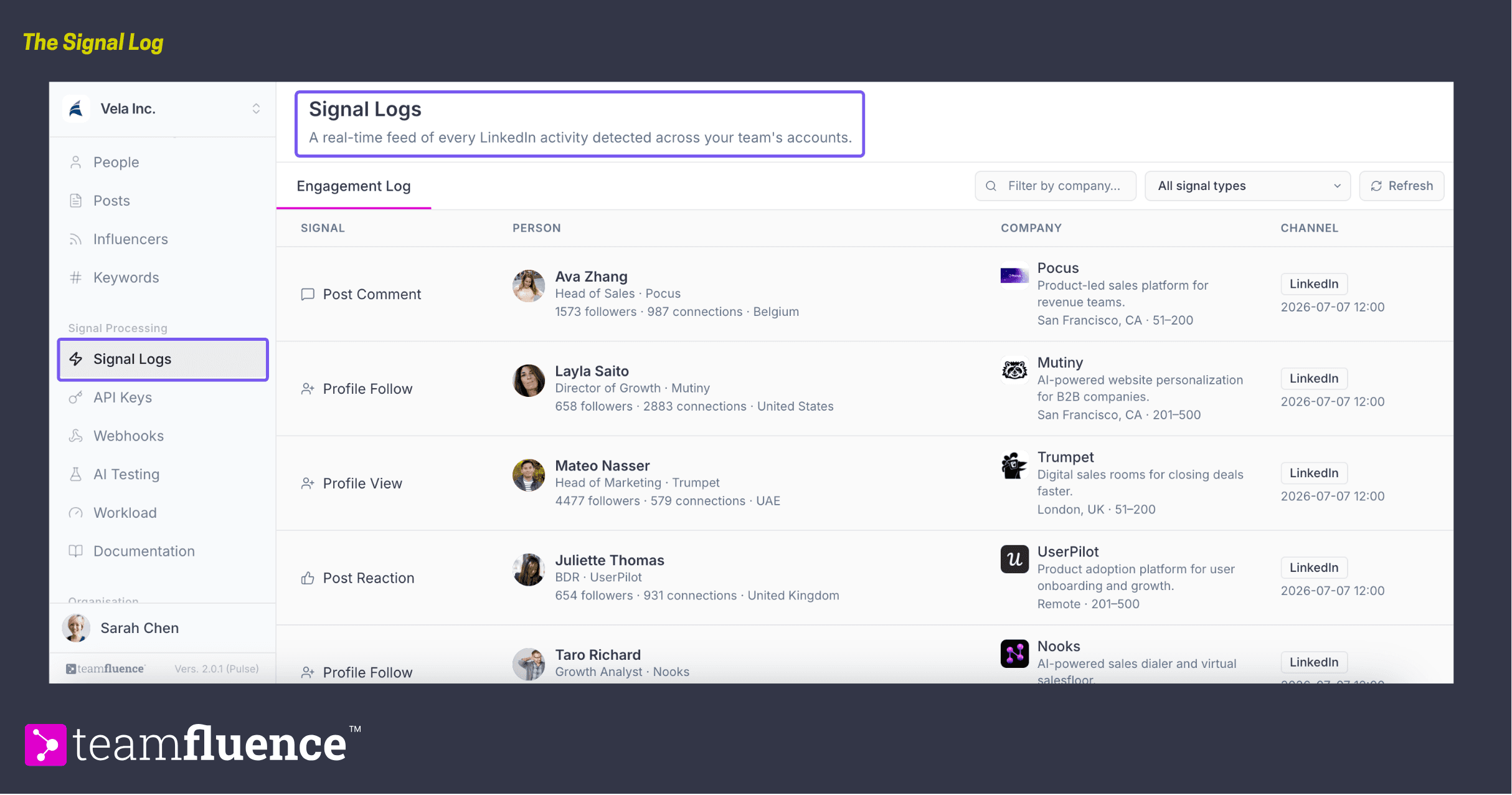
Signal Logs is a real-time feed of every LinkedIn activity detected across your team's accounts. Everything you monitor flows here in chronological order as it happens, so you can watch your signals arrive live. It is the simplest way to see how Pulse is capturing engagement signals.
What flows into the log
Every signal from everything you monitor lands here, including:
- Your own connected account.
- Your team members' connected profiles.
- Your company page engagements.
- Posts you track from keywords, influencers, and any other post you add to monitoring.
Signals appear in order as they are detected, newest activity first.
Reading a row
Each row breaks a signal into four columns:
- Signal. The type of engagement, for example Post Comment, Profile Follow, Profile View, or Post Reaction.
- Person. Who triggered the signal, with their title, company, follower and connection counts, and country.
- Company. Where they work, with a short description, location, and company size.
- Channel. The source and the time it was detected. Signals currently come from LinkedIn only.
Filter and search
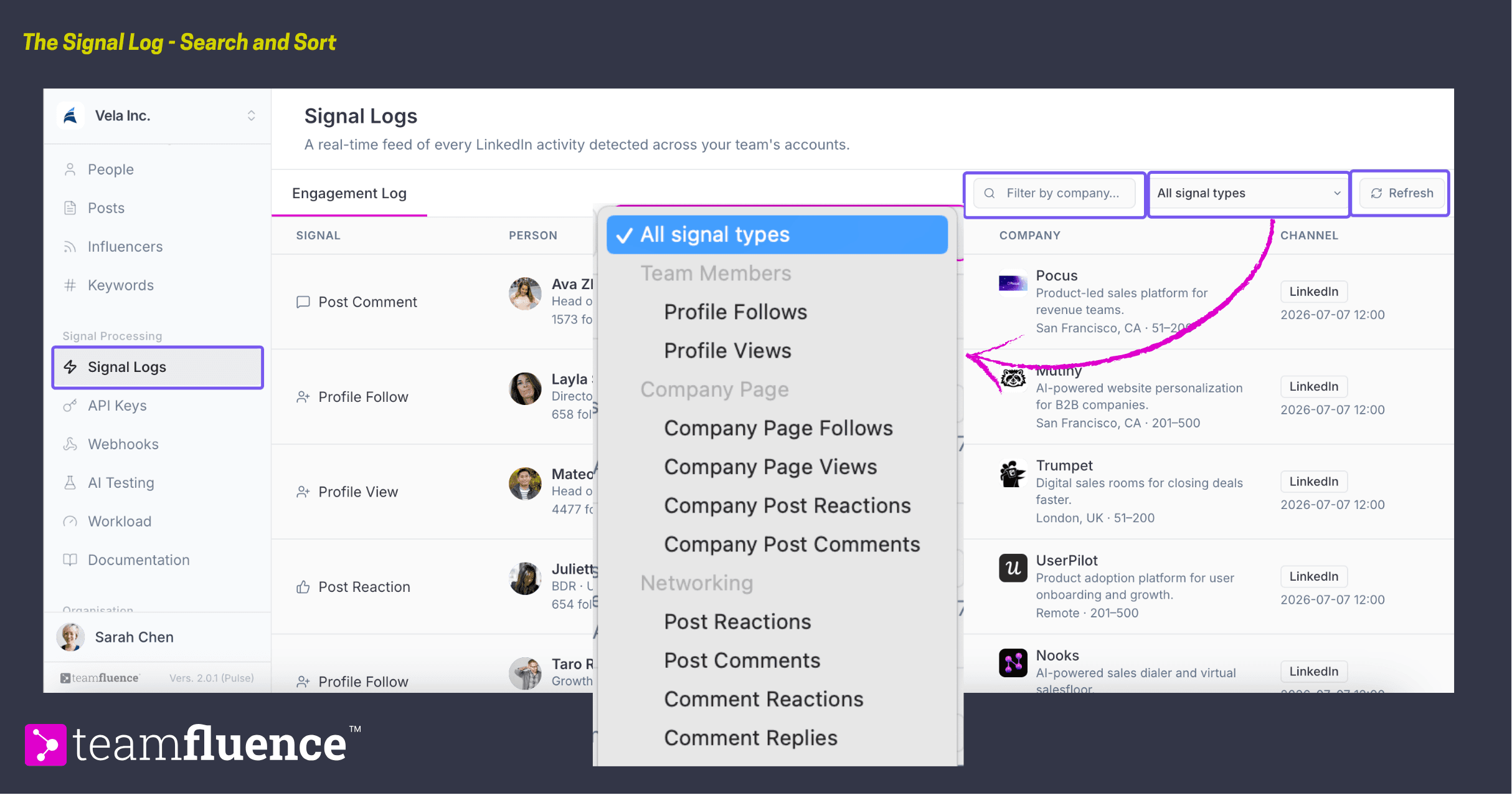
Three controls help you find what you need:
- Filter by signal type. Use the All signal types dropdown to narrow to one kind of engagement. Types are grouped by source:
- Team Members: Profile Follows, Profile Views.
- Company Page: Company Page Follows, Company Page Views, Company Post Reactions, Company Post Comments.
- Networking: Post Reactions, Post Comments, Comment Reactions, Comment Replies.
Search. Use the Filter by company field to narrow the log to a specific company or other detail such as a role.
Refresh. Pull in the latest signals with the Refresh button.
How the log fits in
Signal Logs is a live, at-a-glance view for confirming activity is flowing and seeing what is coming in right now. For the full history consolidated per person, use the People view. To act on these signals, send them out through the API or webhooks, or ask about them in AI Testing.