
The Influencers section lets you follow specific profiles and capture the people who engage with their content. It works hand in hand with post tracking: you choose which of an influencer's posts to track, and everyone who reacts or comments on those posts lands in your People view.
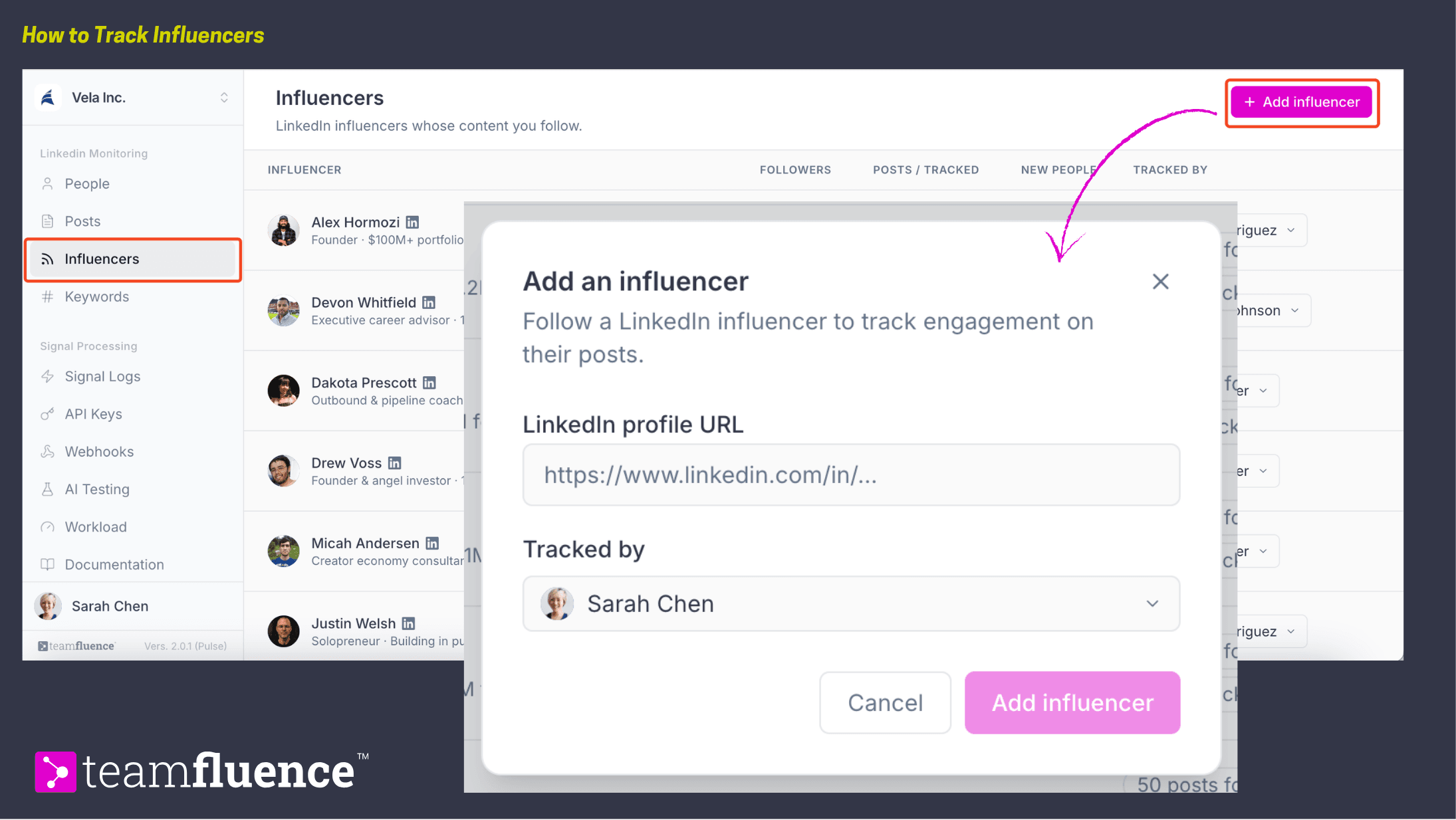
Add an influencer
- Click Add influencer.
- Paste the profile URL of the person you want to monitor.
- Add Influencer
That is all you need to start monitoring someone. Each profile is assigned to a team member under Tracked by, which you can change anytime using the dropdown on their row.
You can track up to six influencers per active seat on your plan.
To stop monitoring a profile, click the three-dot menu on the influencer's row and select Remove Influencer.
Reading the influencers list
Each row gives you a quick read on a profile you follow:
- Influencer. The person's name, title, and follower count.
- Followers. How many followers they have.
- Posts / Tracked. How many posts Pulse has found from them, and how many of those you are actively tracking. For example, "65 posts found" with "15 tracked" means Pulse surfaced 65 posts and you chose to catch signals from 15 of them.
- New people. How many new people the posts you track from this influencer have brought into your workspace. This counts only the posts you are actively tracking, so a higher number means that profile is surfacing more contacts for you. It is a good way to see which influencers are actually worth following.
- Tracked by. The teammate responsible for monitoring this profile.
Choose which posts to track
Adding an influencer does not track all of their posts automatically. You decide which posts are worth catching signals from.
- In the influencer's row, click either the posts found or the tracked count.
- Pulse opens a curated list of all the posts it has surfaced from that influencer.
- Choose which posts to track.
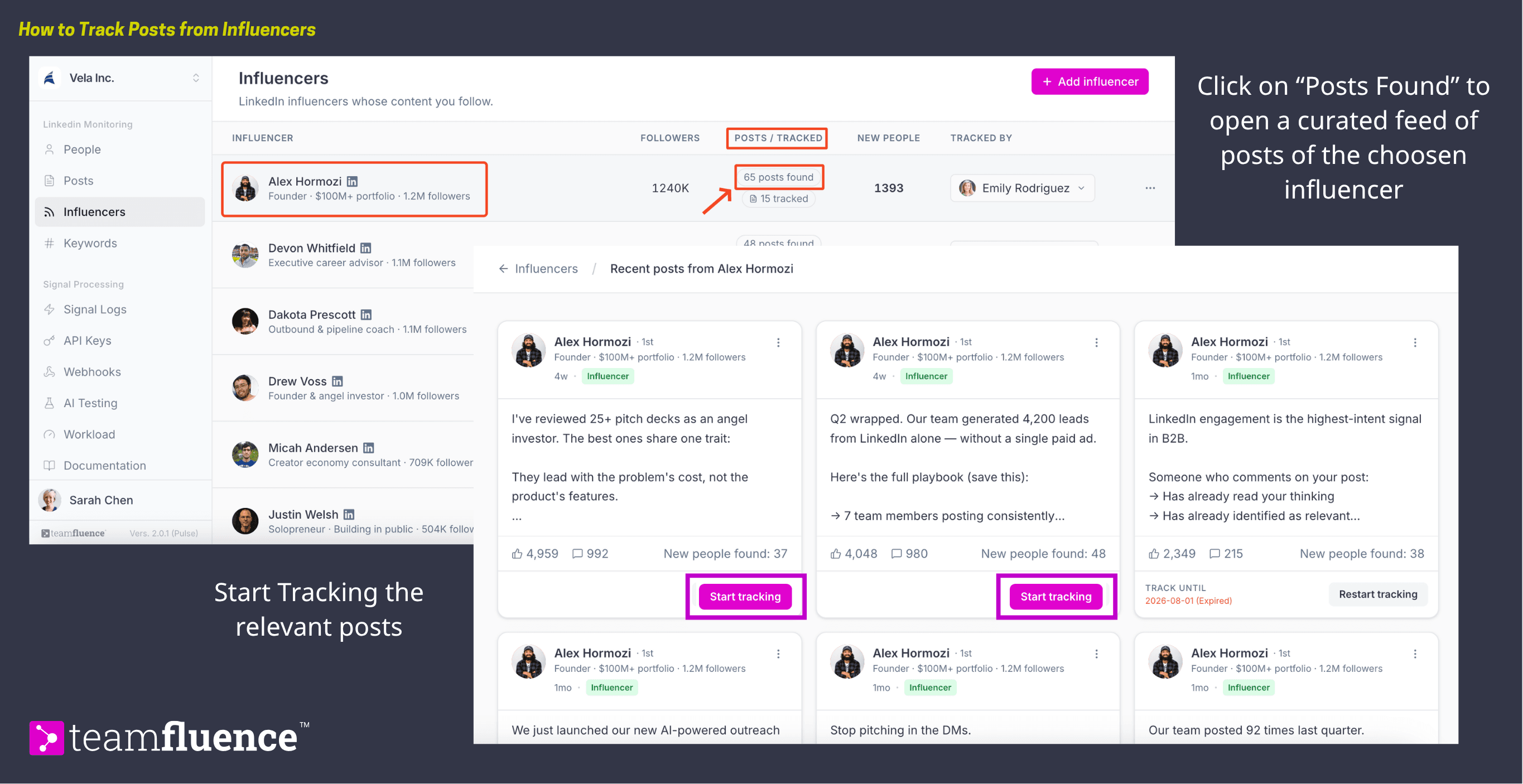
Once you track a post, Pulse captures everyone who reacts to or comments on it and adds them to your People view as Tracked Post Reaction or Tracked Post Comment signals. The tracked count on the influencer's row goes up to match.
Tracking runs for the same window as any tracked post, usually two months, and can be renewed the same way. Posts you track here also appear in the Posts section under the From influencers tab, where you can manage them alongside your other tracked posts. See How to track and manage posts.
How influencers feed your People view
Every person who engages with a tracked influencer post becomes a record in your People view, the same as any other tracked post. Between the New people count here and the People view itself, you get a clear picture of which influencers bring in the most relevant contacts, so you can focus on the profiles that pay off.