
Webhooks let Pulse notify another tool the moment an event happens in your connected accounts. Instead of you pulling data out, Pulse pushes each event to a URL you choose, so tools like Clay, Zapier, n8n, or your CRM can act on it in real time.
Before you start
Get a webhook URL from the tool you want to connect. Most automation tools, including Clay, Zapier, n8n, and Make, give you an inbound webhook URL to receive data. That URL is what Pulse sends events to.
Add a webhook
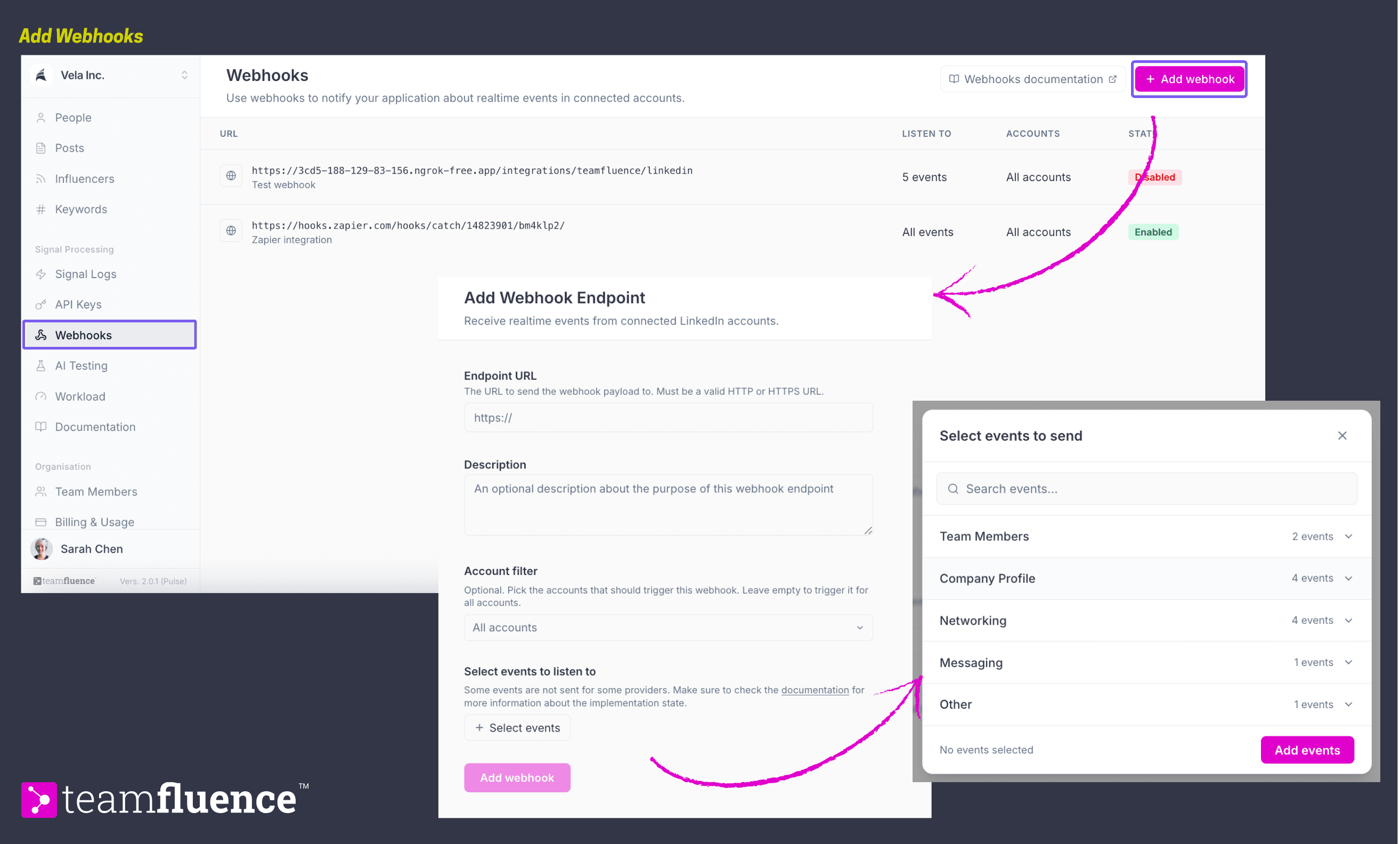
- Go to Webhooks under Signal Processing.
- Click Add webhook.
- Endpoint URL. Paste the URL from the tool you are connecting. It must be a valid HTTP or HTTPS URL.
- Description. Add a short note so you recognise what this webhook is for, for example "Zapier integration". This is optional but recommended.
- Account filter. Pick which connected accounts should trigger this webhook. Leave it on All accounts to include everyone, or choose specific profiles so only their signals are pushed.
- Select events to trigger. Click Select events and choose which events to push to this endpoint. Send everything, or narrow it to specific signal types.
- Click Add webhook.
Manage your webhooks
The Webhooks list shows each endpoint's URL and description, how many events it listens to, which accounts it covers, and its state:
- Enabled means the webhook is live and sending events.
- Disabled means it is paused and not sending.
Use the menu on a webhook's row to edit it, switch it on or off, or remove it.
Common uses
Webhooks are how Pulse connects to your automation platforms and your CRM:
Route signals into Clay, Zapier, or n8n to trigger your own automations. Sync leads into your CRM, such as Salesforce, HubSpot, or Pipedrive, by pointing a webhook at your CRM's inbound URL, either directly or through an automation tool. See How to sync leads to your CRM with webhooks.