
This guide gets Pulse running for your team. You will connect your LinkedIn account with the extension, invite your teammates, and track your company page. Signals start flowing automatically once you are connected.
Step 1: Connect your account
The Pulse extension connects your LinkedIn account to your workspace and captures signals automatically in the background. It works on any Chromium browser, including Chrome, Edge, Brave, and Arc.
Already signed up? You most likely installed the extension during the onboarding steps right after signup. If so, skip the install and jump straight to Verify your connection below to confirm you are connected correctly.
- Go to the Teamfluence extension page on the Chrome Web Store.
- Click Add to Chrome, then confirm with Add extension.
- The Pulse icon appears in your browser toolbar. If you do not see it, click the puzzle piece icon in the top right and pin the extension.
- Open LinkedIn in the same browser. The extension connects to your LinkedIn account automatically.
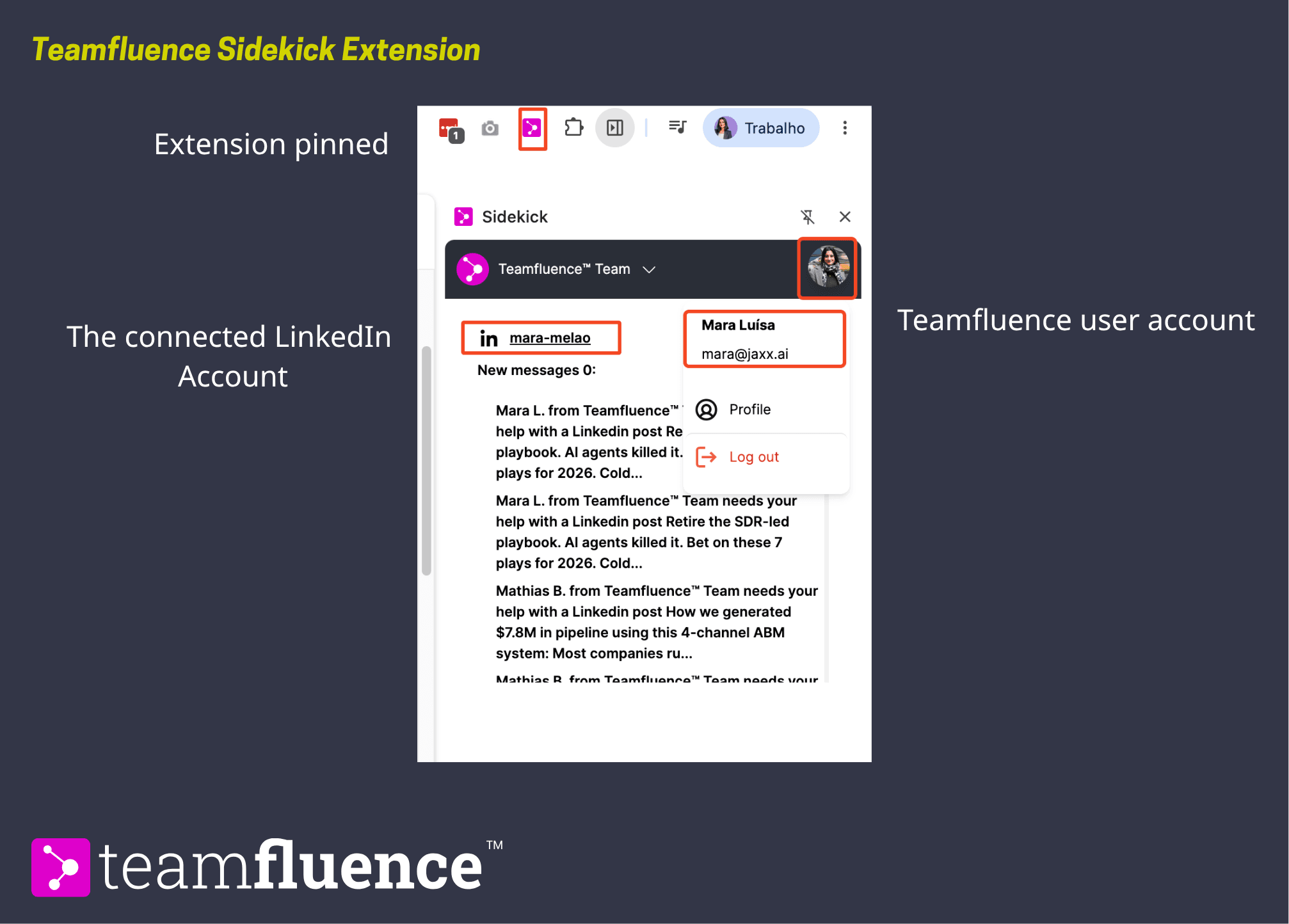
Verify your connection. Check that the extension icon shows as Connected, then open your workspace and confirm your account appears as connected on the Team Members page.
Step 2: Invite your team
Every connected teammate adds their LinkedIn signals to your shared People view. The more accounts connected, the fuller your picture across the team.
- Go to Team Members.
- Click Invite team member and enter their first name, last name, and email.
- Choose a user role.
- Choose whether this is an active data sharing profile. Active profiles connect a LinkedIn account and contribute signals to the workspace, and each one uses a seat on your plan.
- Click Send invite.
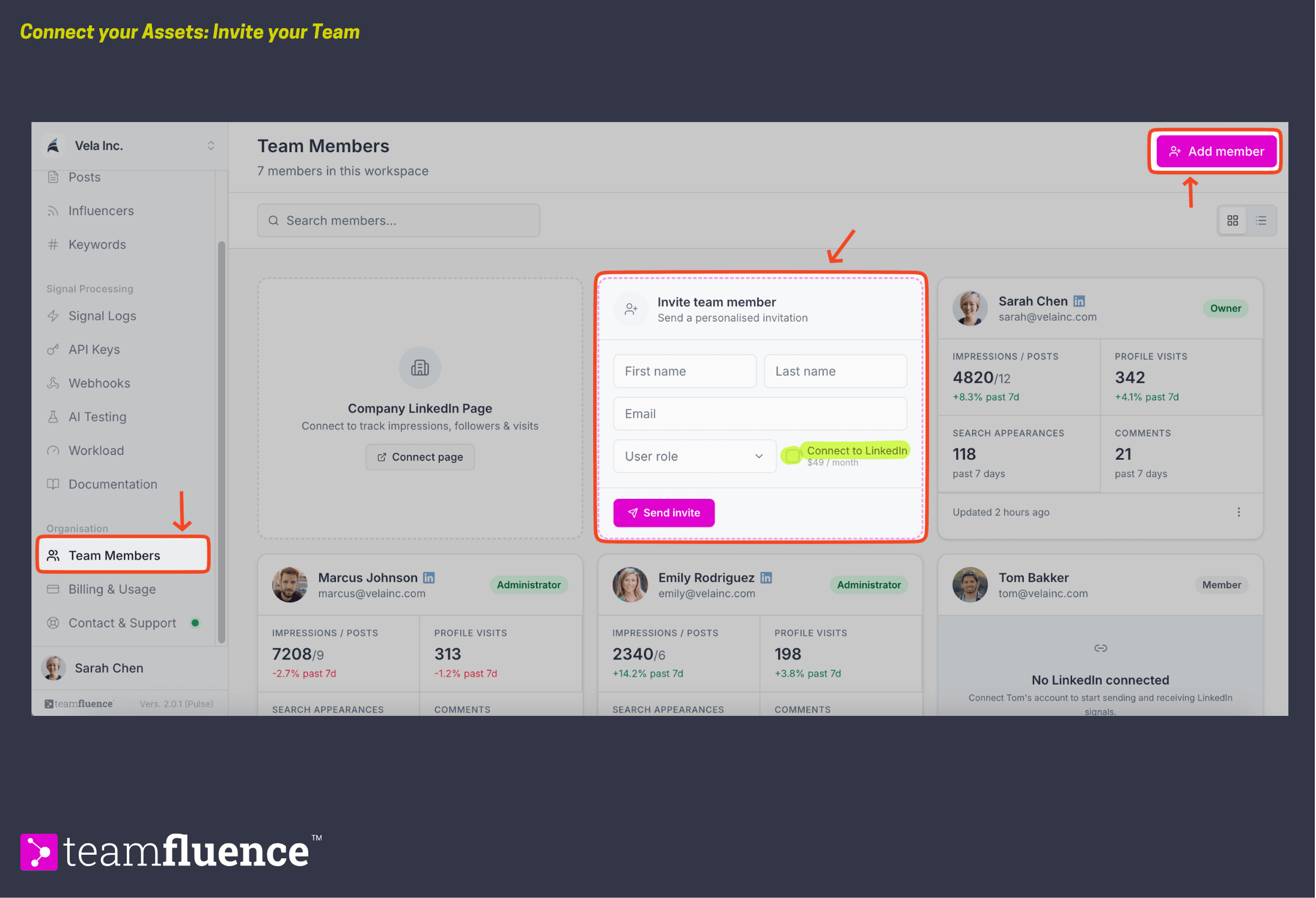
Each teammate installs the extension on their own browser and connects their LinkedIn account using the same steps in Step 1. You can see who has connected on the Team Members page, where pending connections are shown separately from active users.
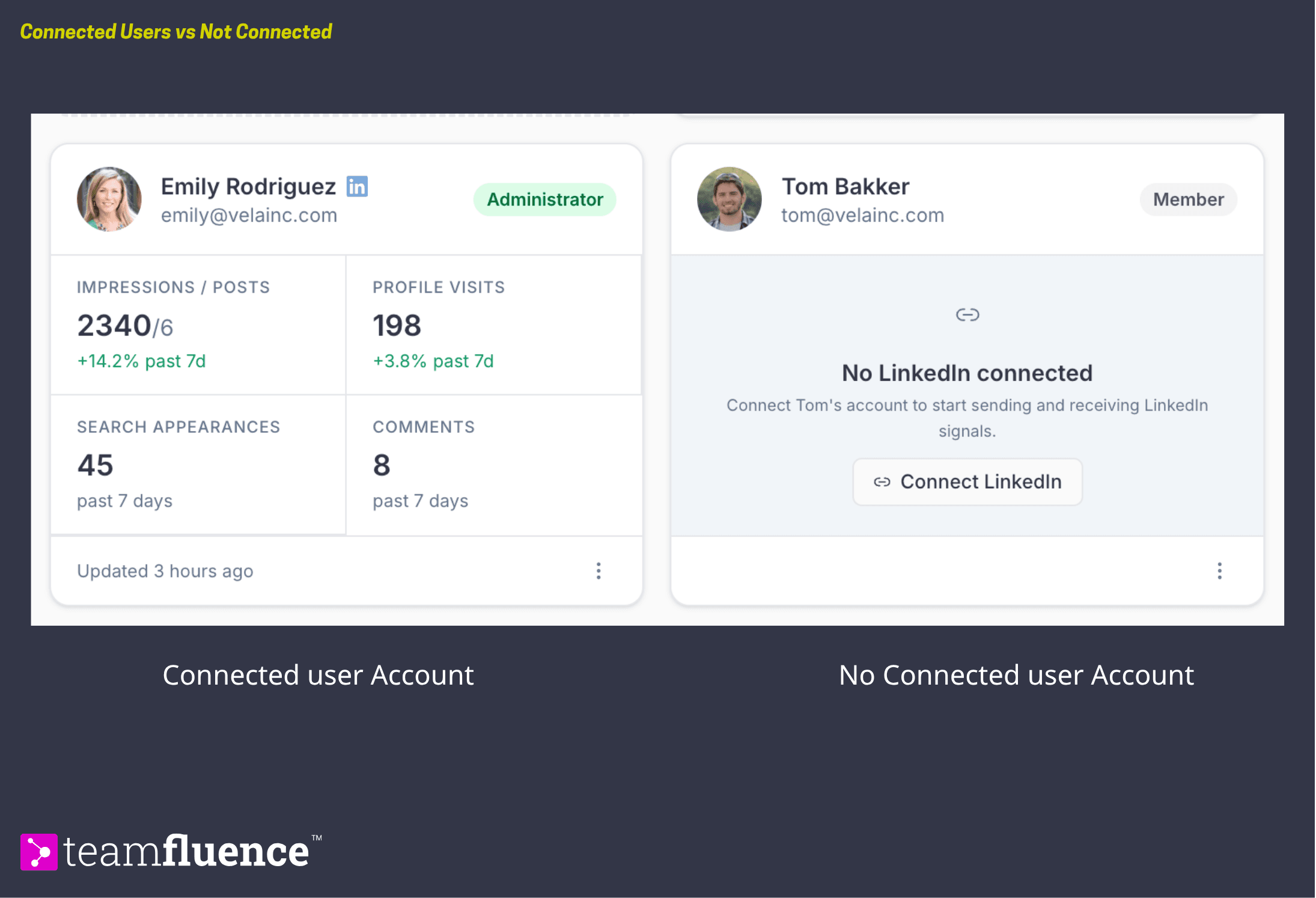
Step 3: Track your company page
You track your company page from the same Team Members page. This adds company page signals to your People view: page visitors, new followers, and engagement on your company's posts.
- On the Team Members page, add your LinkedIn company page.
- Enable tracking.
- Assign the tracking to a user who is a LinkedIn admin of that page. You need a page admin on your team to connect it.
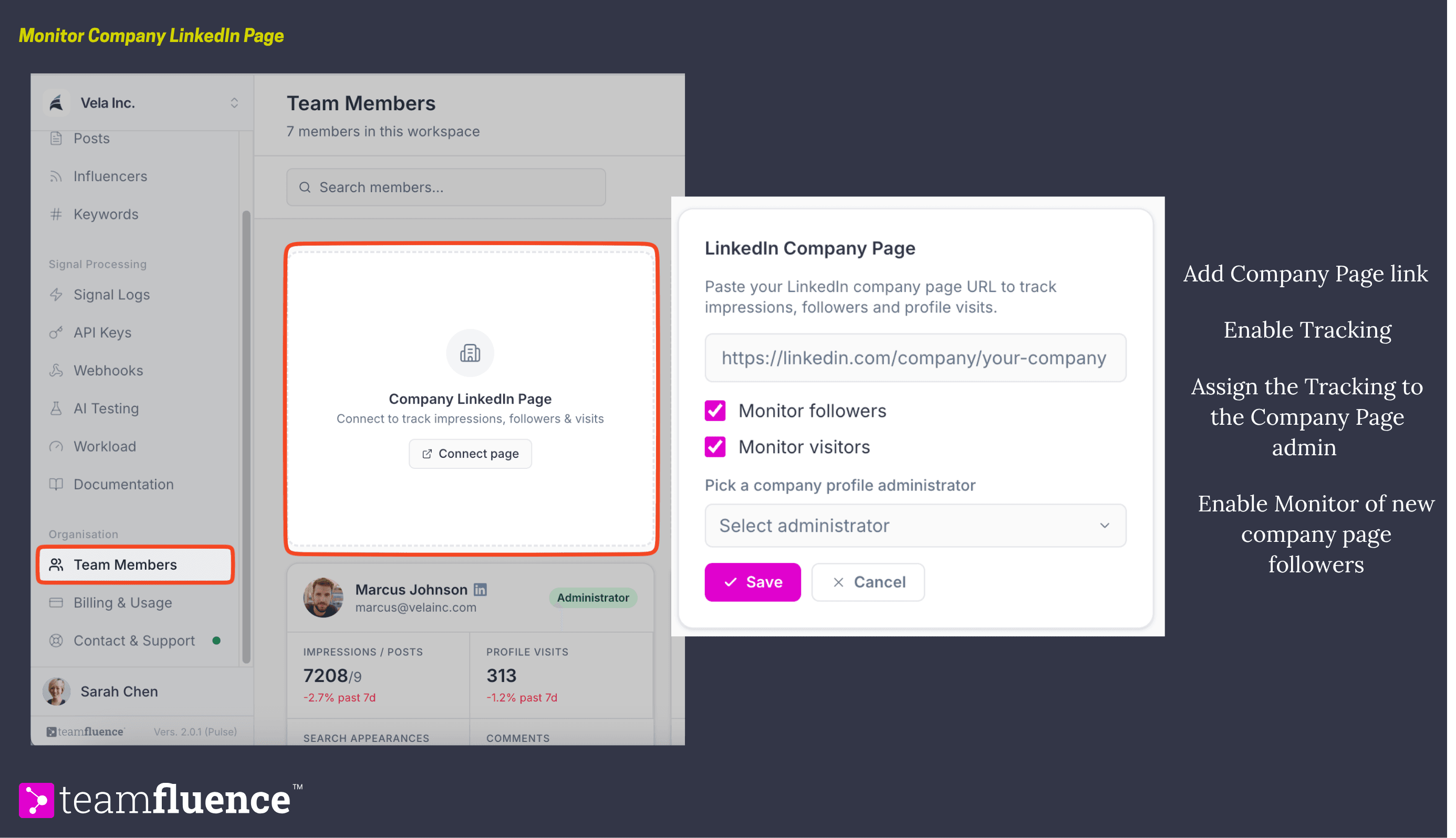
Company page signals then appear in your People view alongside individual profile signals.
What happens next
Give it a little time after setup, then open your People view. Signals appear as your team's LinkedIn activity is captured.