
You can add LinkedIn profiles to auto-connect campaigns by uploading a .csv file.
How to Upload a .CSV File
1- Open the Campaign Details Page
Go to the campaign where you want to add profiles.
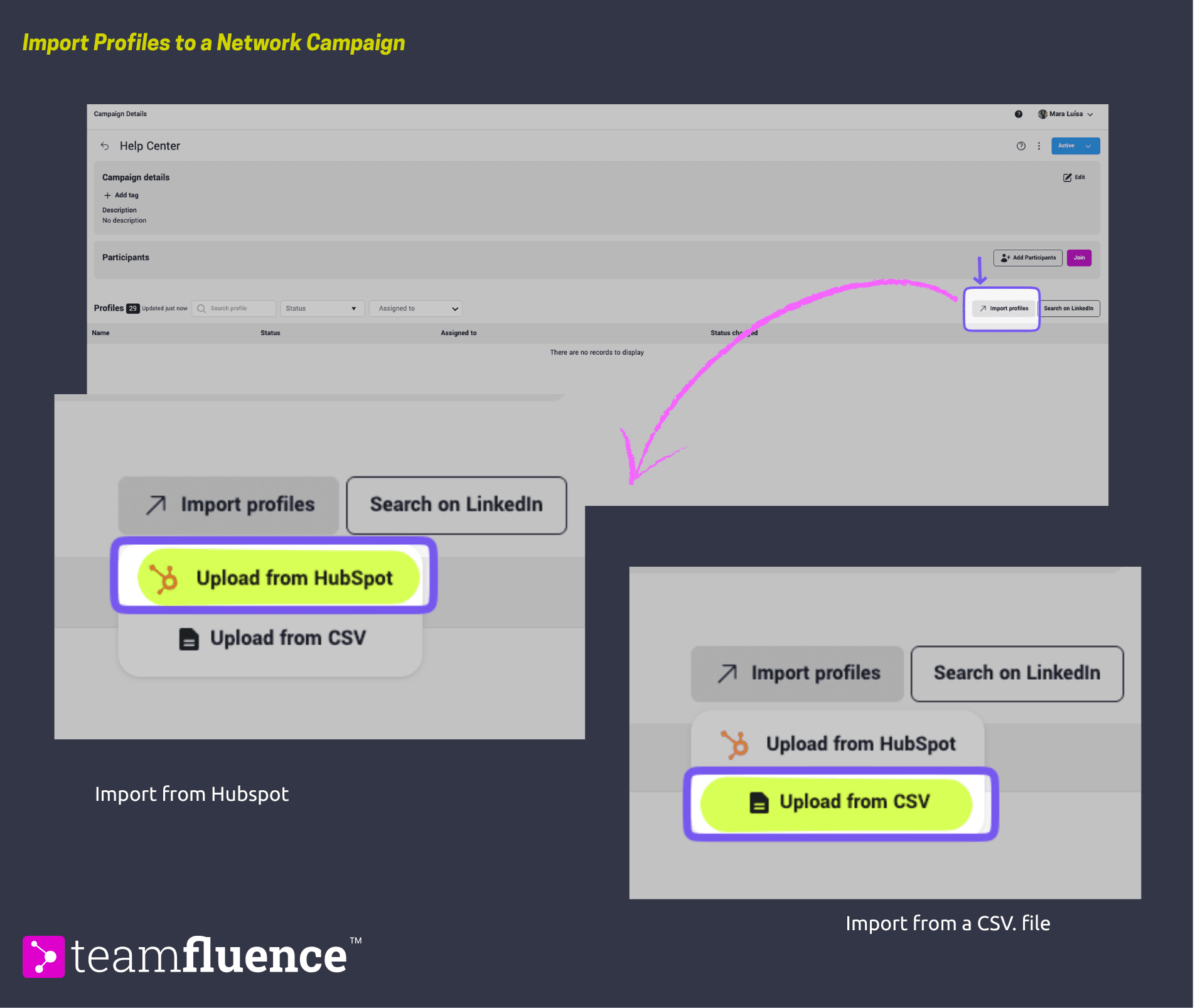
Click the Upload Profiles button and choose the Upload from CSV option.
2- Prepare Your .CSV File
Ensure the file is properly formatted to avoid upload errors.
Download our sample file to see the required format.
3- Upload the File
Select your .csv file and upload it.
If the upload fails, check for unexpected formatting or encoding issues.
4- Handling Files from Third-Party Services
If your file was downloaded from a third-party service, first save it as an .xls file on your device.
Then, export it as a .csv file before uploading to prevent encoding or formatting issues.