
When uploading a CSV to Teamfluence, the upload fails or is rejected. This is almost always caused by formatting or data issues in the CSV - an easy fix, and you’ll be able to re-upload right away.
Potential Causes
- Column headers do not match the sample CSV exactly.
- Missing or invalid profile URLs for people or company pages.
- Unsupported characters or formatting from external sources.
- Empty or partially completed rows.
- File exceeds row limits (500 rows for campaigns, 1,000 rows for accounts).
Step-by-Step Solution
1. Match the Field Names Exactly (Most Common Issue)
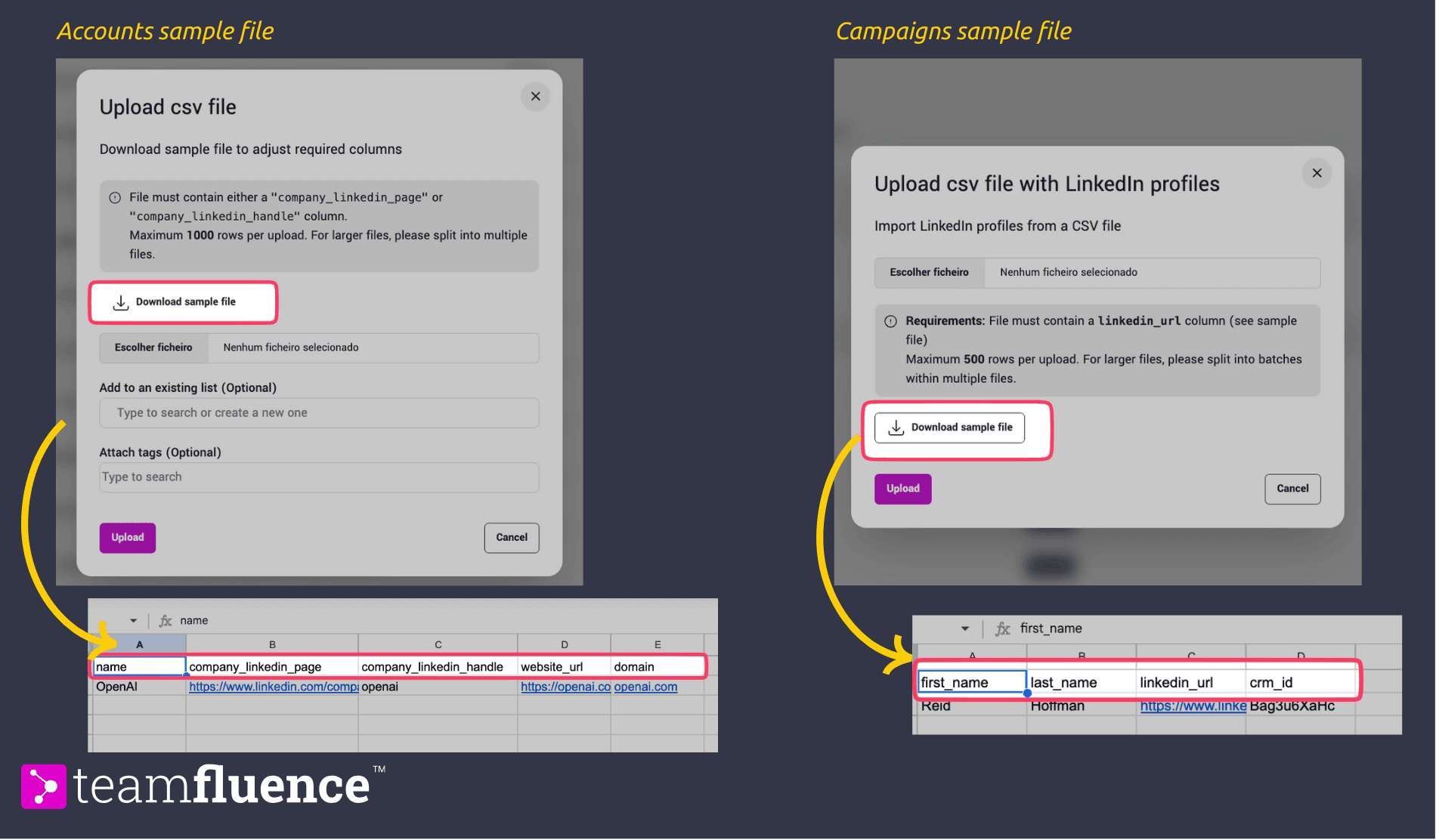
- Open the sample CSV provided in the Upload section of Accounts or Campaigns.
- Copy the first row (column headers) from the sample CSV into your file.
- Ensure there are no extra spaces, missing columns, or typos.
2. Use Valid Profile URLs
- Campaign uploads: Each row must contain the full profile URL of the person.
- Accounts uploads: Each row must include the URL of the company page.
- Quick Fix: Paste your table into ChatGPT (or any LLM) and ask it to enrich missing company/person URLs automatically.
3. Remove Any Strange or Unsupported Characters
- Avoid symbols copied from PDFs or rich-text sources.
- Ensure all text is plain and formatted consistently (UTF-8 encoding recommended).
4. Ensure All Rows Are Fully Completed
- No empty cells in required fields.
- Every row must have all the necessary columns filled out (e.g., Name, LinkedIn URL, Company Website url, etc.).
5. Keep the File Within Row Limits
- Campaign CSV: max 500 rows.
- Accounts CSV: max 1,000 rows.
- If your list is longer, split it into multiple CSVs and upload them separately.
Notes & Tips
- Always start with the sample CSV from the app to prevent header mismatches.
- After cleanup, save the file as a **.**CSV ****format and re-upload.
- If issues persist, contact us via support ****chat (inside the app) or email ([email protected])