
Uploading your ABM (Account-Based Marketing) accounts in Teamfluence allows you to focus your lead-gen efforts on the companies that matter most. This guide walks you through exactly how to upload your target accounts and what to expect once the system processes them.
Why Upload ABM Accounts?
The Target Accounts feature is built to help you stay focused on the companies with the highest revenue potential.
By uploading your target accounts, Teamfluence will cross-reference them with all incoming leads and automatically highlight contacts from those companies. That means your team can prioritize follow-up with people already showing interest.
What You’ll Need Before You Start
You can import your target accounts from either:
Option A - CSV Upload
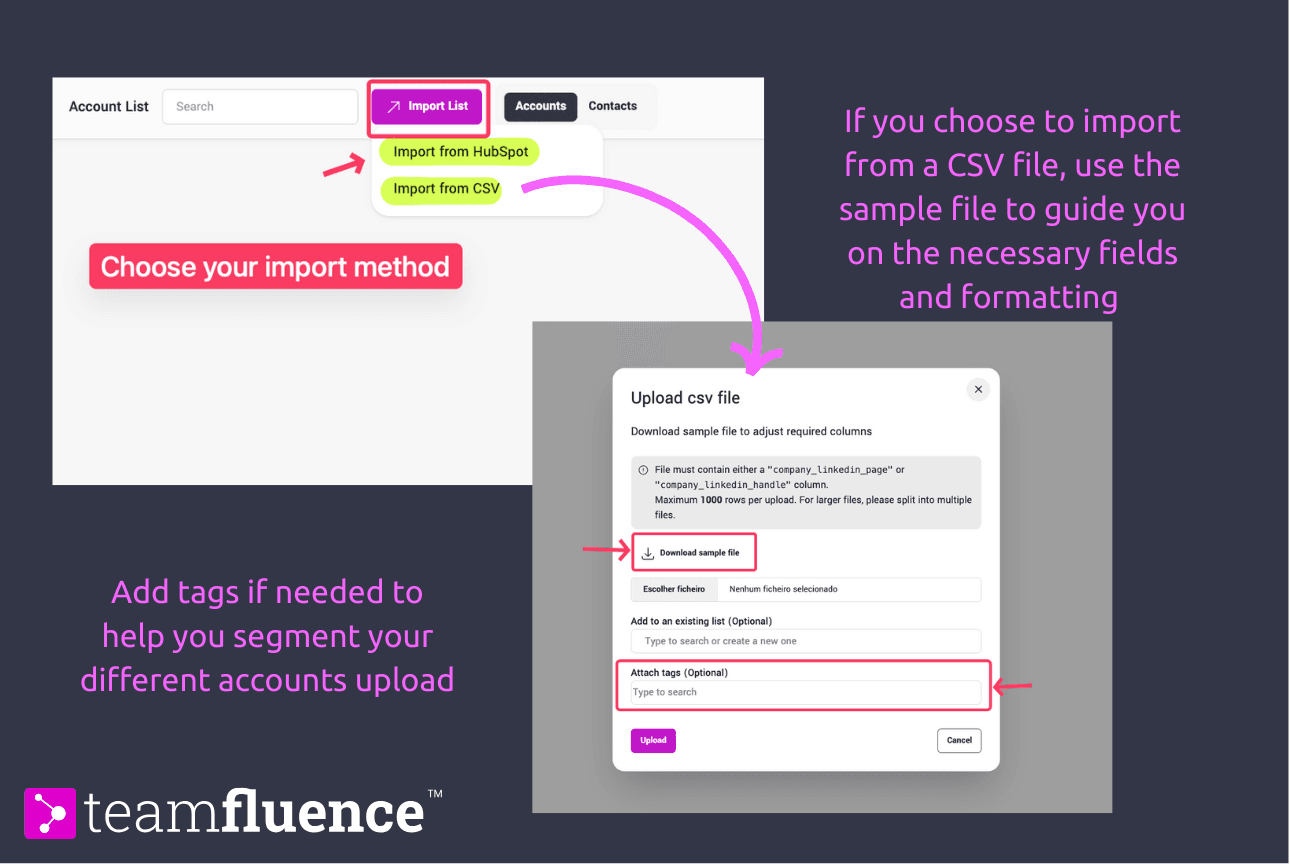
Make sure your CSV file includes the following fields for each company.
- Company Name
- Website URL
- LinkedIn URL
Additional requirements:
✔ Up to 1000 rows per upload
✔ Use the sample CSV file as a template
✔ Optional: add Tags to segment accounts (e.g., #growth-accounts)
Option B - HubSpot Integration
If your target accounts already live in HubSpot, you can import them directly.
Step-by-Step: Upload Your Target Accounts
Step 1. Go to the ABM Accounts Section
Navigate to Accounts tab in your Teamfluence Leads section.
Step 2. Choose Your Upload Method
Click on Import List. Select either:
- Upload CSV, or
- Import from HubSpot
Step 3. Add Segmentation Tags (Optional)
Tags help you organize and later filter your account lists.
Examples:
#enterprise#growth-accounts#tier1-targets
When leads match these accounts, the tags automatically carry over to the lead itself.
Step 4. Start the Upload
Upload your CSV file or confirm the HubSpot import.
What Happens After You Upload
Once you submit your file, the system begins processing your accounts. You’ll see one of the following statuses:
Processing
Teamfluence is analyzing your accounts
It identifies existing signals (past interactions)
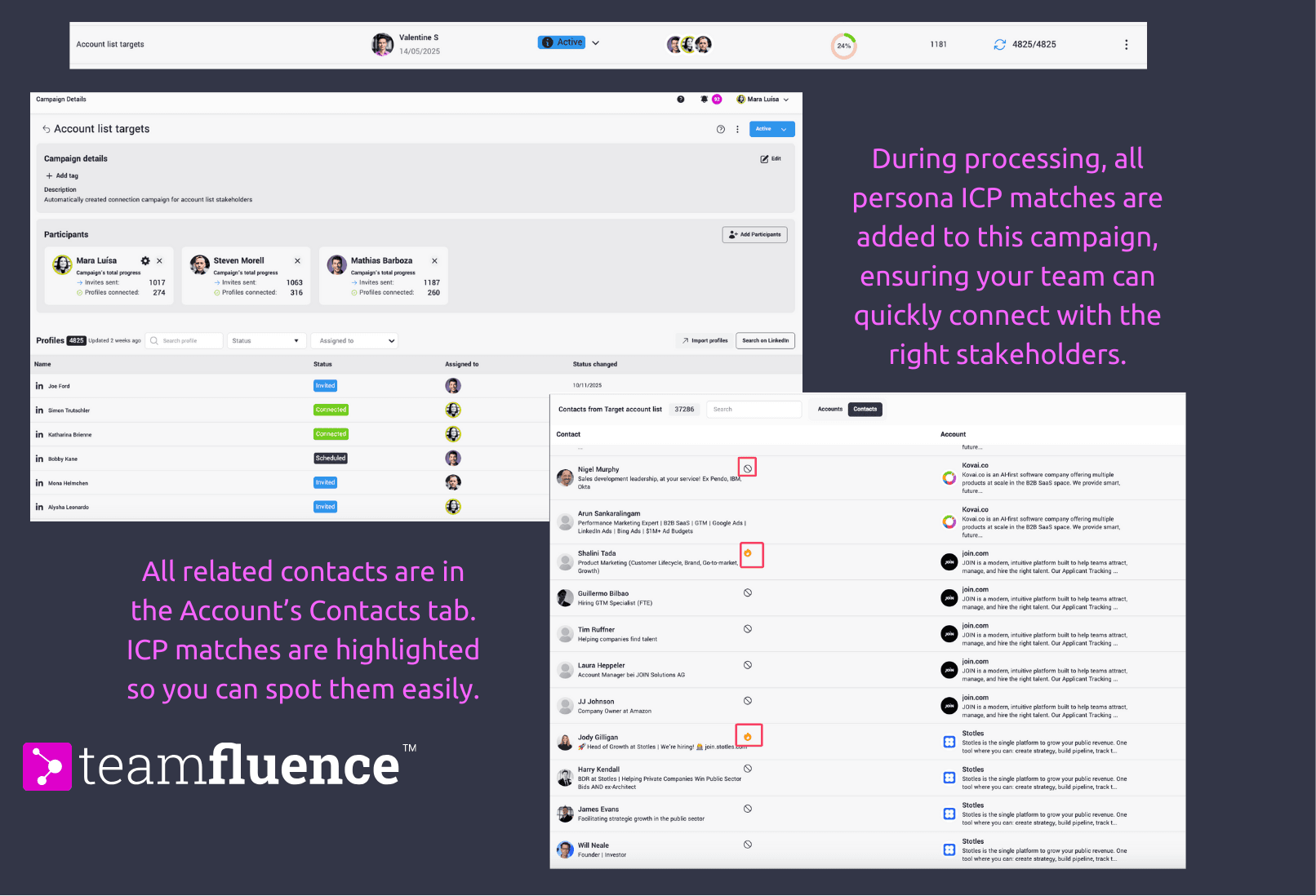
It looks for persona ICP matches
It prepares your automatic campaign "Target Account List"
Active
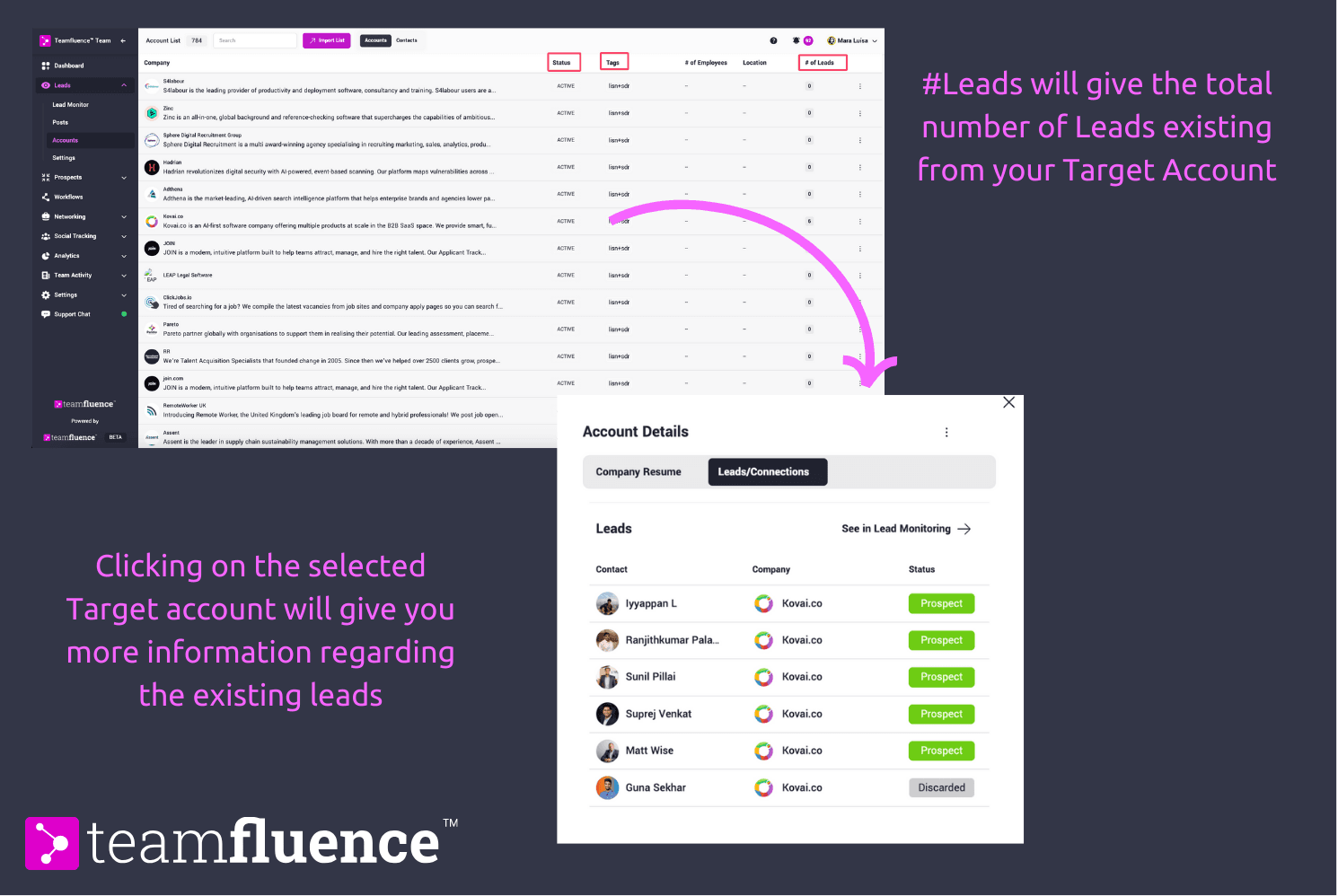
Your accounts are fully processed. You’ll now see:
Total number of leads/signals per account
Any contacts linked to your Target Accounts will be visible in the Contacts tab. ICP matches are clearly highlighted to help you identify key stakeholders.
ICP-matched personas automatically added to your Target Account List networking campaign. Based on your AI Agent persona description.
What You Can Do Once Accounts Are Active
1. Highlighted Leads from Target Accounts
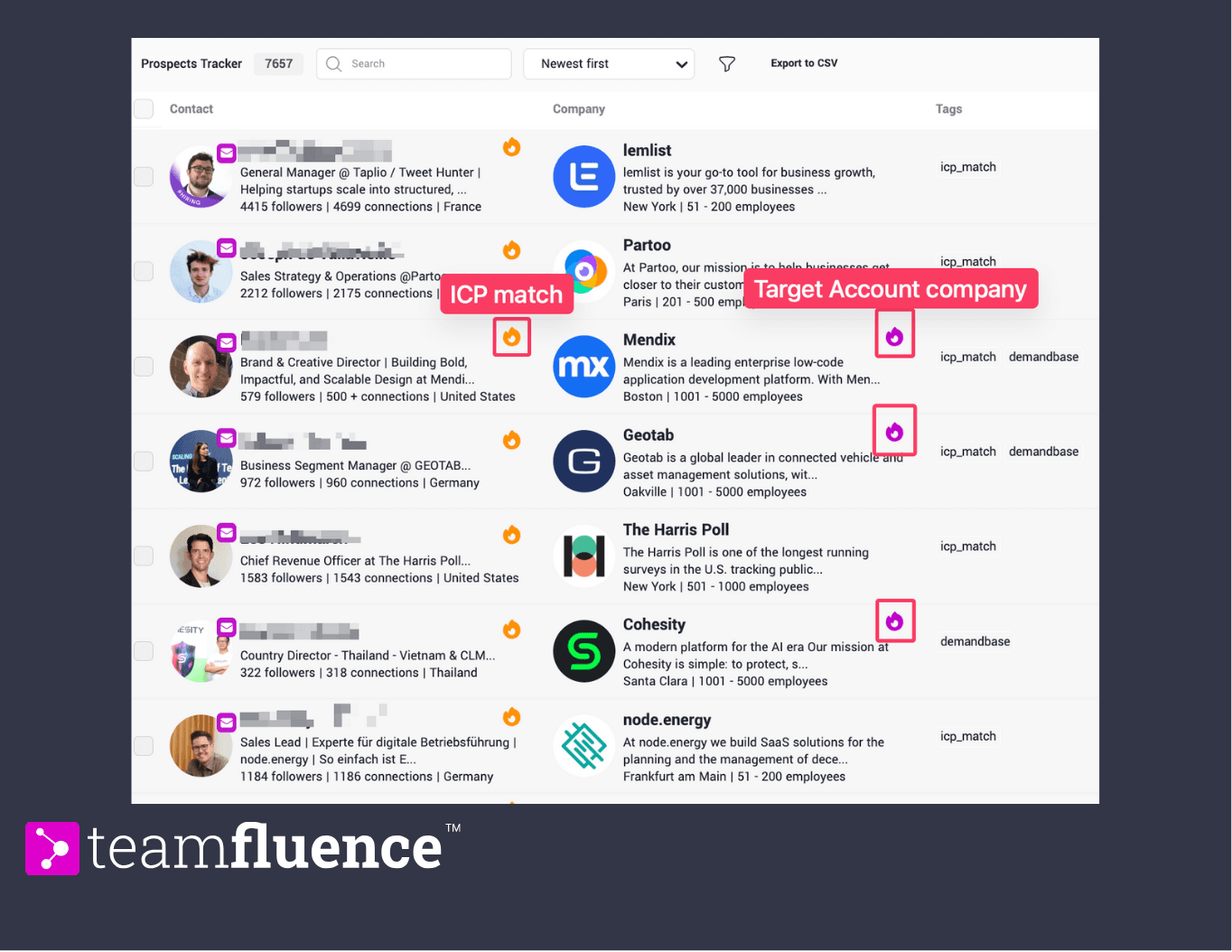
Leads from your target companies are visually marked with:
The account’s Tag
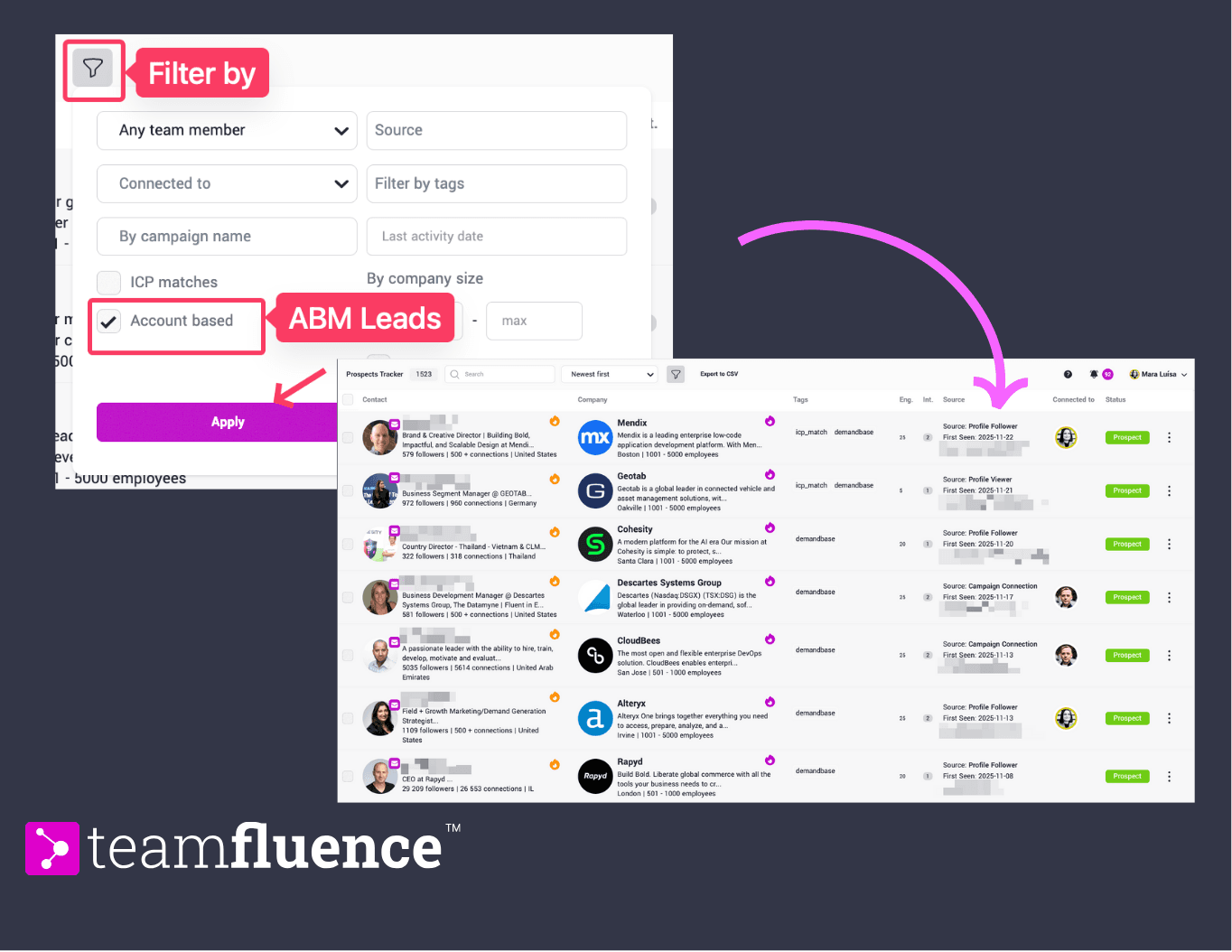
A pink flame icon in the lead monitoring view to indicate high-value activity
This makes it easier for your team to prioritize outreach.
2. Filter for Target Accounts Only
Use the lead monitoring or prospect tracker filters to switch into an “ABM-only” view or by the assigned tag, showing:
Only leads or prospects from your target accounts
Leads from specific accounts segmentation
Perfect for SDRs or marketers who need a focused daily view.
3. Surfacing Existing Signals
Teamfluence automatically surfaces any previously captured interactions from people at your target companies - so you don’t miss valuable early intent signals.