
GTM Engineer looking for the most complete social signal source? Check out our GTM Unlimited Plans
Help Center How-To

How to setup your workspace

Setting Up Your Workspace

This guide walks you through everything you need to do to get Teamfluence running for your team: installing the extension, connecting your LinkedIn account and company page, and inviting your teammates.


Step 1: Install the Chrome extension

The Teamfluence extension connects your LinkedIn account to your Teamfluence user account and workspace. It runs in the background while you use your browser daily and captures signals automatically. The extension works on any Chromium-based browser including Chrome, Edge, Brave, and Arc.

  1. Go to the Teamfluence extension page on the Chrome Web Store.
  2. Click Add to Chrome and confirm by clicking Add extension.
  3. Once installed, the Teamfluence icon will appear in your browser toolbar. If you do not see it, click the puzzle piece icon in the top right of your browser and pin the extension.

Help Article (75).png

  1. Click the extension icon and log in with your Teamfluence credentials.
  2. Open LinkedIn in the same browser. The extension will connect to your LinkedIn account automatically.
  3. Confirm the extension icon shows as connected.

The extension collects signals while your browser is open. Keep it open during working hours for best results.


Step 2: Invite your team

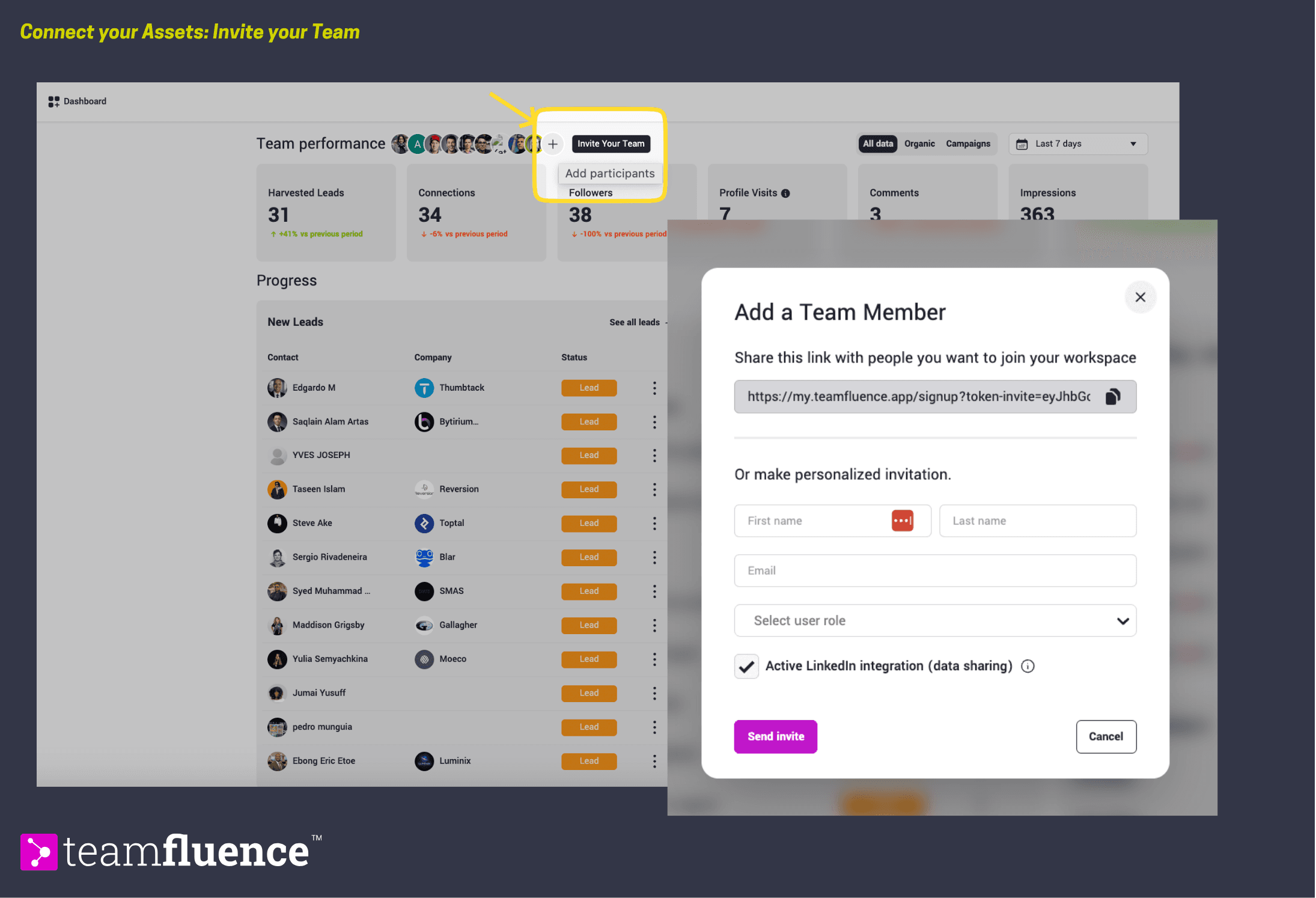
Every team member you add contributes their LinkedIn signals to your shared Lead Monitoring feed. Any workspace user can send invites.

  1. Invite from your Dashboard or go to Settings → Team Members.
  2. Click Invite Team Member → Enter their email address and click Send Invite.
  3. Or copy the invite link and share with your team.
Help Article (76).png

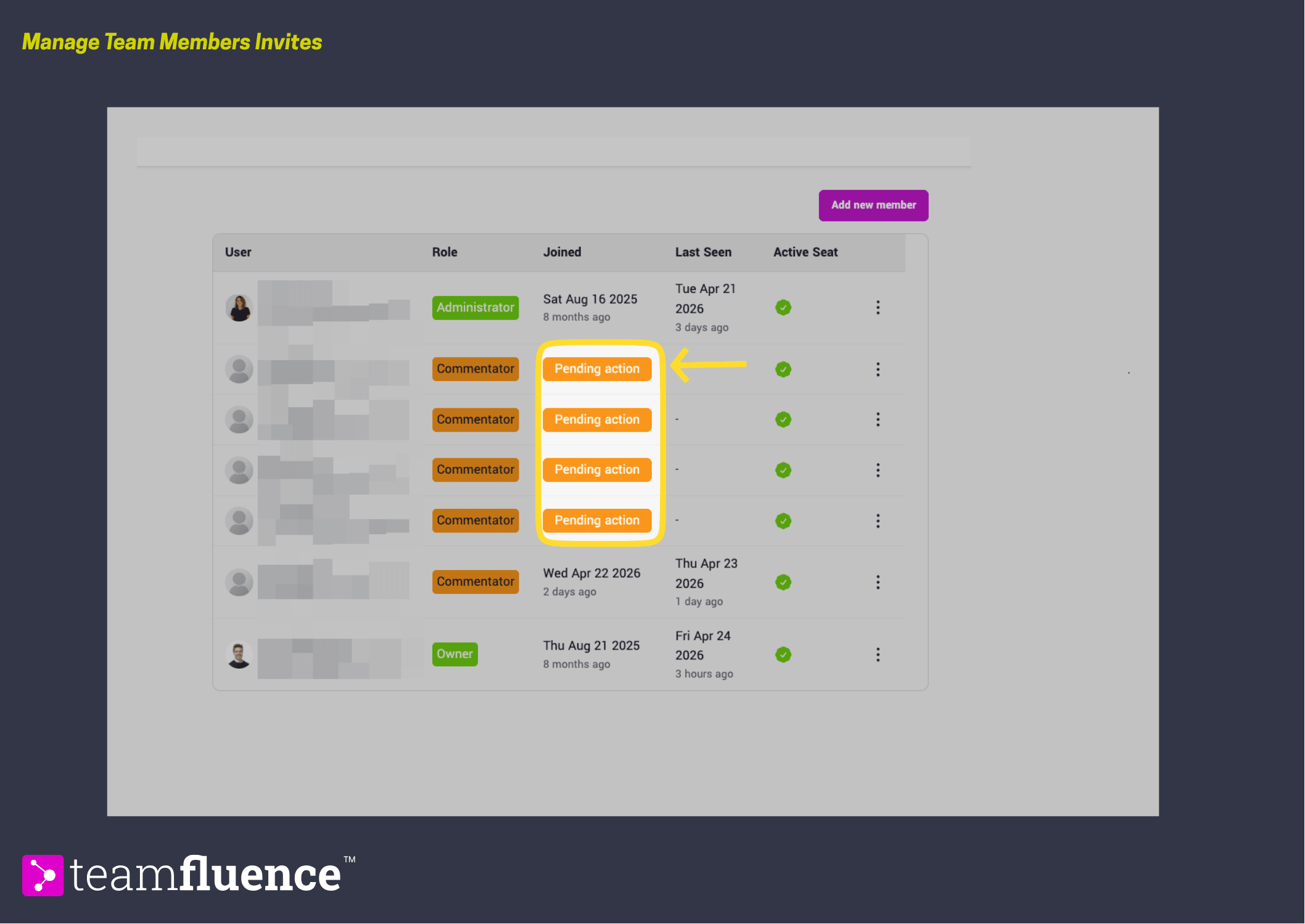
Each invited team member needs to install the extension on their own browser and connect their LinkedIn account following the same steps in Step 1. You can check who has connected their extension under Settings → Team Members. Users with a pending connection are shown separately from active users.
Help Article (77).png


Step 3: Connect your company page

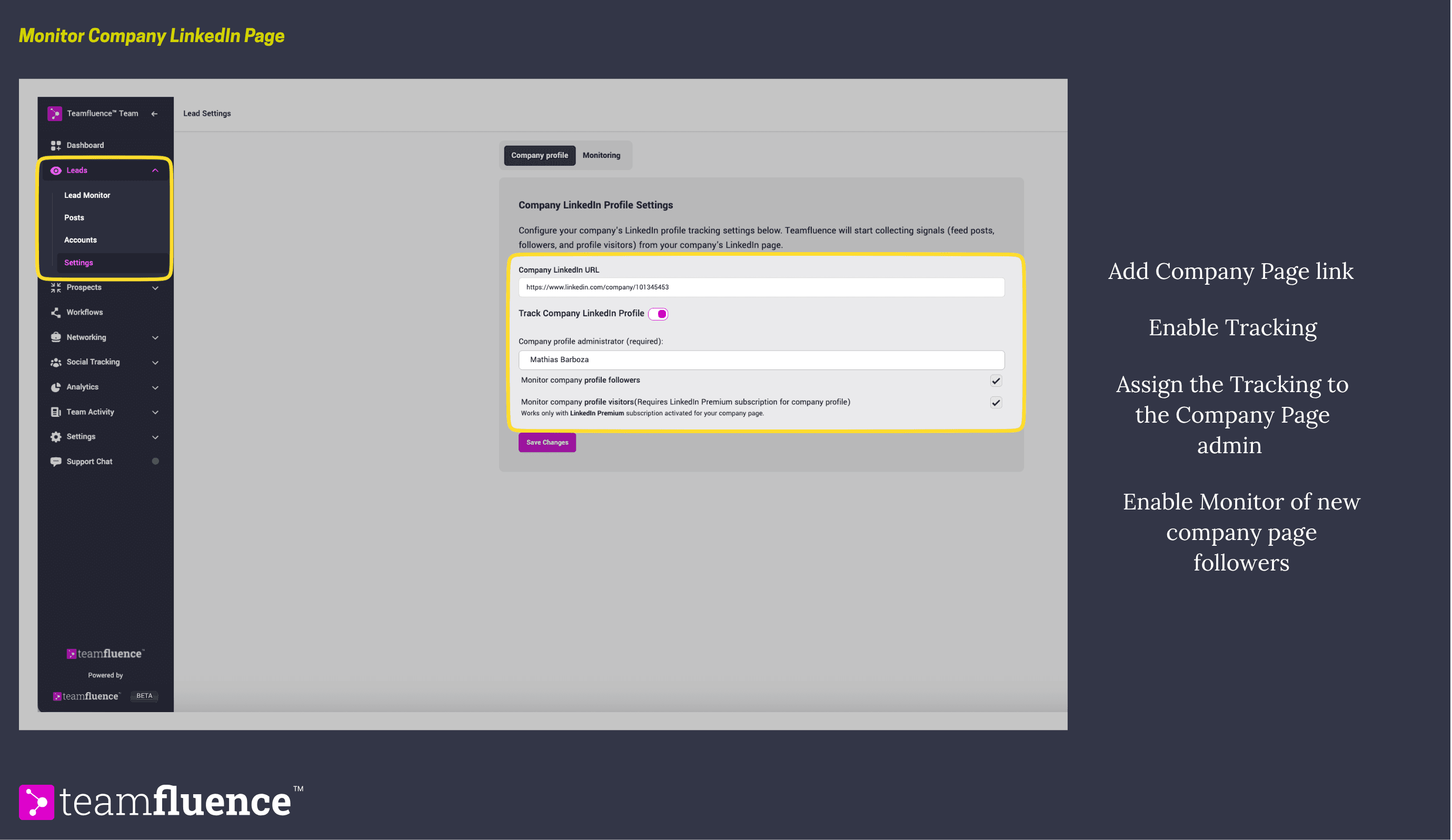
Connecting your LinkedIn company page adds company page signals to your Lead Monitoring feed: page viewers, new followers, and engagement on your company's posts.

  1. Go to Leads → Settings
  2. Add the company page link. Enable the tracking
  3. You must be a LinkedIn admin of that page to connect it. Or have a team member who's a page admin that you can assign the tracking to.
Help Article (78).png

Company page signals will start appearing in Lead Monitoring alongside your individual profile signals.


What happens next

Give it a couple of hours after setup and then check Lead Monitor. You should start seeing signals appear as your team's LinkedIn activity is captured. The recommended next steps are:

  • Define your ICP so Lead Monitoring can start scoring leads.
  • Set up your first workflow to route ICP matches automatically.
  • Upload your ABM account list if you are running account-based outreach.

Troubleshooting

  • Extension icon is not visible Click the puzzle piece icon in your browser toolbar, find Teamfluence in the list, and click the pin icon. Extension shows as disconnected Click the extension icon and log in again. Make sure you are logged in to LinkedIn in the same browser.

  • No signals appearing after 48 hours Check that the extension shows as connected and that your browser is being opened regularly.

  • Does LinkedIn need to be open for signals to sync? No. The Chrome extension preserves your session cookies and can run background checks even when the LinkedIn tab is closed. Your browser just needs to be open.

  • Staying authenticated We recommend logging in to my.teamfluence.app at least once a week. This preserves the authentication between the Chrome extension and the web app and helps prevent your credentials from expiring.

How to Set Up the AI Agent How to build a workflow How to Upload your ABM Accounts