
Connect Teamfluence to Your Sales Processes
Description
Webhooks allow you to automate workflows by notifying external systems whenever changes occur in Teamfluence. You can use preconfigured webhooks to update your system or trigger actions when events happen, such as new connection or a newly engagement on a post.
Webhooks support any external URLs that accept POST data via HTTP requests. You can integrate them with automation tools like Make.com, Zapier, or n8n, or configure your own server for direct handling.
Plan Requirements:
- Direct Webhooks: Available on all plans
- Workflows with Webhooks: Available on Economy and Business plans (not available on GTM Unlimited)
Understanding Webhook Events vs. Workflow Triggers
Teamfluence offers two methods to work with webhooks, and each has its own set of available events:
Available Workflow Triggers (Method 1)
When using Workflows with “Fire a Webhook” action, you can trigger automations based on these events:
Lead & Prospect Triggers:
- New Prospect – Lead moved to Active/Prospect status
- New Lead – Any new lead
- New Engagement from Existing Lead – Existing lead has new interaction
- New Tag was added to a Lead – Tag assigned to lead
Profile & Connection Triggers:
- New Profile Visit – Someone viewed team member's profile
- New Profile Follower – Someone followed team member's profile
- New Campaign Connection Request Accepted – Campaign connection accepted
- Connection Request Accepted (excl. campaigns) – Organic connection accepted
Content Engagement Triggers:
- Team Member Post Reaction – Reaction on team member's post
- Team Member Post Comment – Comment on team member's post
- Team Member Comment Reaction – Reaction on team member's comment
- Team Member Comment Comment – Reply to team member's comment
Company Page Triggers:
- New Company Page Follower – Someone followed company page
- New Company Page Visit – Someone visited company page
- Reaction on Company Post – Reaction on company's post
- Comment on Company Post – Comment on company's post
Tracked Content Triggers:
- Tracked Post Reaction – Reaction on monitored post
- Tracked Post Comment – Comment on monitored post
Total: 18 workflow triggers available
Available Direct Webhook Events (Method 2)
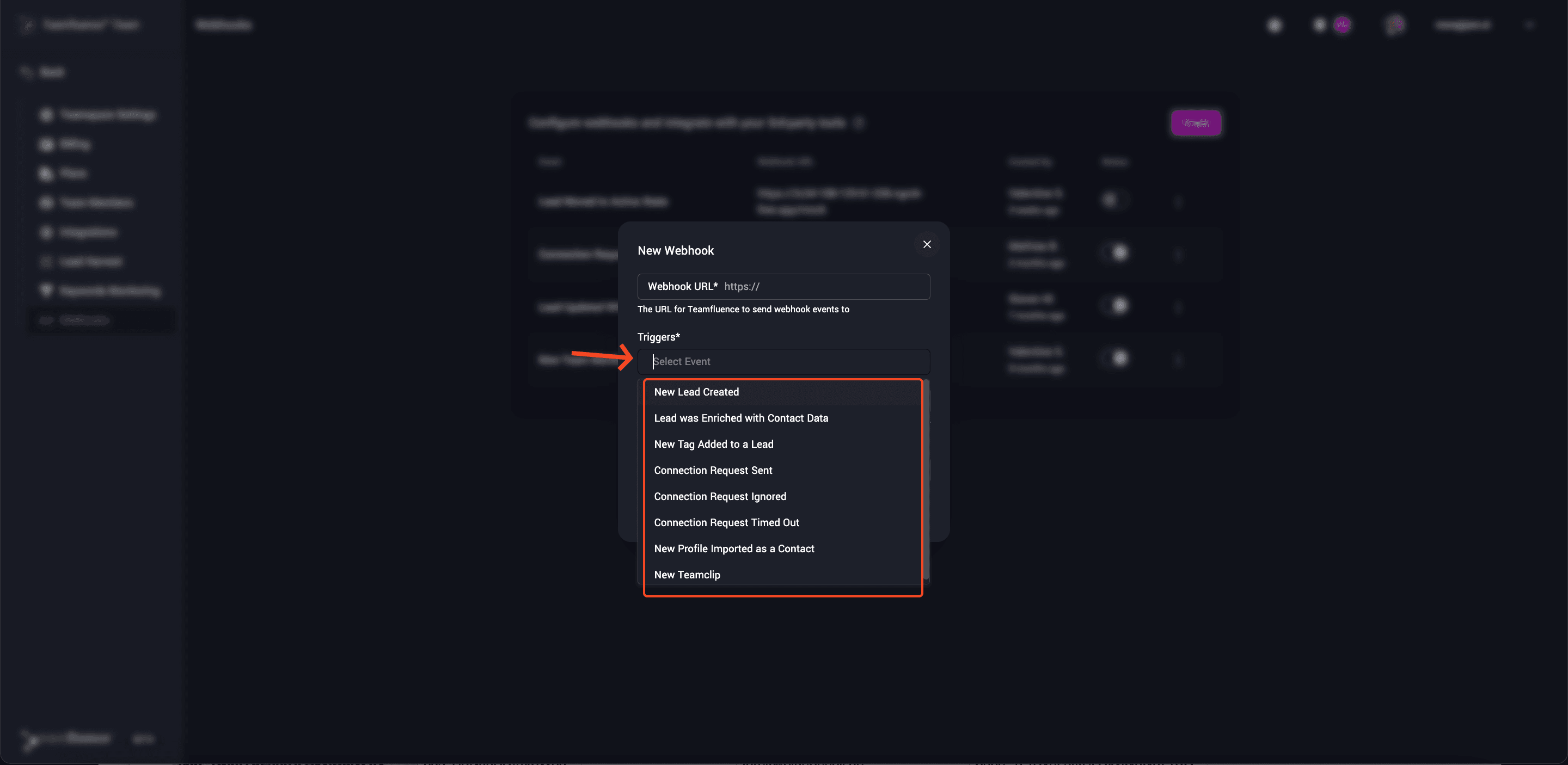
When configuring Direct Webhooks in Settings → Webhooks, you can subscribe to these events:
- A new lead was created – Any new lead created in the system
- The lead status changed to active – Lead moved to Active/Prospect status
- New engagement from existing lead – An existing lead has a new interaction
- A new account-based lead was created – New lead from your ABM target list
- A tag was added to a lead – A tag was assigned to a lead
- Campaign connection request accepted – A networking campaign connection was accepted
- Campaign connection request was sent – Connection request sent via campaign
- Lead was enriched with an email/phone number – Lead email/phone data added
- A post was bookmarked using Team Clip – Post added to Team Clips
Total: 9 direct webhook events available
Note: Direct webhook events execute in sequence for lead-related activities. For example, email enrichment happens after lead activation, ensuring you receive data in a logical order.
Comparison: Workflows vs. Direct Webhooks
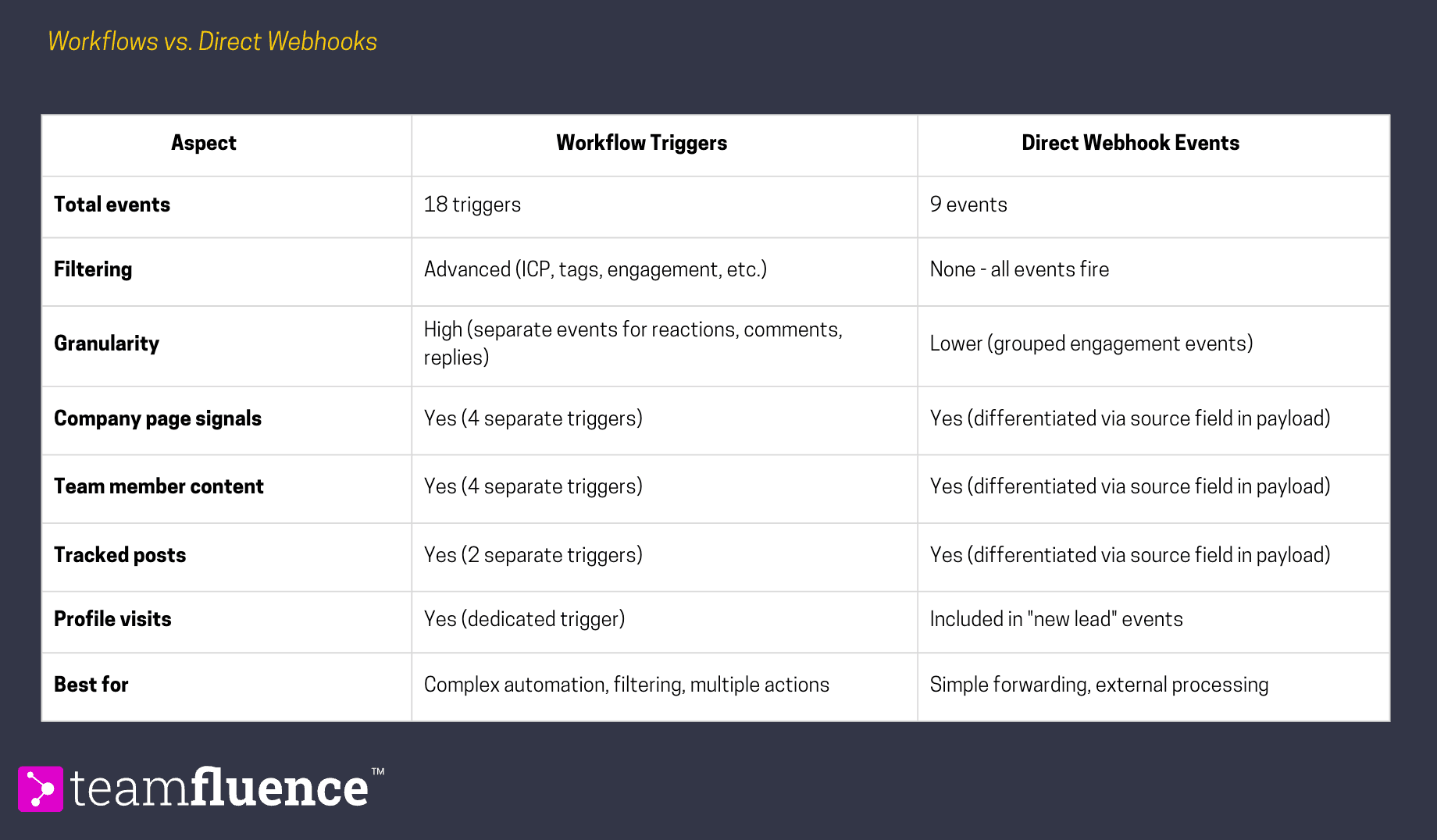 Need more events? At the workflow page you should find a link to Share Feedback where you can add the aditional triggers and actions you need.
Method 1: Setting Up Webhooks via Workflows (Recommended)
The Workflows feature provides a more powerful and flexible way to fire webhooks with advanced filtering and conditional logic. This is the recommended approach for most use cases.
Note: Workflows are available on Economy and Business plans. GTM Unlimited is a webhook-only edition and does not include access to the Workflows feature.
Fire Webhook Action in Workflows
Step 1: Navigate to Workflows
- Go to Workflows in your Teamfluence sidebar
- Click Create New Workflow or select an existing workflow to edit
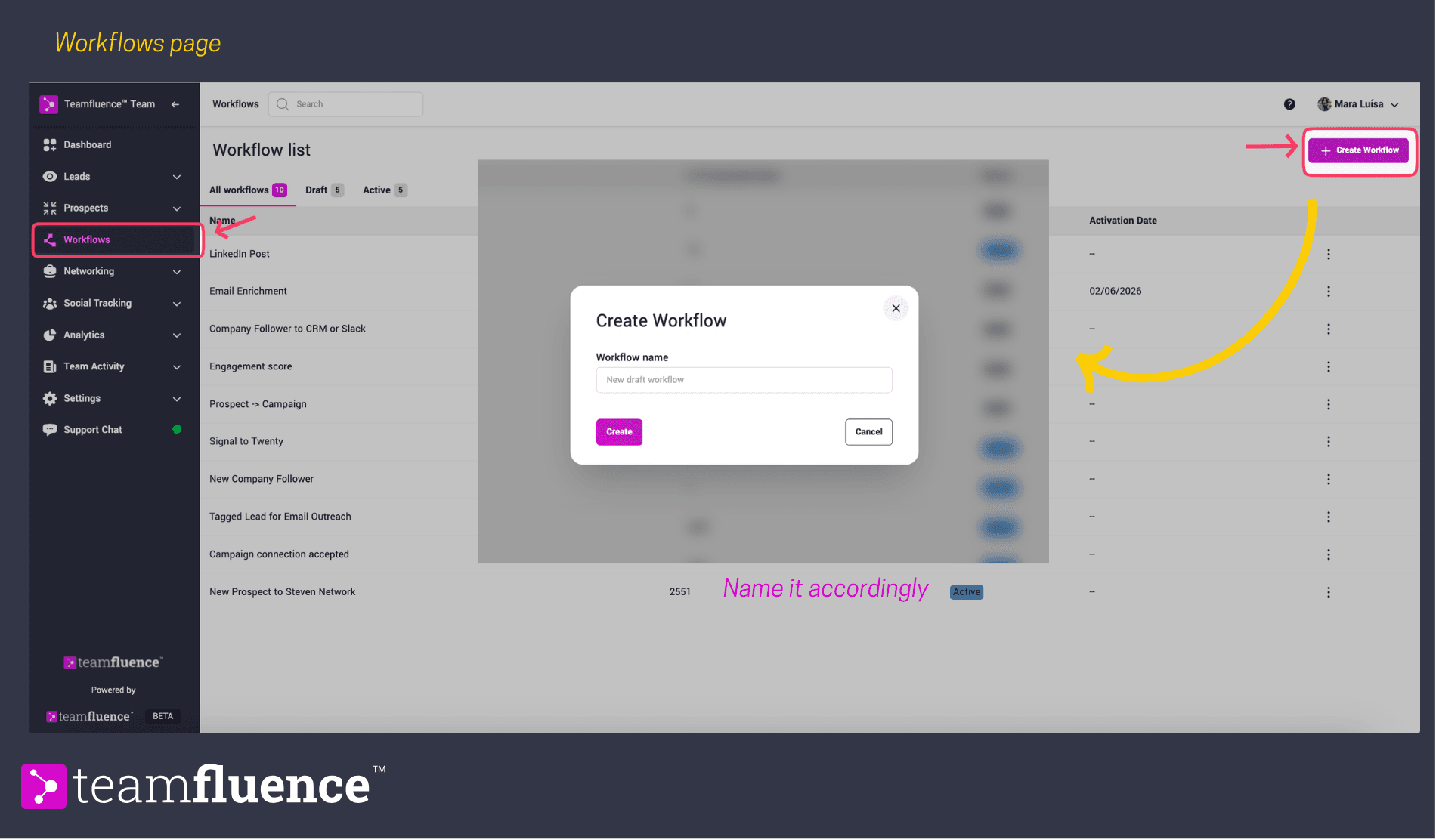
Step 2: Select Your Trigger Event
Choose the trigger that will start your workflow (Lead & Content Trigger, Company Page Trigger, etc)
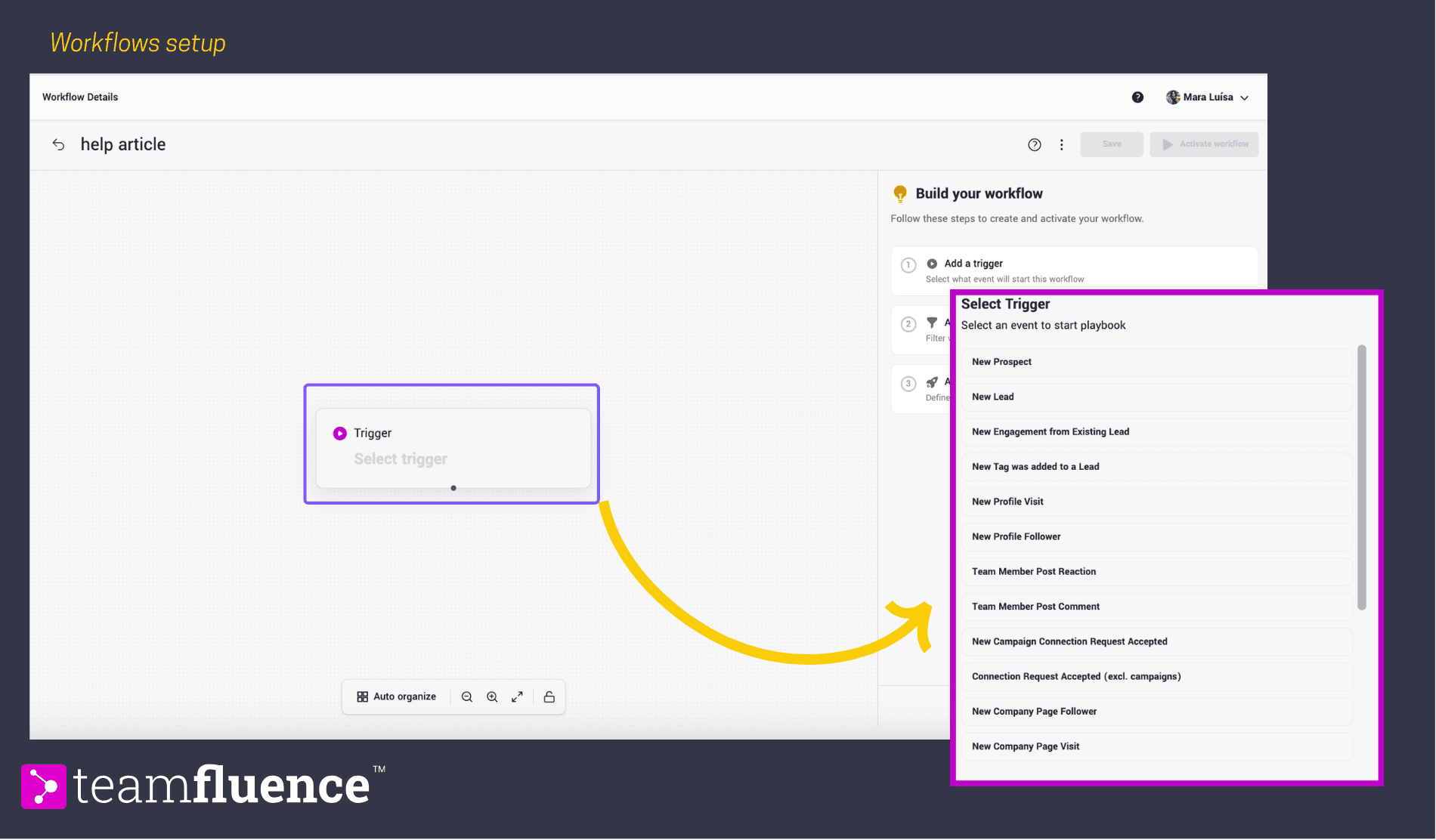 Example: If you want to start with Company Page Followers
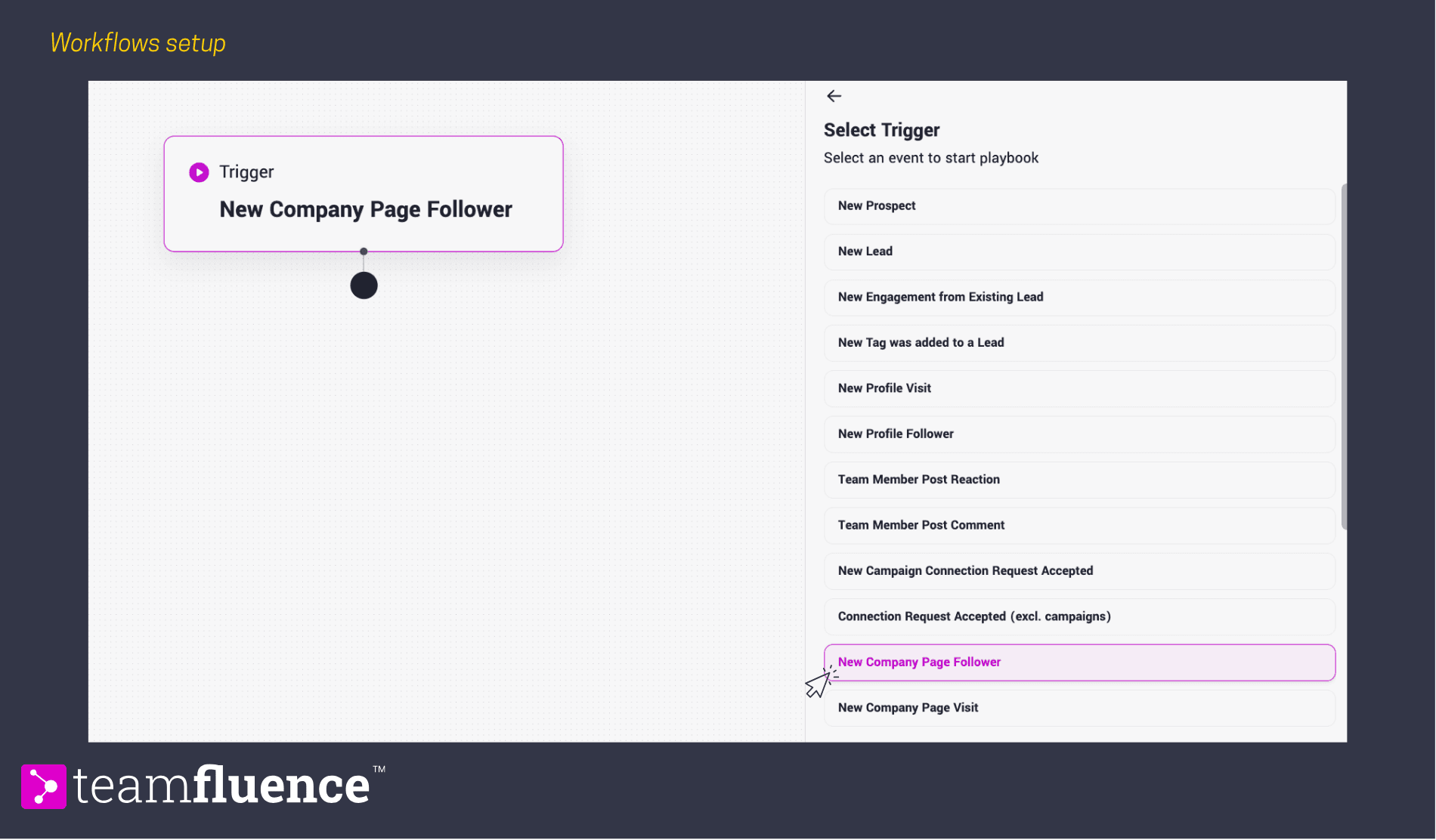
Step 3: Add Filters (Optional but Recommended)
Click Add Next Step and select Add Filter to refine which leads trigger the webhook.
Available filters include:
- ICP Match – Only send leads that match your Ideal Customer Profile
- Team Member Connected – Filter by connection status with specific team members
- Engagement Score – Filter by engagement level
- Lead Stage – Filter by qualification status
- Source – Filter by interaction type (profile visit, post engagement, etc.)
- Has Tag – Filter by specific tags
You can combine multiple filters. Currently, all filter conditions work on AND logic (all must be true).
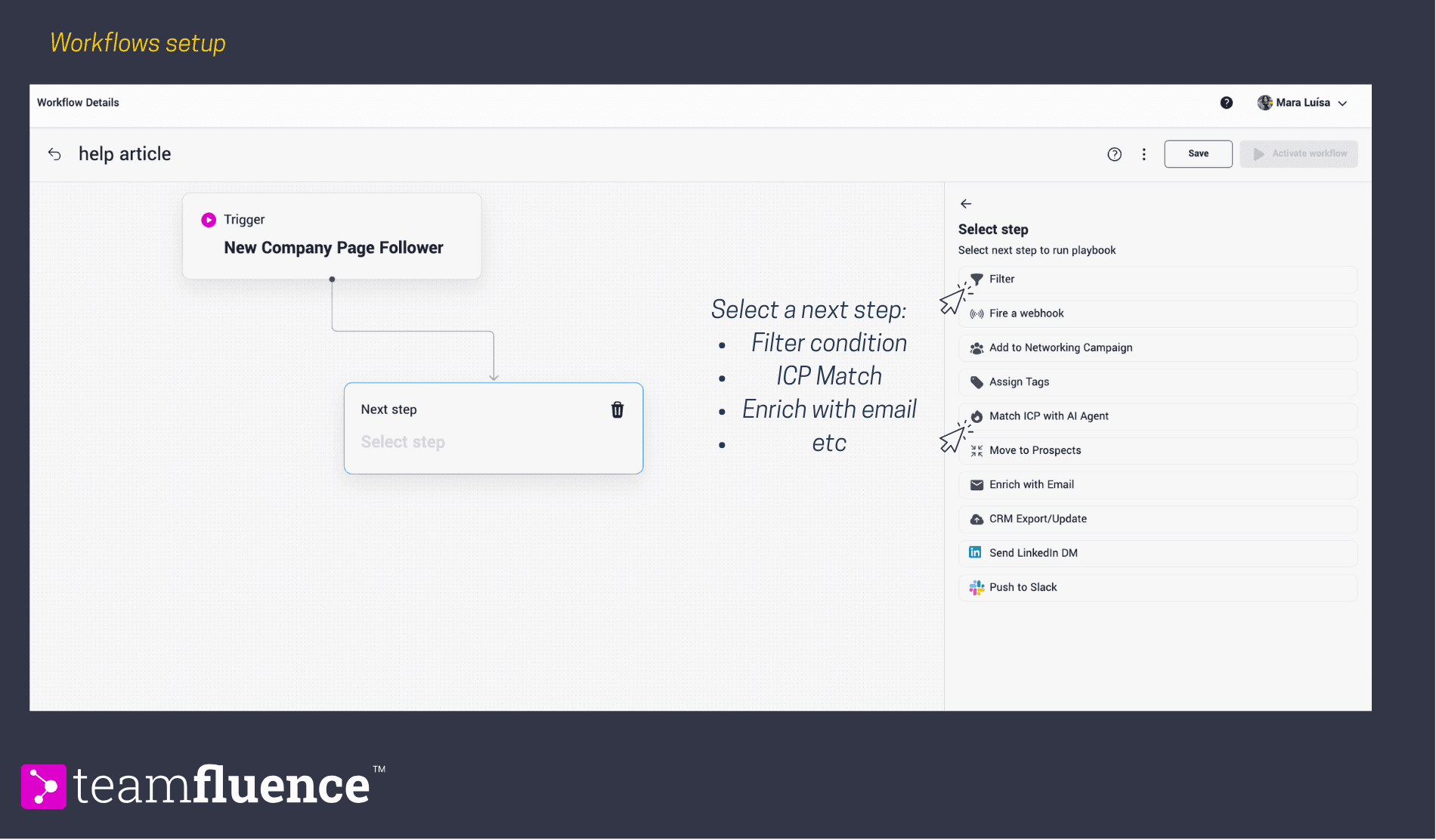
Example: Company Page Follower & ICP Match
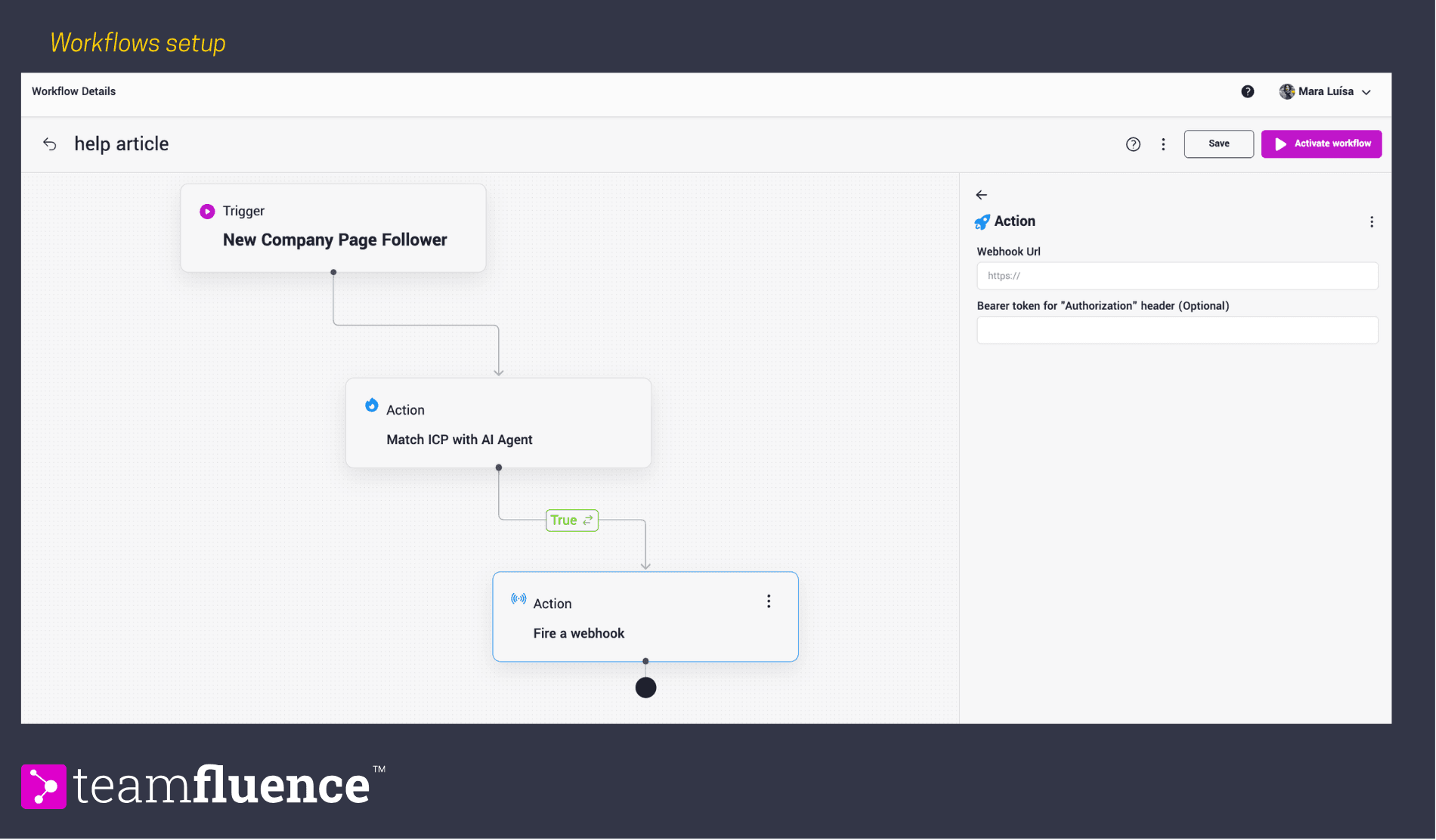
Step 4: Add the Fire Webhook Action
- After your trigger (and optional filters), click Add Next Step
- Select Fire Webhook from the available actions
- Enter your Webhook URL (from Make.com, Zapier, n8n, or your custom endpoint)
Important: Your webhook URL should accept POST requests with JSON data.
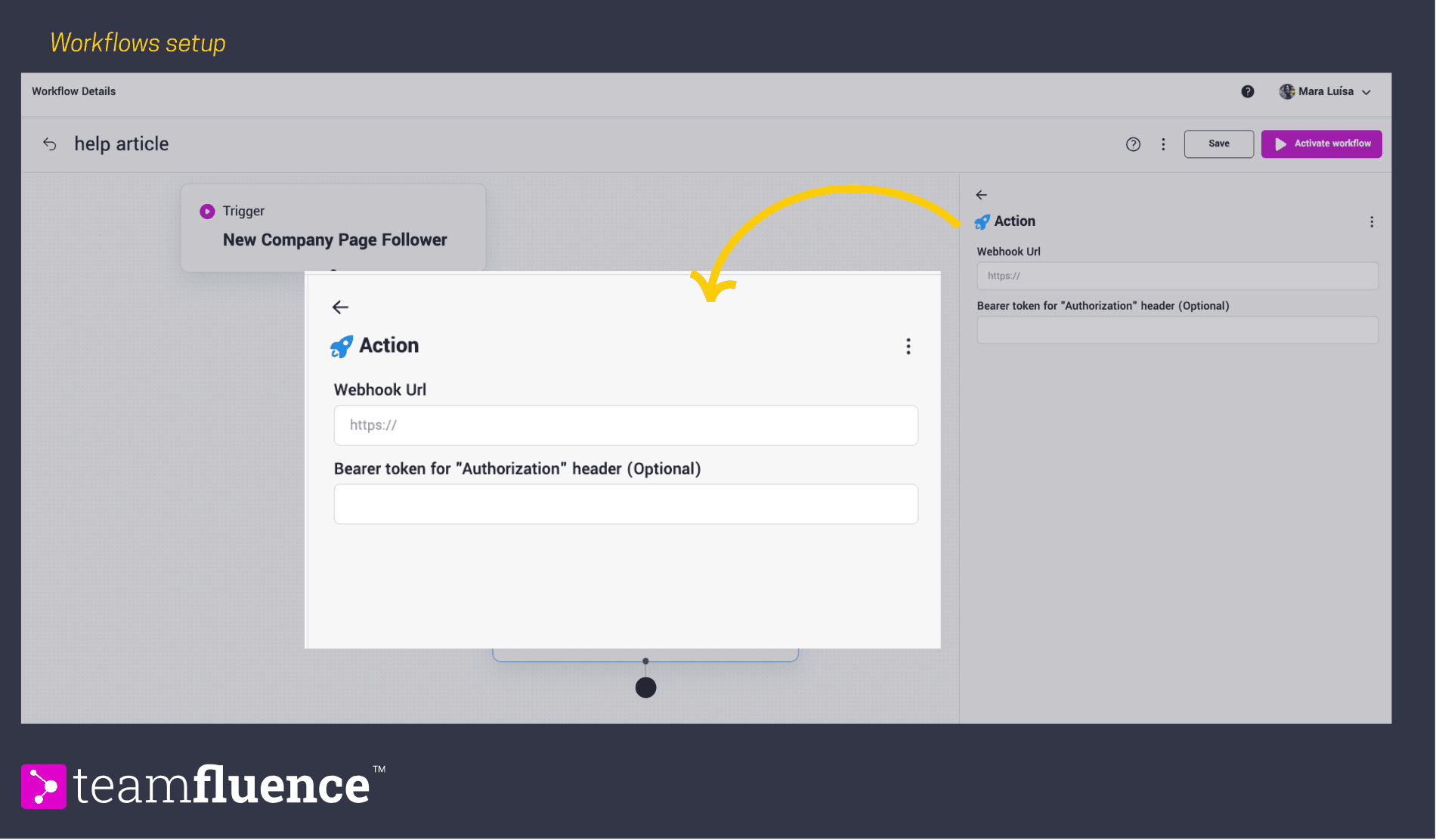
Step 5: Test Your Workflow
- Click the three dots (⋮) next to your workflow
- Select Test Run
- This sends sample data to your webhook URL so you can verify the payload structure
Tip: In Make or Zapier, use the "Redetermine Data Structure" or "Test Trigger" feature to capture the test payload and configure your subsequent automation steps.
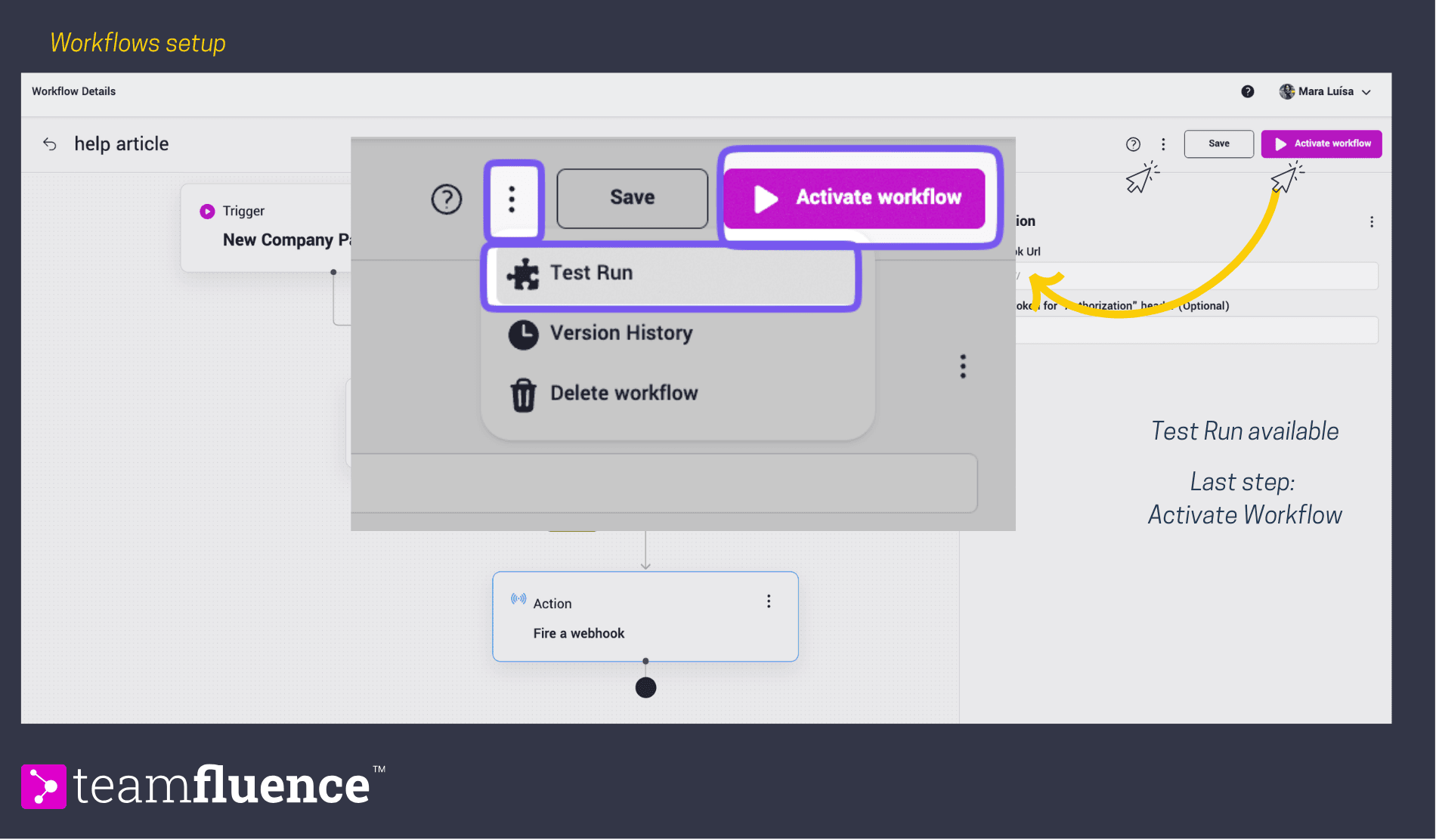
Step 6: Activate Your Workflow
- Toggle the workflow to Active
- Your webhook will now fire automatically when the trigger conditions are met
Method 2: Direct Webhook Configuration
For simpler use cases without filtering requirements, you can configure webhooks directly in Settings. This method is also the primary approach for GTM Unlimited customers who have onlly access to webhooks
Configuring a Webhook
(Example: Make.com)
Step 1: Start a New Pipeline
Begin by creating a new pipeline or scenario with a Webhook entry block.
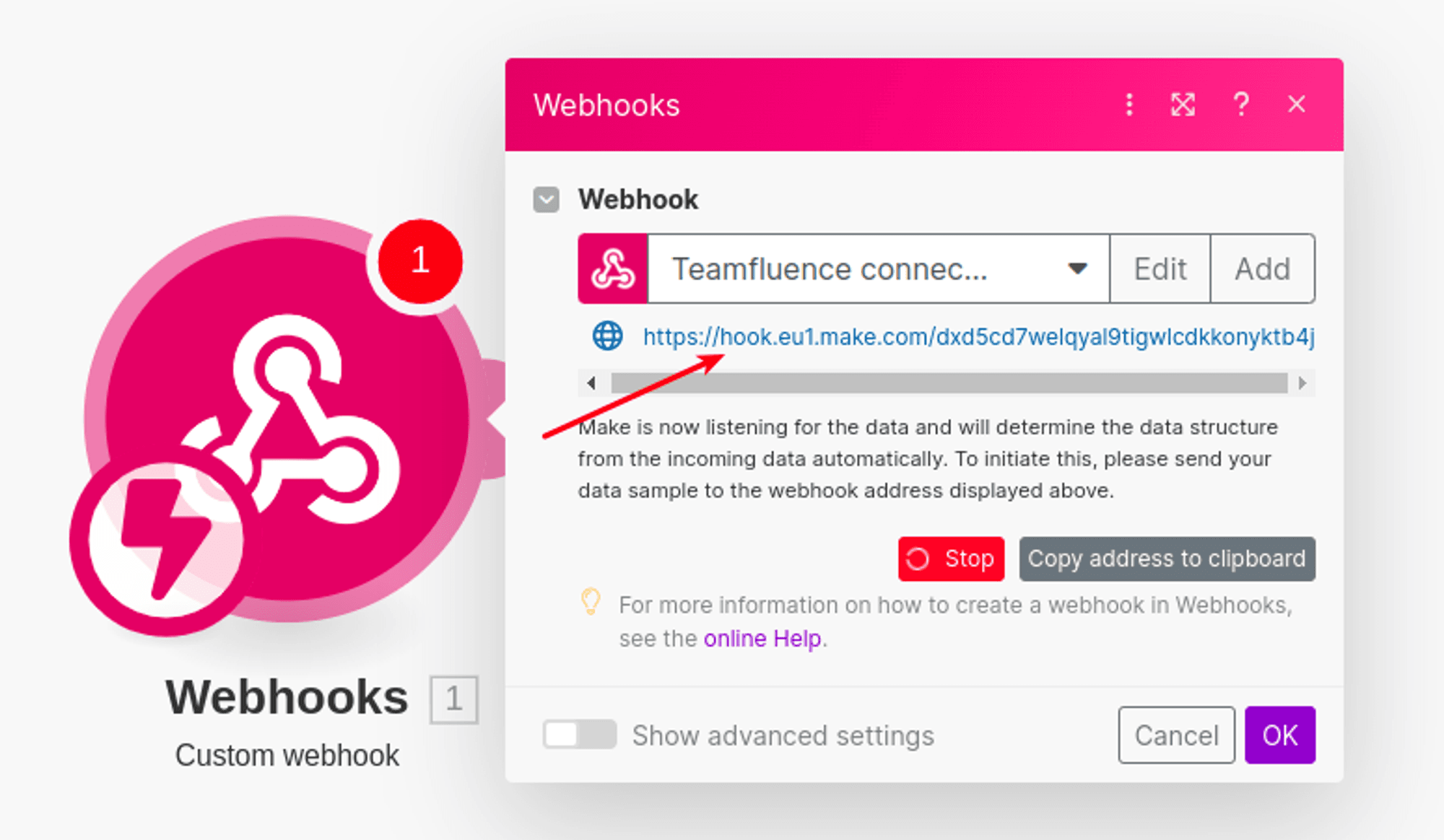
Step 2: Obtain a Webhook URL
- Generate a custom webhook URL from your automation tool (e.g., Make.com).
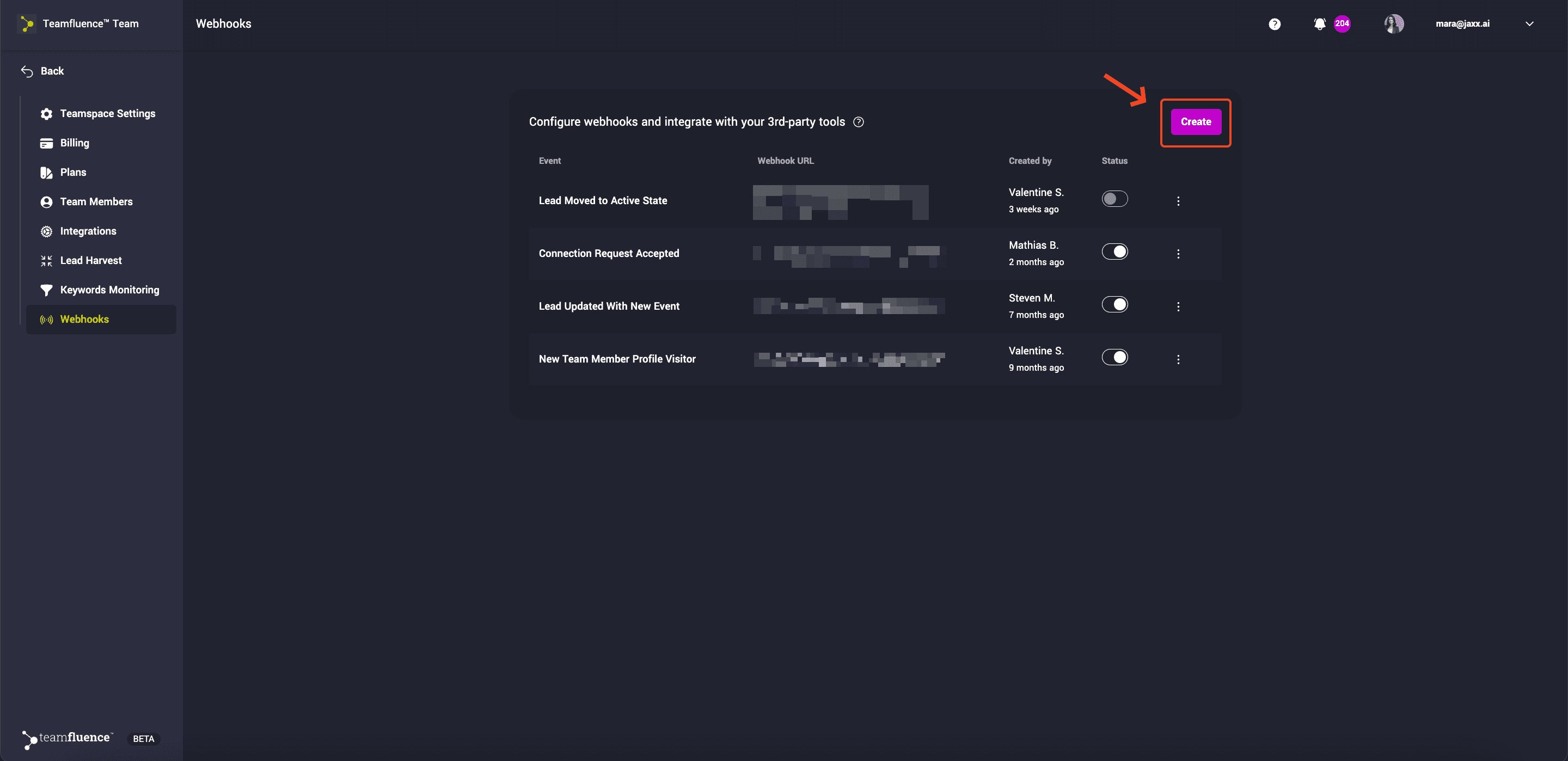
- Go to Users & Settings → Webhooks in Teamfluence.
- Click Create and enter your webhook URL.
- Select the event trigger to determine which data is sent.
Step 3: Test the Webhook
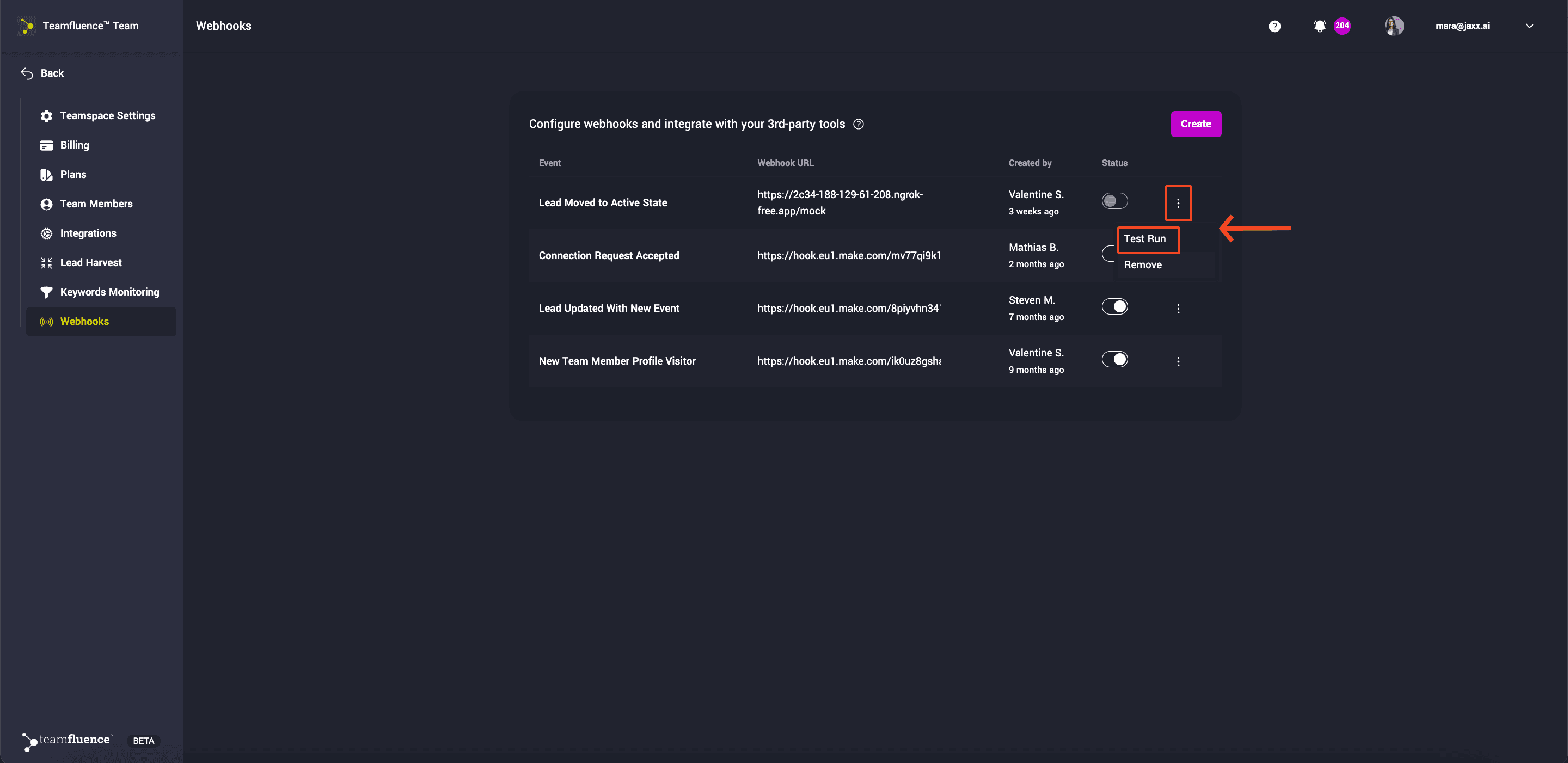
- Save the webhook configuration.
- Use the Test Run button in the context menu to send sample data to the webhook URL.
- On Make.com, use the Redetermine Data Structure button to listen for incoming webhook calls.
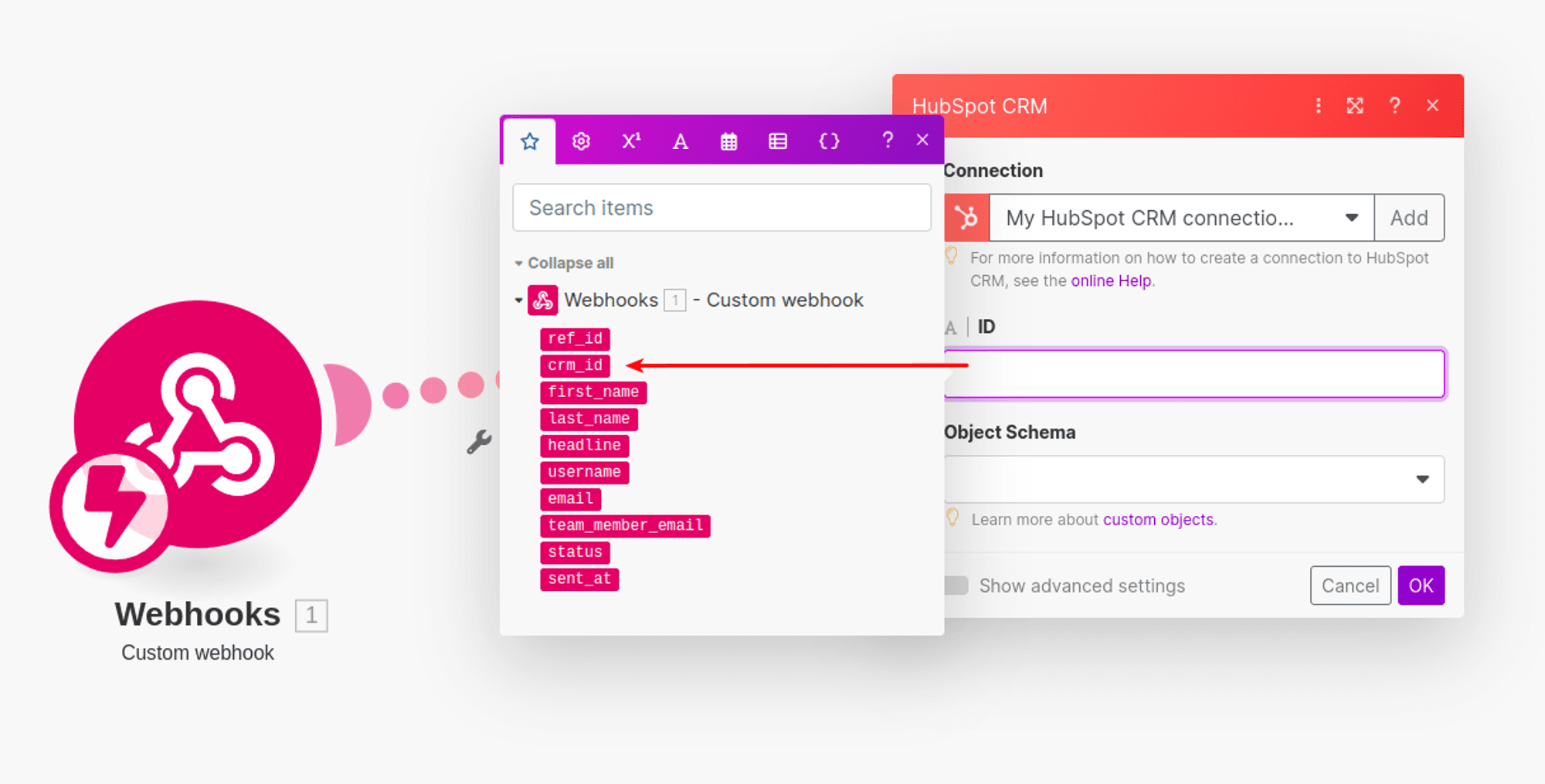
- Once received, pass the data to your preferred destination (e.g., updating an object in HubSpot).
Lead harvest webhooks execution order
When multiple direct webhook events are configured for the same lead, they execute in this order:
- A new lead was created
- A new account-based lead was created (if applicable)
- The lead status changed to active
- Lead was enriched with an email/phone number
- New engagement from existing lead
This ensures you receive lead data in a logical sequence, with enrichment happening after qualification.
Sample webhook data
New lead created / Lead Moved to Active / Lead Engaged in a New Event / Lead was enriched with email/phone number
lead_sample = {
    "id": "AZDjcYMguC0Py9oA",
    "crm_id": "f67b4018-436d-408d-95Bf-485c3001fc1A",
    "first_name": "Shawn",
    "last_name": "Spencer, MBA",
    "headline": "Accomplished psychic professional with extensive experience",
    "username": "shawn-psychic",
    "linkedin_url": "https://www.linkedin.com/in/shawn-psychic/",
    "email": "[email protected]",
    "team_member_email": "[email protected]",
    "source": "Profile Viewer",
    "source_content_url": "https://www.linkedin.com/pulse/3-great-leadership-lessons-from-psych-john-ross-phd-mba/",
    "latest_engagement_event": "Engaged with John's comment",
    "stage": "qualified",
    "tags": ["icp", "email_sent"],
    "engagement_events_count": 4,
    "engagement_score": 35,
    "connection_strength": 2,
    "picture": "https://m.media-amazon.com/images/M/MV5BMTkyOTYzNTk4Ml5BMl5BanBnXkFtZTgwNDQ4NDY2MjE@._V1_.jpg",
    "followers_count": 40619,
    "connections_count": 5034,
    "country": "United States",
    "feed_updated_at": "2024-06-12T20:39:30Z",
    "created_at": "2024-06-13T14:49:55Z",
    "company": {
        "name": "Psych",
        "updated_at": "2024-06-12T20:39:30Z",
        "id": 1103,
        "picture": "https://i.ytimg.com/vi/Gv5RrHrBev4/maxresdefault.jpg",
        "employees_num_max": 200,
        "country": "United States",
        "company_type": "Non Profit",
        "description": "Psychic Investigations",
        "urn": "2000",
        "slug": "psych",
        "created_at": "2024-06-13T14:58:43Z",
        "employees_num_min": 2,
        "headquarters": "Santa-Barbara",
        "website_url": "http://psych.com",
        "founded_year": 1980,
        "industries": ["Investigations"],
        "specialties": [],
        "linkedin_url": "https://www.linkedin.com/company/psych/",
    },
    "history": [
        {
            "id": "dpvHhAbrAnSHpZ38",
            "event_type": "LINKEDIN_POST_ENGAGEMENT",
            "description": "Engaged with Steven Morell's post",
            "post_url": "https://www.linkedin.com/feed/update/urn:li:activity:7220042202905804801/",
            "created_at": "2024-07-25T19:22:56+0000",
        },
        {
            "id": "dpvHhtM1AnSHpZ38",
            "event_type": "LINKEDIN_PROFILE_VIEWER",
            "description": "Visited Mike's profile page",
            "created_at": "2024-07-22T19:22:56+0000",
        },
        {
            "id": "QdK3d8ucaPyKgLRB",
            "event_type": "LINKEDIN_PROFILE_VIEWER",
            "description": "Visited Jenna's profile page",
            "created_at": "2024-07-18T07:31:45+0000",
        },
        {
            "id": "w06cNASAhl9MuWwm",
            "event_type": "LINKEDIN_COMMENT_ENGAGEMENT",
            "description": "Engaged with John's comment",
            "comment_url": "https://www.linkedin.com/feed/update/urn:li:activity:7220042202905804801?commentUrn=urn%3Ali%3Acomment%3A%28activity%3A7220042202905804801%2C7220058977865273344%29&dashCommentUrn=urn%3Ali%3Afsd_comment%3A%287220058977865273344%2Curn%3Ali%3Aactivity%3A7220042202905804801%29",
            "created_at": "2024-07-25T20:22:56+0000",
        },
    ],
}
crm_id - The object ID from the CRM system will be shown if the lead was synced to your contacts prior to the webhook event.
username - LinkedIn profile slug/handle.
linkedin_url - LinkedIn profile URL.
email - optional LinkedIn profile contact email (only guaranteed in “Lead was enriched with email/phone number” webhook, which always fires after the “Lead status changed to Active” webhook).
source - one of the following options:
- Profile Viewer
- New connection
- Campaign Connection
- Post Reaction
- Commented on Post
- Tracked Post Reaction
- Commented on Tracked Post
- Commented on Company page Post
- Reacted to a Company page Post
- Visited Company page
- Followed Company page
- Comment Reaction
- Comment on comment.
source_content_url - optional LinkedIn content URL if lead was sourced from content engagement.
stage - legacy name of lead status: new, qualified (Active), disqualified
engagement_events_count - a number of engagement events between the lead and your team (profile visits, new connections, content reactions).
engagement_score - internally calculated score based on engagement event types.
connection_strength - number of team members connected to the lead.
latest_engagement_event - description of the latest engagement events corresponding to history last entry.
feed_updated_at - last known personal feed update timestamp from the lead.
Connection Request Sent
{
   "ref_id": "jiBuu1vU5dy7QbjB",
   "crm_id": "R9mccdj3OWqALMGCS5JMhO3auhgTtmSZ",
   "first_name": "Frankie",
   "last_name": "Adams",
   "headline": "SDR at The Expanse",
   "status": "sent",
   "sent_at": "2024-03-11T11:08:42Z"
}
Connection Request Accepted
{
   "ref_id": "jiBuu1vU5dy7QbjB",
   "crm_id": "R9mccdj3OWqALMGCS5JMhO3auhgTtmSZ",
   "first_name": "Frankie",
   "last_name": "Adams",
   "headline": "SDR at The Expanse",
   "username": "frankie",
   "team_member_email": "[email protected]",
   "status": "accepted",
   "sent_at": "2024-03-11T11:08:42Z"
}
Connection Request Ignored
{
   "ref_id": "jiBuu1vU5dy7QbjB",
   "crm_id": "R9mccdj3OWqALMGCS5JMhO3auhgTtmSZ",
   "first_name": "Frankie",
   "last_name": "Adams",
   "headline": "SDR at The Expanse",
   "username": "frankie",
   "team_member_email": "[email protected]",
   "status": "ignored",
   "sent_at": "2024-03-11T11:08:42Z"
}
Connection Request Expired
{
   "ref_id": "jiBuu1vU5dy7QbjB",
   "crm_id": "R9mccdj3OWqALMGCS5JMhO3auhgTtmSZ",
   "first_name": "Frankie",
   "last_name": "Adams",
   "headline": "SDR at The Expanse",
   "username": "frankie",
   "team_member_email": "[email protected]",
   "status": "timedout",
   "sent_at": "2024-03-11T11:08:42Z"
}
New Contact Saved for Feed tracking
{
   "ref_id": "jiBuu1vU5dy7QbjB",
   "first_name": "Shohreh",
   "last_name": "Aghdashloo",
   "username": "shohreh-aghdashloo",
   "company_name": "The Expanse",
   "job_title": "Global Project Manager",
   "email": "enriched",
   "followers_count": 21191
}
New Clipped Post
{
   "author": "Exm.AI",
   "ld_urn": "urn:li:activity:7100018159690000760",
   "post_url": "https://www.linkedin.com/feed/update/urn:li:activity:7198618159690485760/",
   "content": "<span>Important note about recent event \n</span>",
   "published_at": "2024-05-21T10:38:33Z",
   "ref_id": "jiBuu1vU5dy7QbjB",
   "created_at": "2024-05-23T07:06:58Z",
   "team_member_email": "[email protected]"
}
Need Help?
If you have any questions, feel free to email us at [email protected].