
Lead scoring logic can be a powerful tool in the hands of workspace administrators to surface those leads that have shown enough qualifying engagement to justify a sales rep involvement.
How to set up your own Engagement Score
Adjust point values for custom engagement events:
1- Go to Leads → Settings.
2- Open the Monitoring tab.
3- For each event, define how much weight (in points) it should contribute to the lead’s overall score.
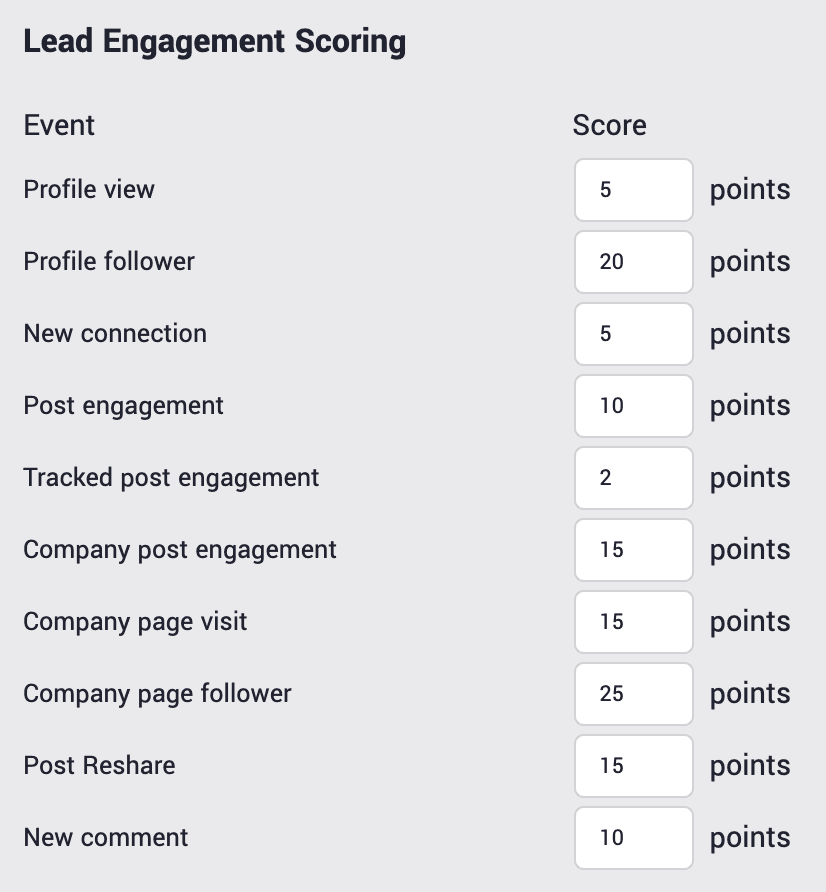 Lead scoring table
How does lead scoring work?
Depending on your Lead Monitor settings, engagement signals such as profile views or team post reactions produce new leads. Every lead in your workspace gets a “lead score” field, calculated as a total sum of engagement events multiplied by their predefined number of points.
Teamfluence also keeps track of your prospects and updates the aggregated engagement score whenever a new interaction happens.
Where can I find the lead total score?
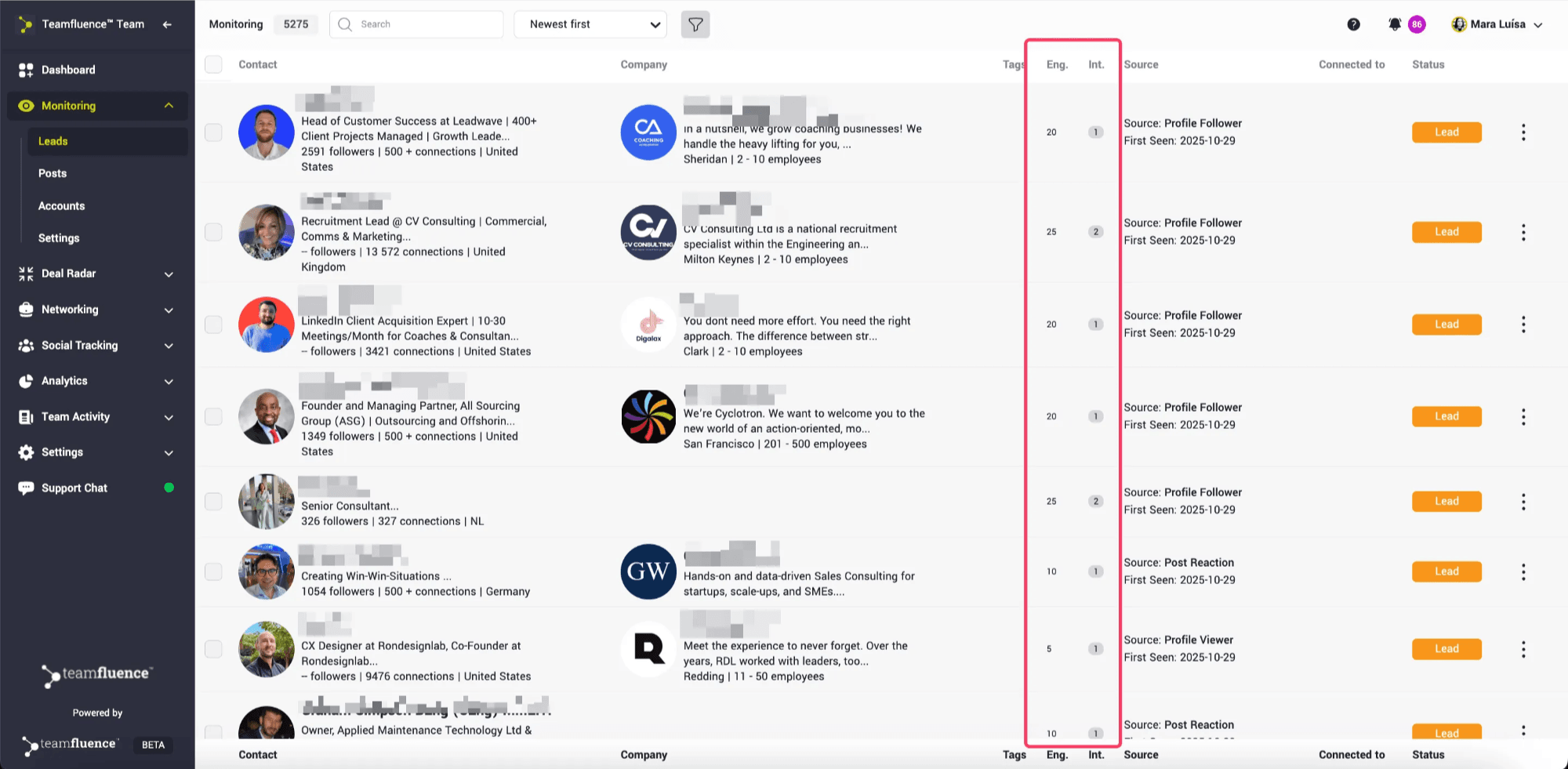
1- Lead Monitor
The Lead Monitor table has an ”Eng” column, which shows the engagement score, and an ”Int” column, which represents the total number of interactions.
2- Webhooks
Lead-related webhooks payload contains engagement_score field.
3- CRM Contact object
Teamfluence populates CRM Contact object tf_engagement_score attribute