
How to jump-start and join auto-connect campaigns
With Team Connection Campaigns, you can efficiently organize and track your team’s targeted network growth by assigning a curated list of people to connect with. Any team member can join a campaign and use Teamfluence to send personalized connection invites.
Creating a New Connection Campaign
You can build a campaign from the following sources:
- LinkedIn search
- Sales Navigator search
- CSV file upload
- Custom post reactions and comments
Steps to Create a Campaign
- Use LinkedIn or Sales Navigator search filters to target the people or industries most relevant to your campaign. You’ll now see the TeamFluence plugin directly on the sidebar of your browser when using LinkedIn or Sales Navigator. Click the extension icon to open and it will automatically collect data from the current page.
- Select a target teamspace and an existing campaign from the dropdown, or enter a new campaign title (press Enter to save it).
- The extension will display the first 10 (LinkedIn) or 25 (SalesNavigator) contacts from your current page. You can deselect any contacts you don’t want to include. Click Add to send these contacts to your campaign.
- Navigate to the next page of search results (e.g., page 2), allow it to load the contacts. Click Add to include the next set of contacts in the same campaign. Repeat as needed to build your full campaign list.
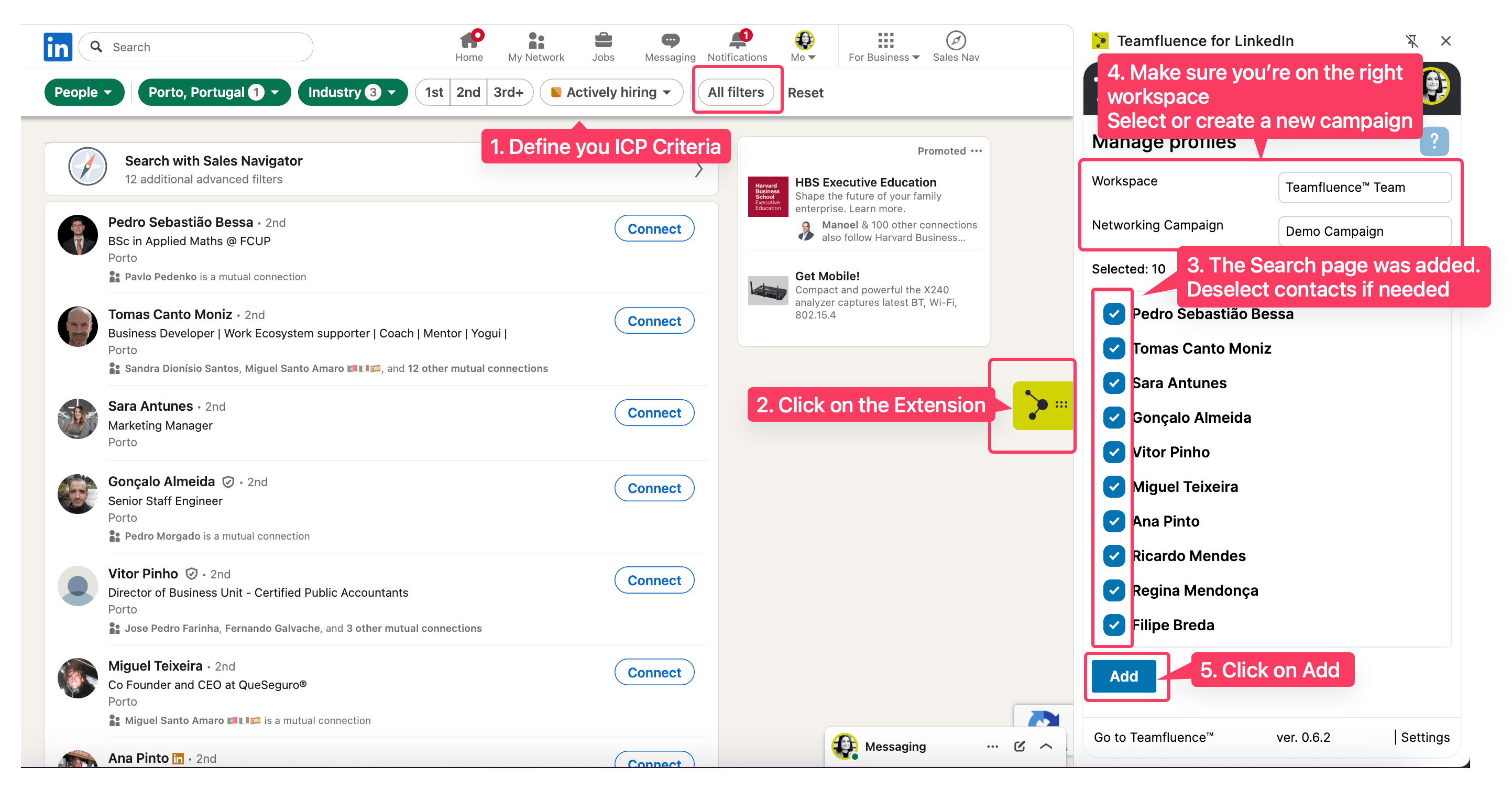
From LinkedIn Search
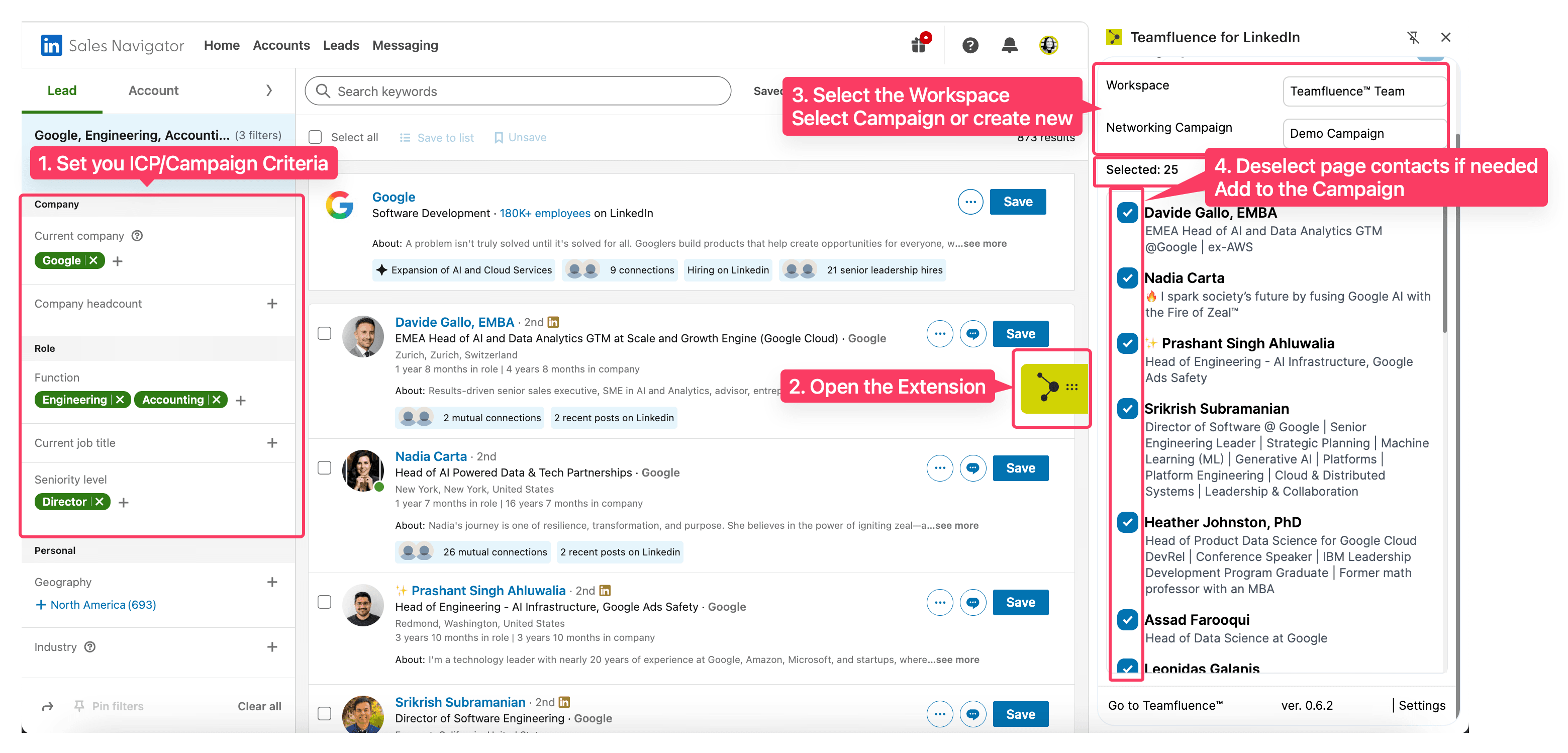
From Sales Navigator
Note: The new sidebar plugin replaces the old in-page plugin — all campaign creation and contact management now happen directly from the TeamFluence sidebar extension.
- Go to Networking → Team Campaigns to view your newly created and existing campaigns within your teamspace.
- Open the campaign details page and click the Campaign Settings button.
Managing Your Campaign
As the campaign creator, you can:
Edit the campaign description.
Use the Recent Activity Threshold to filter LinkedIn profiles based on their recent activity.
- If enabled, profiles that haven’t interacted or posted within the last defined days will be excluded, and connection invites won’t be sent to them.
By default, newly created campaigns are in Draft mode. Once you activate the campaign using the Activate Campaign button, you and your team members can join it.
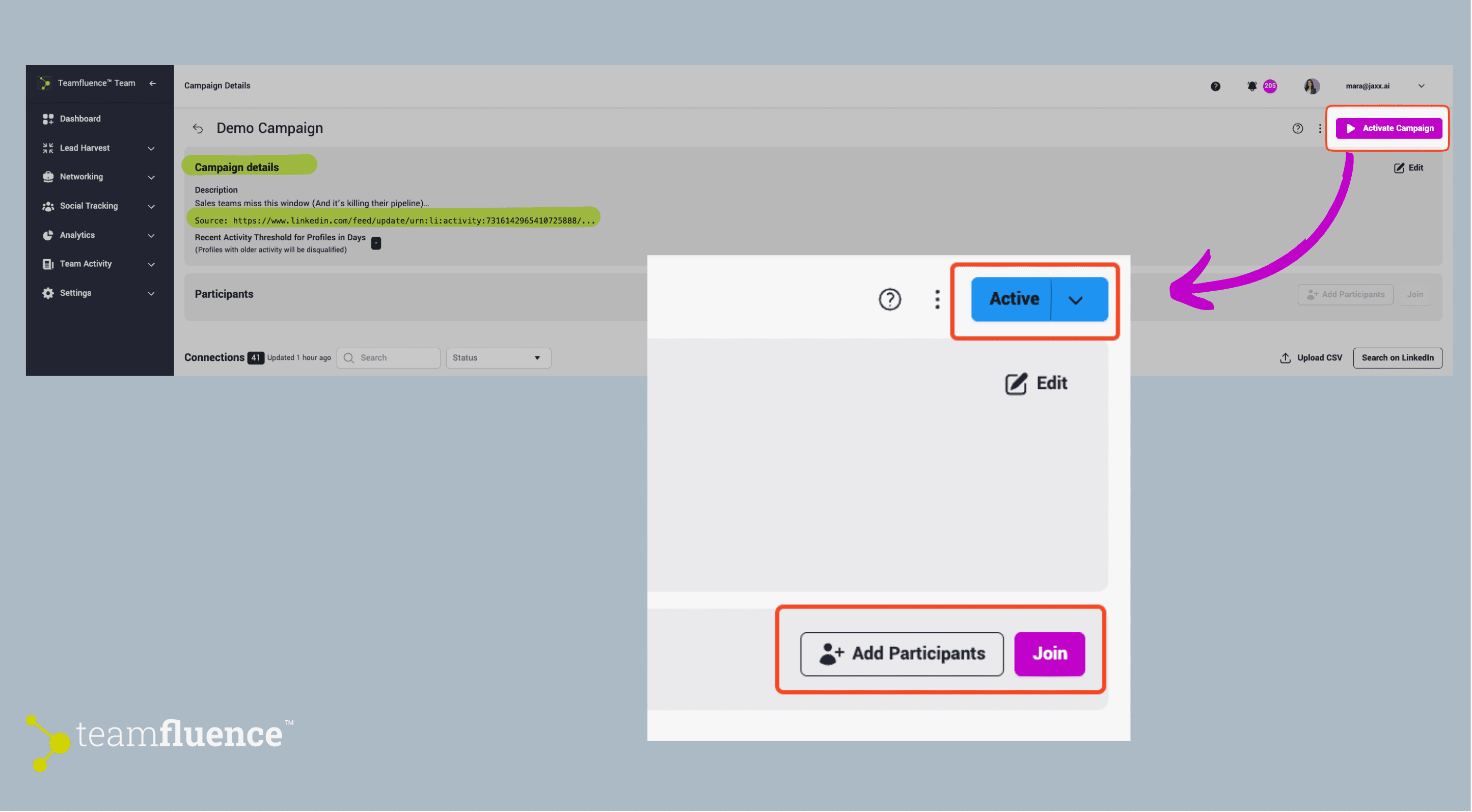
Joining or Adding Participants to a Campaign
To start sending connection invites, team members need to:
- Open the campaign page.
- Click the Join button. Like on LinkedIn, you can attach a personalized message to be sent with the connection request.
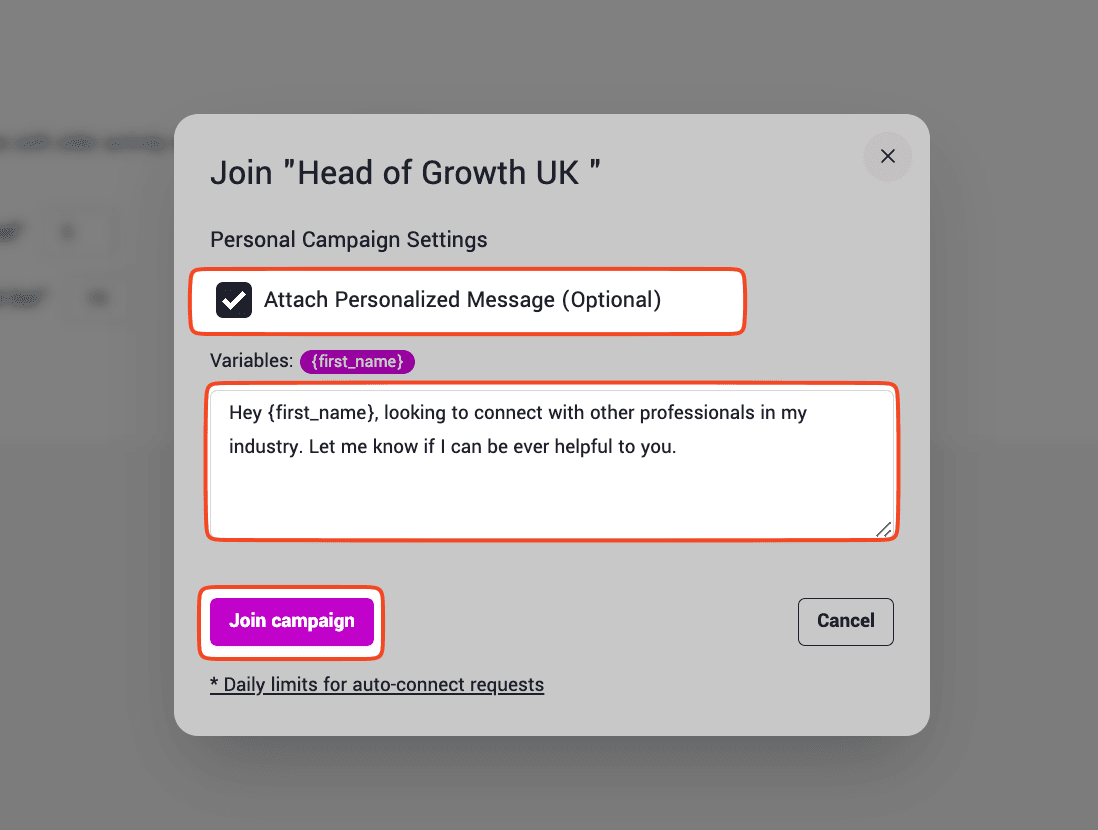
- Optionally, you can also configure a follow-up message to be sent if the connection request is accepted.
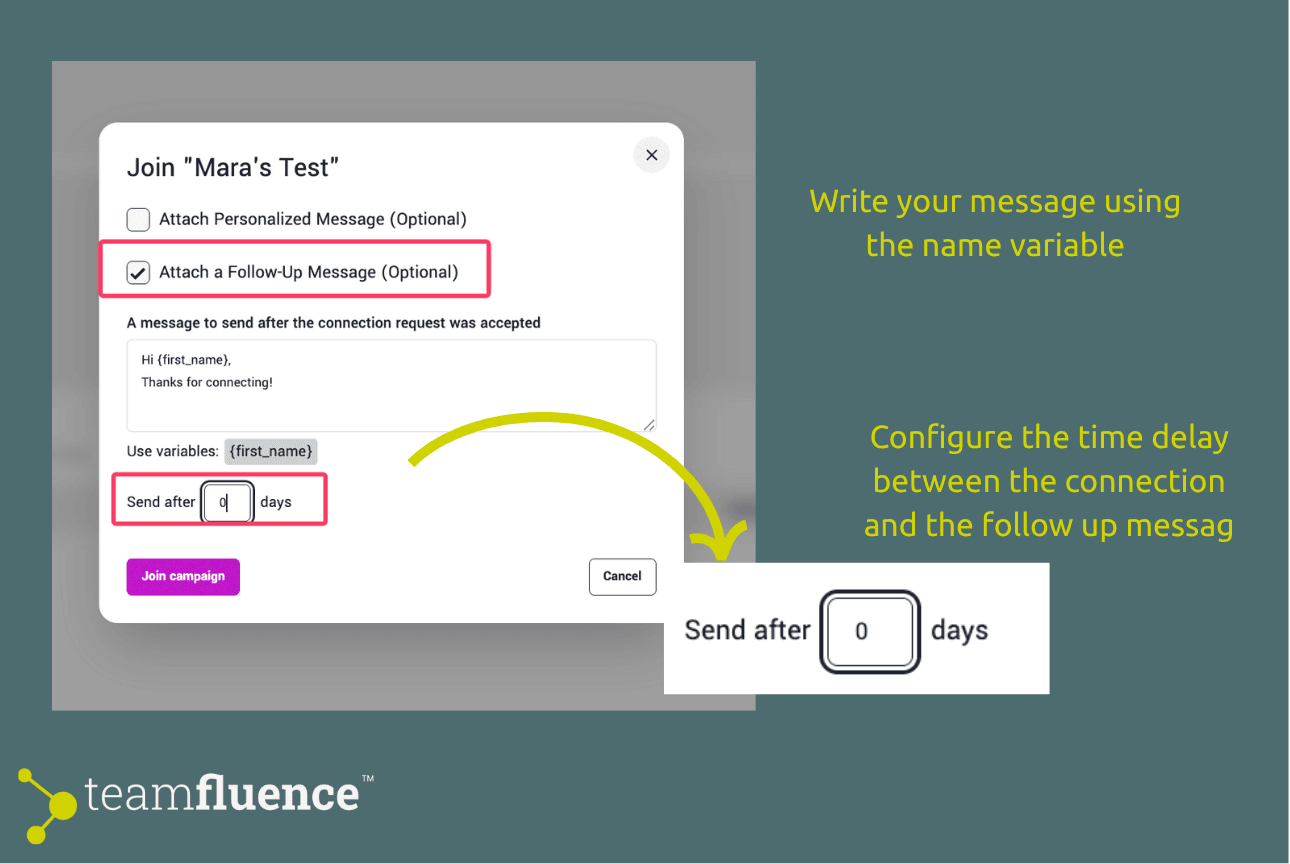
- Alternatively, use the Add Participants button to add other team members to a specific campaign. You can also attach personalized connection notes and/or follow-up messages when adding participants.
Note: Campaign creators are not automatically included in the campaign. If you want to participate in your own campaign, you must join it explicitly.
Configuring Connection Settings
Each team member can customize their connection request preferences:
- New connections per day – Set a daily limit on the number of connection requests.
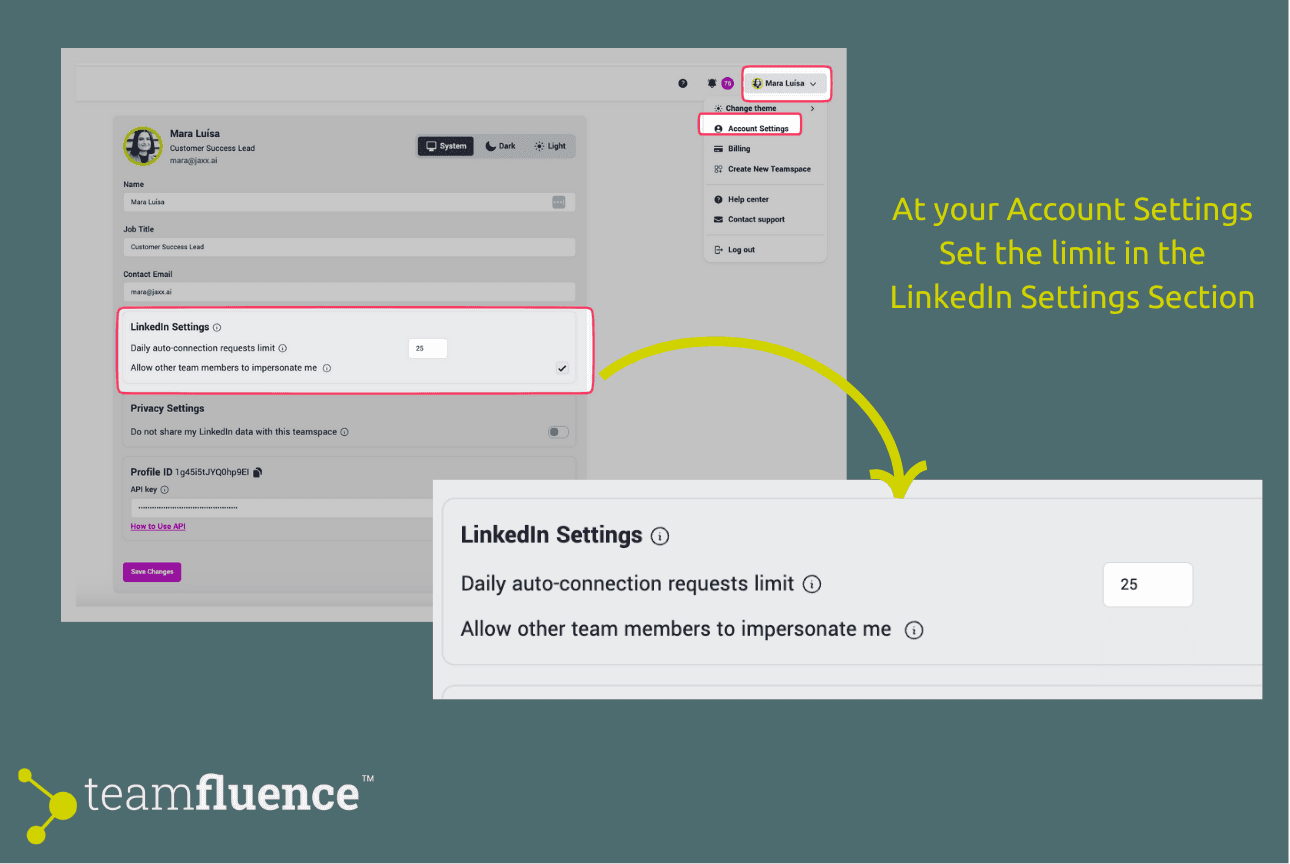
At your Account Settings (https://my.teamfluence.app/profile)
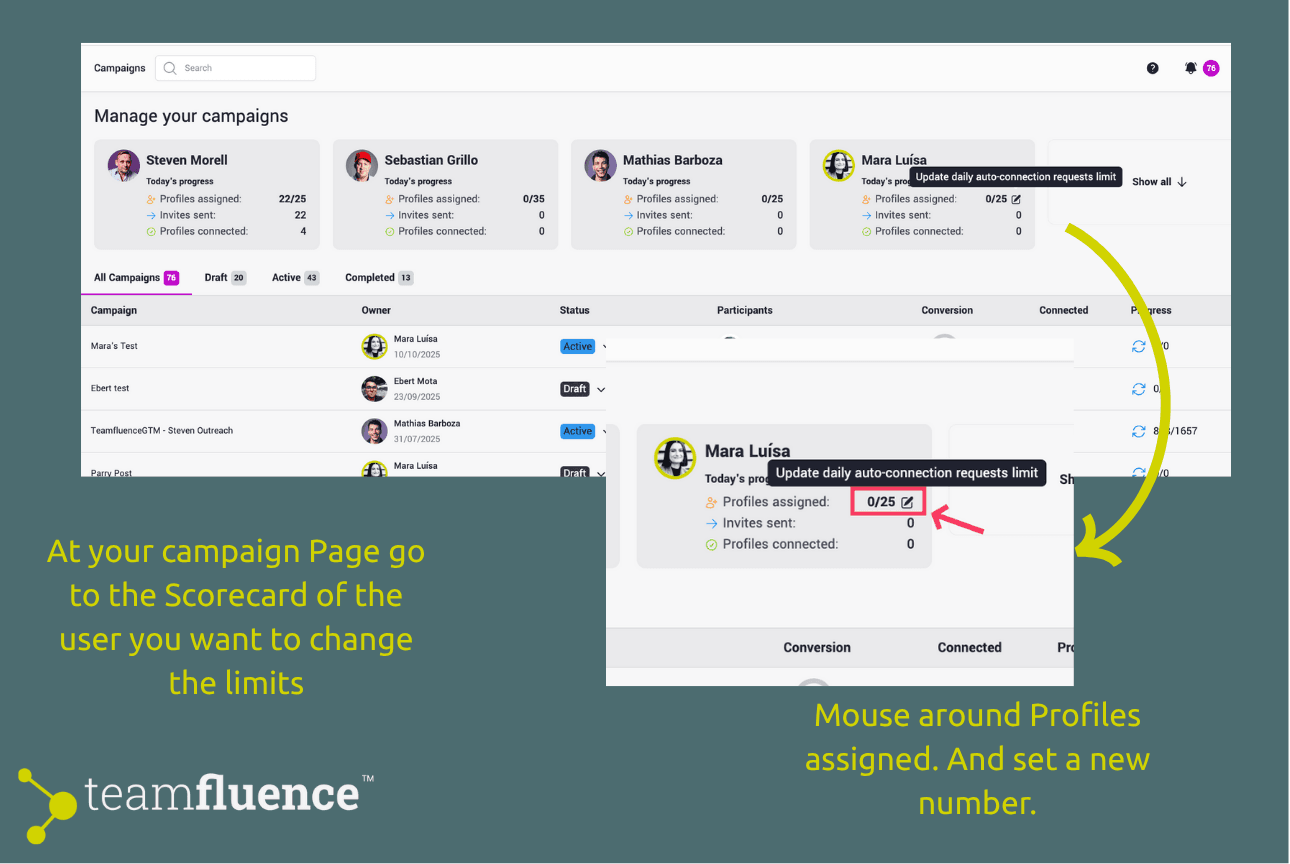
Or on your Networking Campaign Page (https://my.teamfluence.app/campaigns)
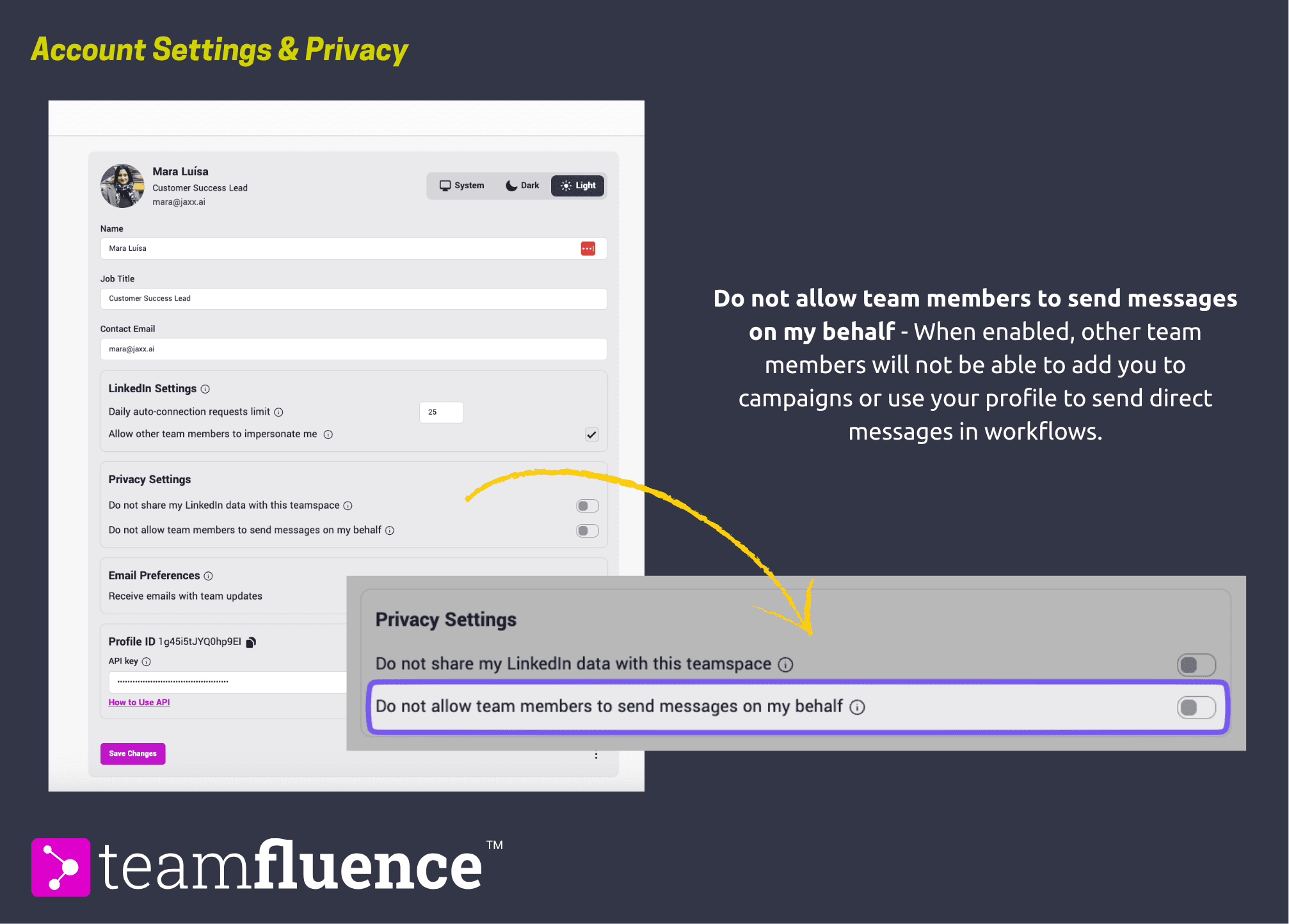
- Not allow team members to add you to campaigns – By default, other Teamfluence users in your workspace can add you to campaigns and use your profile to send direct messages through workflows. If you want to control this yourself go to you Account Settings (https://my.teamfluence.app/profile)
Once a team member joins, new connection invites will be sent daily until the campaign list is completed.
Happy networking! 🎉