
Workflow Templates
A set of ready-made workflow configurations covering the most common LinkedIn signal scenarios. Each template is available to import directly from within Teamfluence, giving you a working automation in minutes rather than building from scratch.
Why start with a template
Building a workflow from a blank canvas requires you to know which triggers, filters, and actions to combine before you have seen them work together. Templates remove that barrier. They encode the logic of the most common revenue workflows so you can observe how the pieces connect, then adjust the specifics - ICP filters, campaign names, Slack channels - to match your setup.
Templates also represent quick wins because each one targets a signal that already exists in your LinkedIn activity: profile visits, company page followers, post engagements, new connections. These signals arrive whether or not a workflow is in place. A template ensures no qualified signal goes unoticed from the moment you activate it.
Note on customisation Every template is a starting point. After importing, review each filter step and update it to reflect your ICP definition, your Slack workspace and channel names, your CRM connection, and the networking campaigns you have already created. A template with default settings will still run - it just may not route leads to the right places until you have reviewed it.
How to import a template
Templates are available from the Workflows section of your workspace. You do not need to configure anything before importing, the full workflow structure is loaded for you to review and edit before activating.
1 - Open Workflows in the sidebar
From your Teamfluence workspace, click Workflows in the side bar.
2 - Select "Create workflow" and name it accordingly
Create a new Workflow and name it.
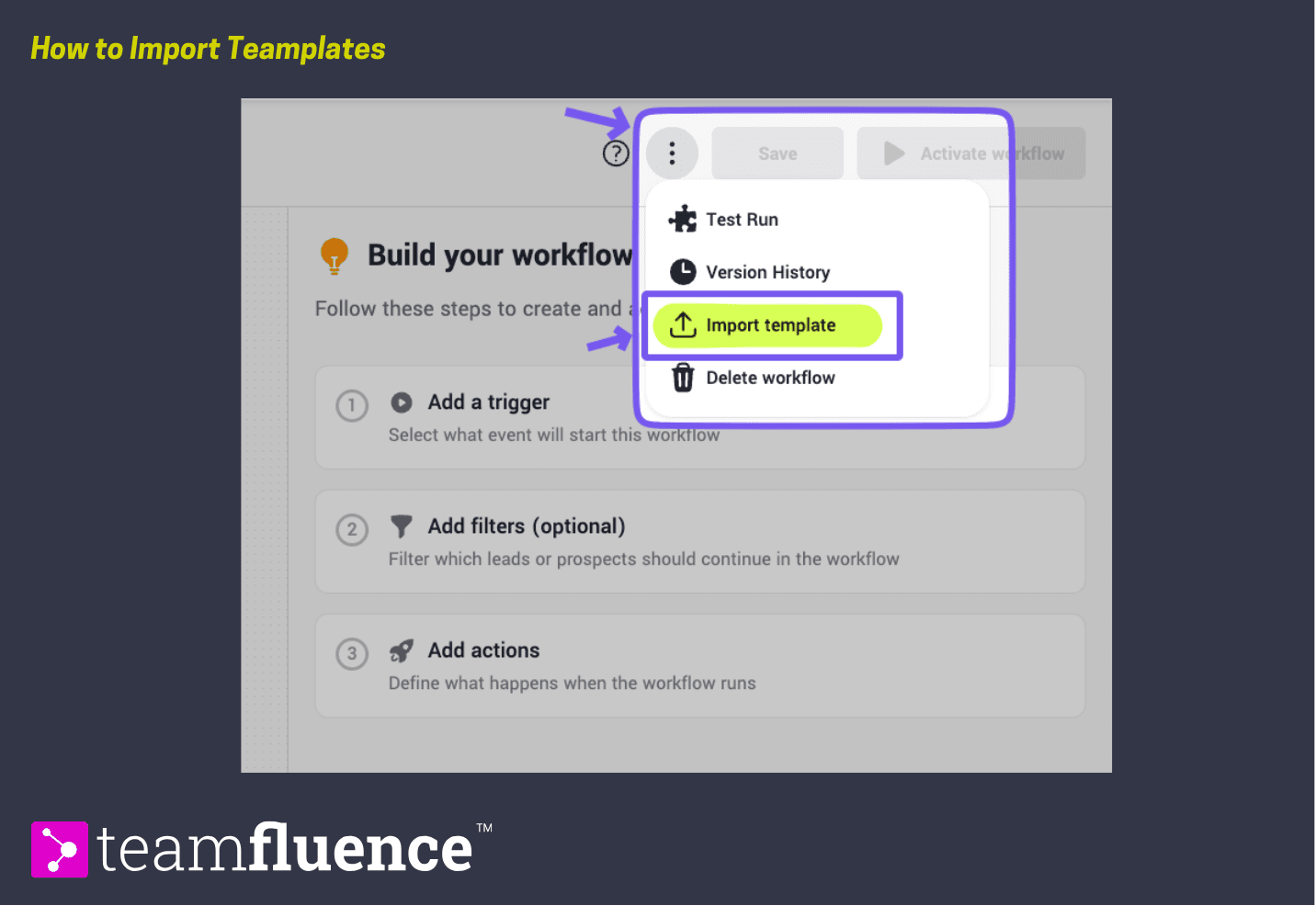
3 - Click on the 3 dots (⋮) and then Import Template
Import the chosen template to the newly created workspace
4 - Review and configure each step
Click any node to edit its settings. At a minimum:
- Confirm your ICP filter, the campaign or destination selected in action steps, and any Slack or CRM connection references.
5 - Activate the workflow
Activate the workflow. It will now run against all matching new events going forward.
Articles in this tutorial
- 1 Workflow Template: New Lead ICP to Prospect →
- 2 Workflow Template: Email Enrichment for New Prospects →
- 3 Workflow Template: New Lead ICP to DM or Network Campaign →
- 4 Workflow Template: New Company Page Follower - Thank You DM or Network Campaign →
- 5 Workflow Template: New Engagement from Existing Lead - CRM Sync or Slack Alert →
- 6 Workflow Template: New ABM Lead - Email Enrichment, CRM Sync and Slack Alert →
- 7 Workflow Template: New Profile Visit - ICP Routing to DM or Network Campaign →