This guide walks you through creating a new workspace for a client, adding users, and getting the extension connected so signals start flowing.
Before you start
- Agency features must be enabled on your account. If you have not done this yet, contact the Teamfluence team.
- Decide which setup approach you are using for this client:
Client self-serve (preferred) - the client creates their teamfluence user account and installs the Chrome extension on their own browser and connects their own LinkedIn account Agency-managed - if you have access to their LinkedIn account and want to manage the Chrome extension on behalf of the client using separate Chrome profiles.
Step 1: Create a new team space
- Open the workspace switcher at the top of the sidebar.
- Click Create new team space.
- Configure the workspace after the client company.
- Opt out of sharing your own LinkedIn data in this workspace.
- Create.
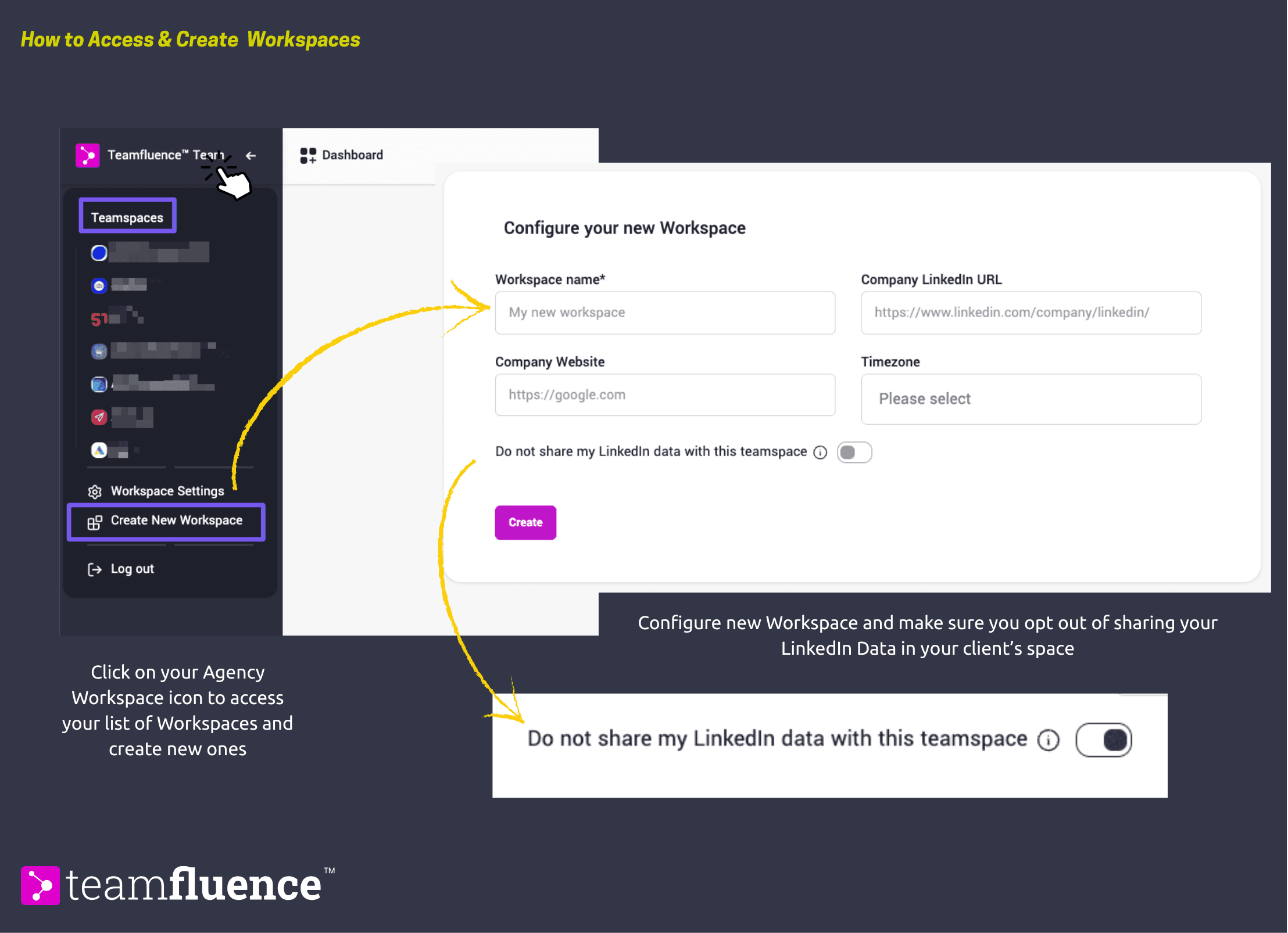
You are now inside the new workspace. Your own LinkedIn signals are not active here - you are a hidden user by default.
Step 2: Add users
If the client is self-serving (preferred):
- Go to Settings → Team Members.
- Copy the invite link and send it to the client.
- The client follows the link, creates their Teamfluence account, and installs the Chrome extension on their own browser.
- Once they connect their LinkedIn account via the extension, their signals will start appearing in this workspace.
If you are managing the extension on behalf of the client:
- Create a Teamfluence user account for the client. Agencies typically use an alias email for this - for example [email protected].
- Go to Settings → Team Members and invite that user to the workspace.
- Set up a dedicated Chrome profile for this client.
- Make sure you have only the client's LinkedIn account connected in that browser.
- Follow the invite email that you received in the alias email and the onboarding steps (join workspace, download chrome extension, open LinkedIn)
Step 3: Verify signals are flowing
Once the extension is connected and the user's LinkedIn account is active, give a few minutes and then check Lead Monitoring. You should start seeing signals appear as the client's LinkedIn activity is captured. If no signals appear after 24 hours, check that:
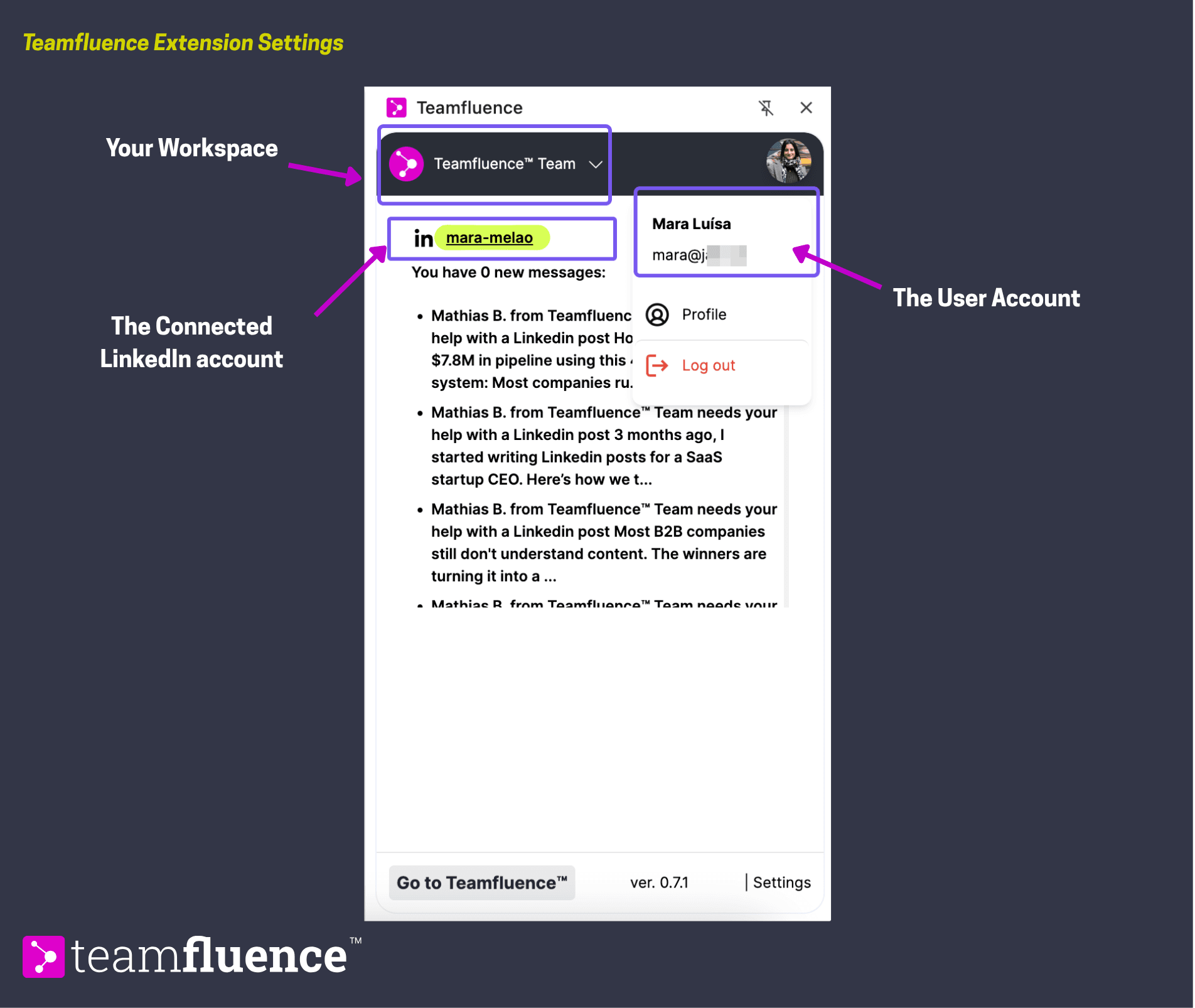
The Chrome extension is installed and showing as connected in the extension icon The browser with the extension is being opened regularly The correct workspace and user is selected in the extension settings