
Teamfluence automates connection requests on your behalf. To protect your LinkedIn account and ensure your campaigns run without interruption, this article explains the limits that apply, how to warm up your account, and how to stay within safe boundaries over time.
How connection request limits work on LinkedIn
LinkedIn limits the number of connection requests each account can send per week. LinkedIn does not publish these limits officially, and they vary based on account type, account age, and your Social Selling Index (SSI) score. Based on available data, the practical limits are:
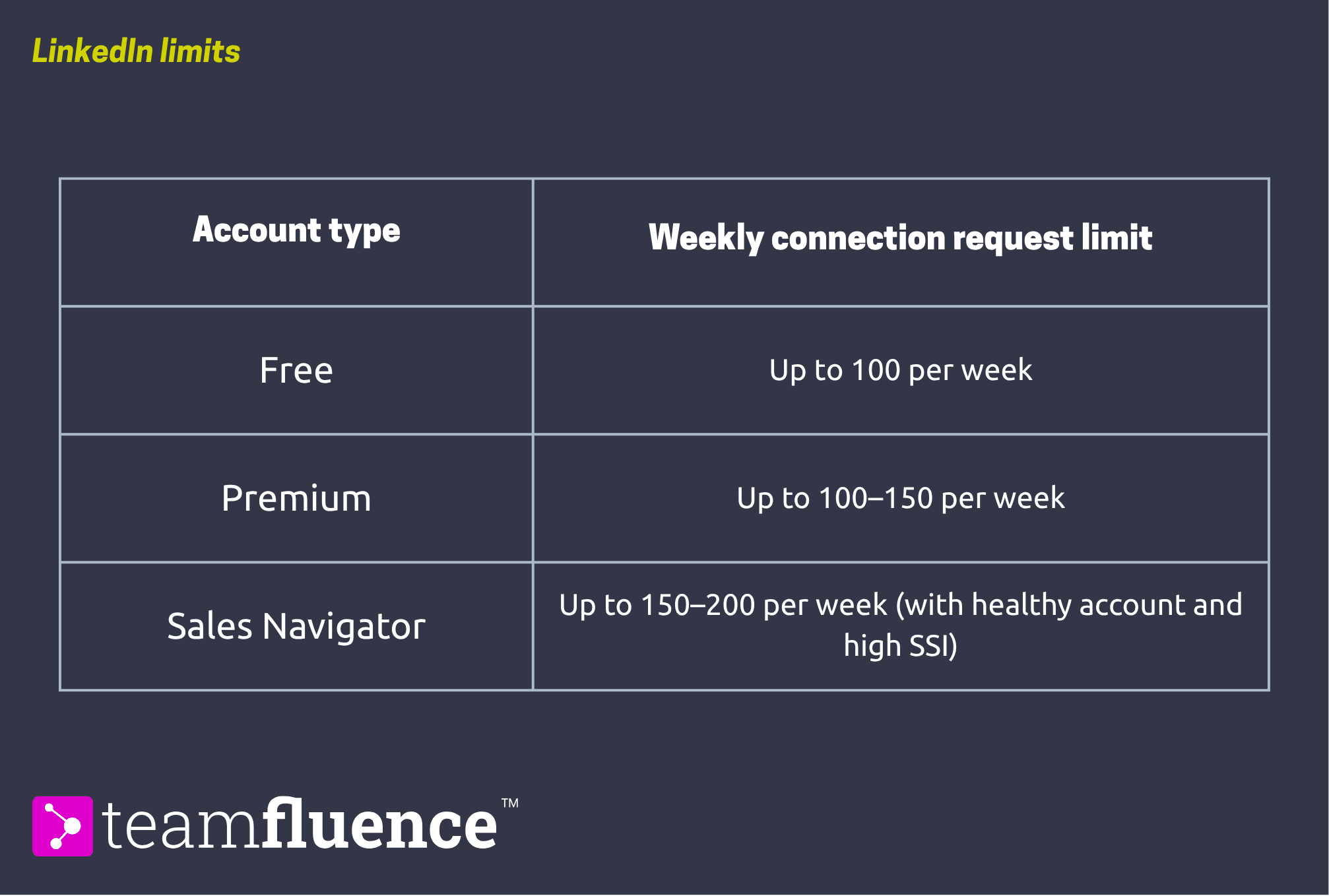
A few important details:
- The weekly limit resets exactly 7 days after your first connection request in a cycle - not on a fixed calendar day.
- LinkedIn may apply temporary restrictions before you hit the stated limit if your account is new, your acceptance rate is low, or your activity looks automated.
- Keep pending (unanswered) invitations below 200 at any time. A large backlog of ignored requests signals low-quality targeting and can trigger restrictions.
- These limits are per LinkedIn account, not per workspace. Each Teamfluence user has their own independent limit.
Account warming: what it is and why it matters
If your LinkedIn account has not been used for automated connection requests before, starting at high volumes immediately is one of the most common causes of account restriction. LinkedIn's algorithm looks for patterns that resemble natural human behaviour. A sudden spike in daily activity is a clear signal that something has changed.
Account warming is the process of starting at a low daily volume and increasing it gradually over several weeks. This builds a usage pattern that LinkedIn's systems treat as normal, reducing the risk of restriction. Teamfluence sets all new users to a default of 5 connection requests per day. Do not change this number in the first two weeks.
Recommended warming schedule Adjust your daily limit in Account Settings → LinkedIn Settings → Daily auto-connection requests limit.
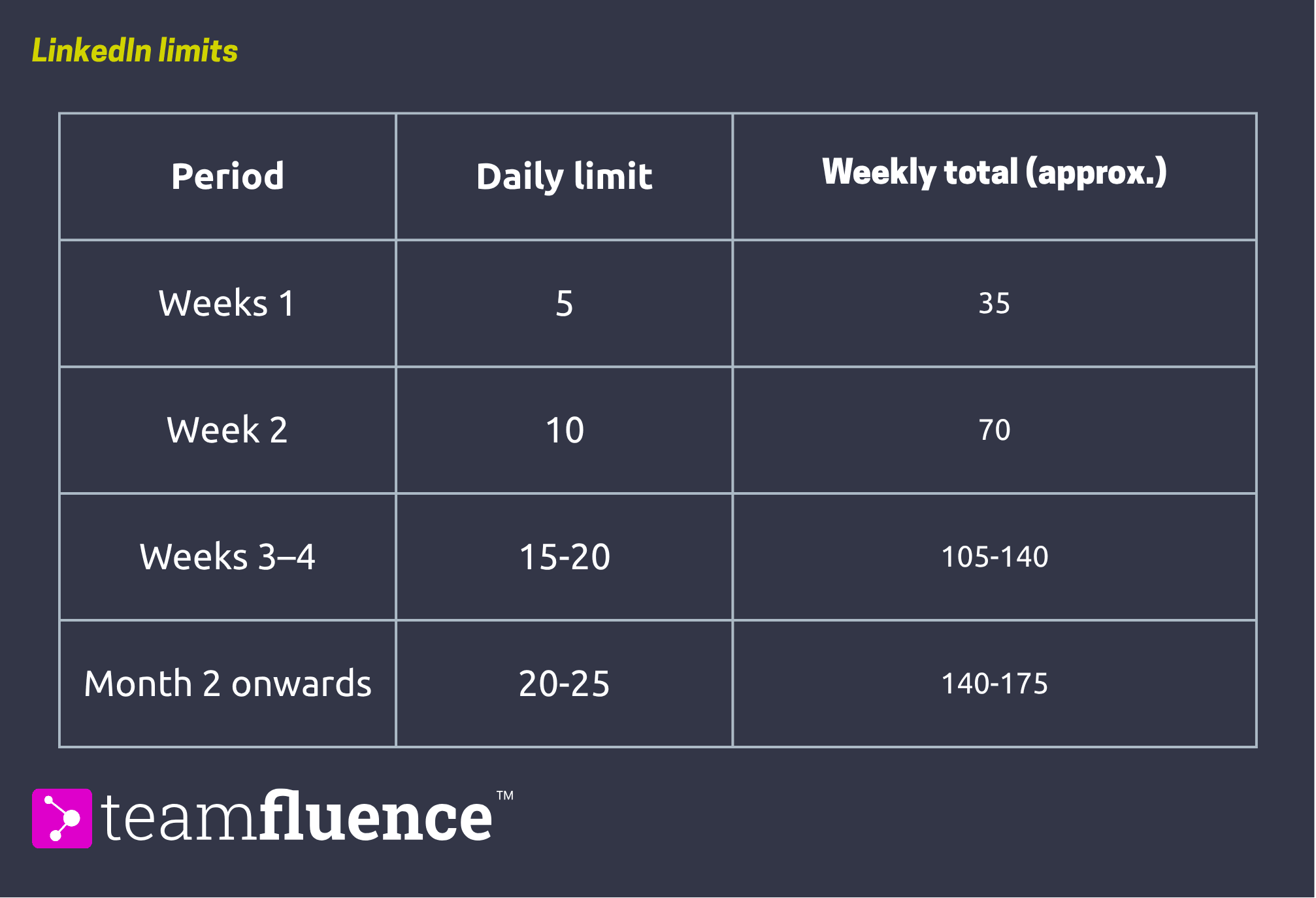
A few things to keep in mind as you increase:
Only increase your limit if your acceptance rate is healthy. A good benchmark is above 30%. If many requests are going unanswered or being ignored, slow down and revisit your targeting before increasing volume.
Leave room for organic connections. If you are manually connecting with people outside of campaigns, factor that into your weekly total.
If you take a break from campaigns for two or more weeks, treat the restart as a warm-up and drop back to a lower limit before increasing again.
Protecting your account
Teamfluence distributes connection requests throughout the day to mimic natural usage patterns. You do not need to manage the timing yourself. However, there are things you can control that significantly affect account health:
Keep your targeting relevant. The more targeted your campaign lists, the higher your acceptance rate. A high acceptance rate is one of the strongest signals of account health on LinkedIn.
Be intentional with your messaging. LinkedIn is not an email inbox. A message you send to a connection stays in their inbox permanently and represents you every time they scroll past it. Keep messages human, relevant, and worth receiving. Do not over-sequence or follow up repeatedly — one well-timed, contextual message will always outperform a chain of automated ones.
Do not run too many campaigns simultaneously. There is no limit to the number of campaigns you can create, but the daily connection limit applies across all active campaigns combined. Teamfluence distributes the available daily quota across your active campaigns.
Monitor your pending invitations. If you have more than 150–200 outstanding requests that have not been accepted, withdraw older ones before sending new ones. A large pending backlog reduces your effective limit.