
Track Thought Leaders Content and Keywords with Ease
What is this feature for?
Teamfluence helps you keep track of important LinkedIn profiles, ensuring you never miss key posts from thought leaders again. No more valuable insights getting lost in your LinkedIn feed!
With this feature, you and your team can easily stay updated on relevant posts and engage with them in a timely manner.
How does it work?
You add profiles directly inside Teamfluence. You no longer need the browser extension to start tracking a profile.
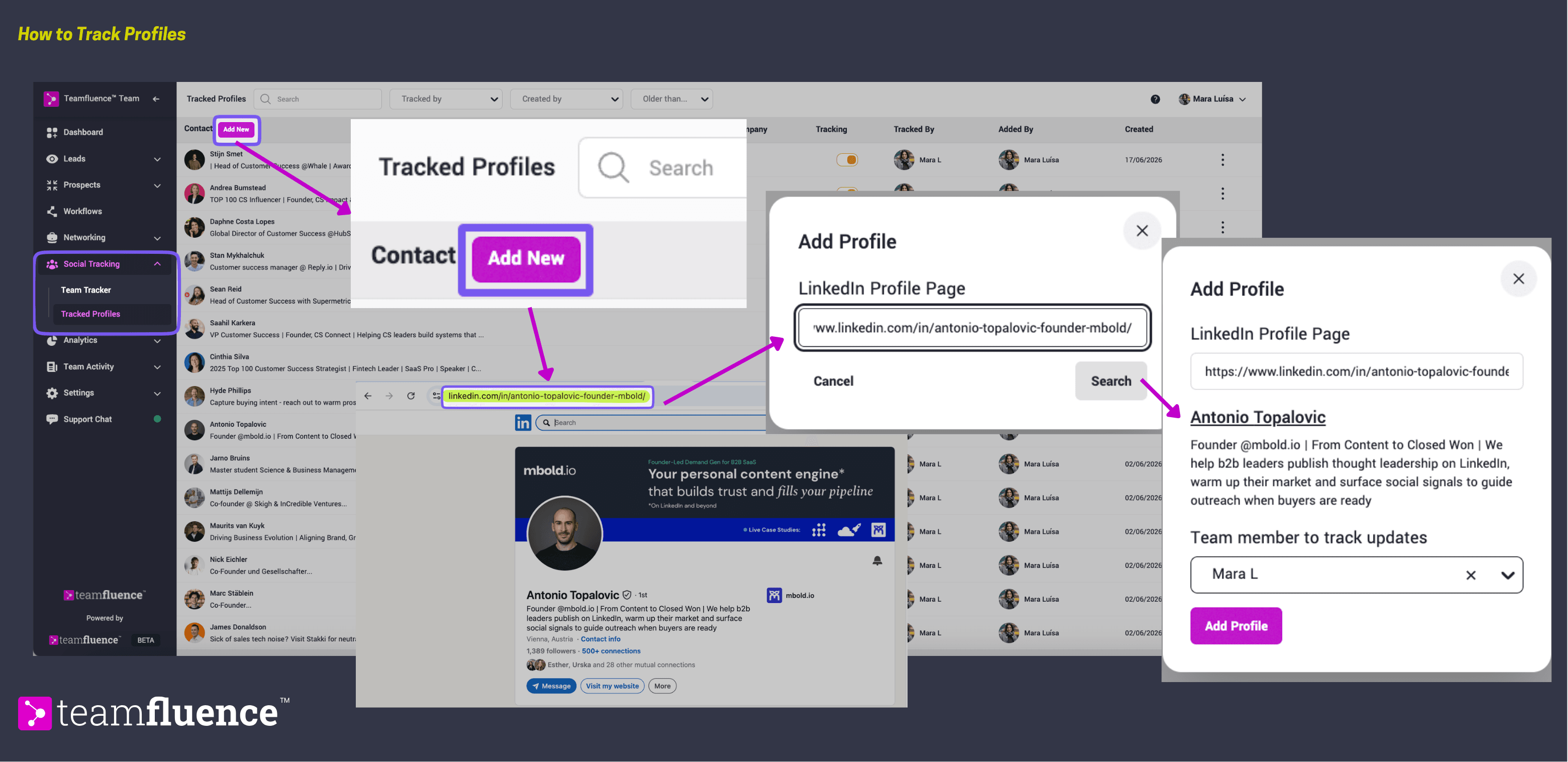
- Copy the profile URL
Open the LinkedIn profile you want to track and copy its URL from your browser's address bar.
- Go to Tracked Profiles
In Teamfluence, go to Social Tracking → Tracked Profiles.
- Add the profile
Click Add new and paste the profile URL.
- Confirm the details
Wait a moment while Teamfluence finds the profile. Review the details it returns to make sure you have the right person.
- Assign a responsible user
Choose the user who is responsible for tracking this profile, then save.
The profile now appears in your Tracked Profiles list and Teamfluence starts collecting its posts.
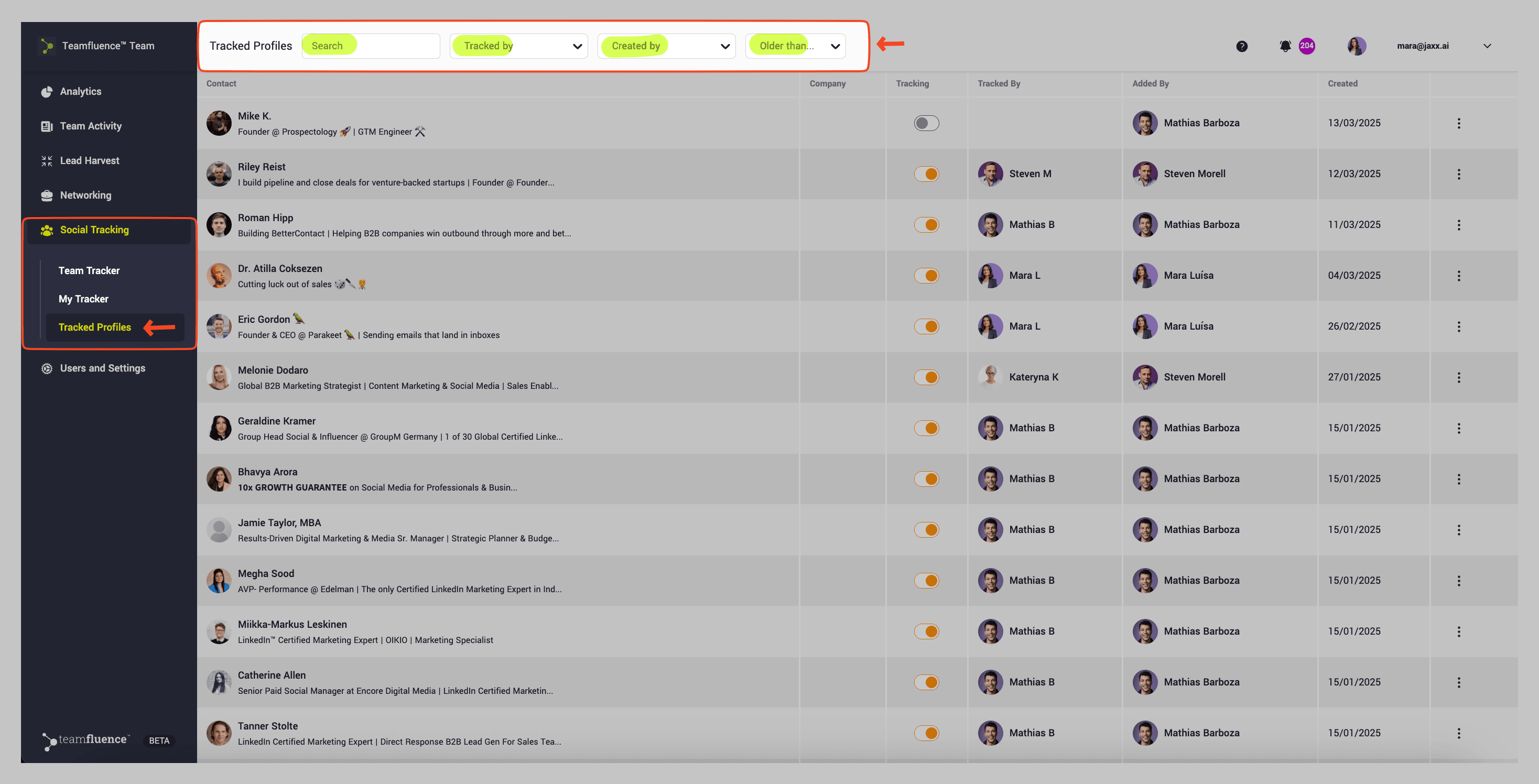
Access and manage tracked profiles
-The profile will now appear in the Tracked Profiles section of the selected workspace.
-You can search for contacts and filter by:
Tracked by – Who is currently tracking the profile.
Created by – Who originally added the profile to the list.
Older than - How long you started to track the contact
-You can also stop tracking and remove profiles from this section.
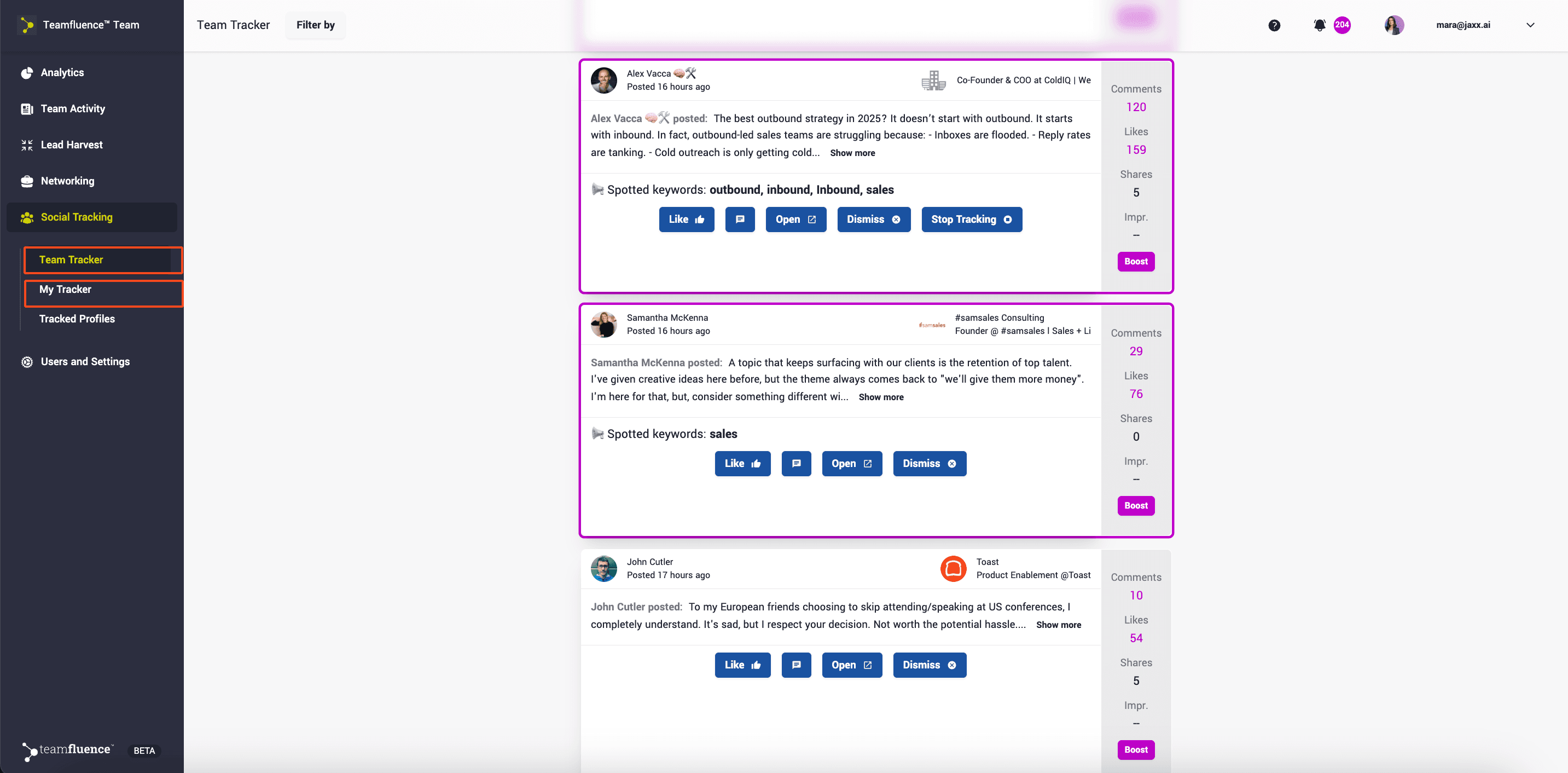
View tracked posts in your feed
Posts from tracked profiles will appear in two sections of your menu:
-Team Tracker – Shows posts from all profiles tracked by your team.
-My Tracker – Displays posts from profiles you have personally added.
-You can like and comment on posts directly from these sections.
-Boost a post. You can alert your team of a relevant post and request their support.
This way, your team stays engaged with key industry conversations without missing a beat!
| Note: Each Teamfluence user has a limit of 60 contacts they can track. This is a security precaution.