
An intent signal is any action someone takes on LinkedIn that indicates interest in you, your team, or your company. Teamfluence captures these signals automatically across all users in your workspace and surfaces them in Lead Monitoring.
This article explains what each signal type means, how to sort your feed, and how to filter by source.
Signal sources
Every signal listed below can originate from any Teamfluence user in your workspace — not just your own LinkedIn activity.
Profile signals
Profile Viewer - Someone visited a Teamfluence user's LinkedIn profile. Profile Follower - Someone chose to follow a Teamfluence user's LinkedIn profile.
Connection signals
New Campaign Connection - Someone accepted a connection request sent through a Teamfluence Networking Campaign.
New Organic Connection - Someone connected with a team member outside of a campaign — through a direct request on LinkedIn.
Post engagement signals
Post Reaction - Someone reacted to a post published by a Teamfluence user.
Commented on Post -Someone left a comment on a post published by a Teamfluence user.
Tracked Post Reaction - Someone reacted to a post your team is actively monitoring through Post Tracking. The post does not have to belong to a team member - you can track any public LinkedIn post.
Tracked Post Comment - Someone commented on a post your team is actively monitoring through Post Tracking.
Comment Reaction - Someone reacted to a comment made by a Teamfluence user.
Comment on Comment - Someone replied to a comment made by a Teamfluence user.
Company page signals
Company Page Viewer - Someone visited your company's LinkedIn page. Available only if your company has a LinkedIn Premium page.
Company Page Follower - Someone followed your company's LinkedIn page.
Company Post Reaction - Someone reacted to a post published on your company's LinkedIn page.
Company Post Comment - Someone commented on a post published on your company's LinkedIn page.
Other signals
Submitted from LinkedIn - A lead manually added to Teamfluence from a LinkedIn profile using the Chrome extension.
How to sort your Lead Monitoring feed
Use the sort dropdown at the top of Lead Monitoring to change how signals are ordered. The available options are:
Latest interaction first — shows leads with the most recent activity at the top. This is the default view. Newest first — shows leads who appeared in your feed for the first time most recently. Oldest first — shows your longest-standing leads at the top. Engagement score (higher first) — surfaces leads with the highest cumulative engagement score. Engagement score (lower first) — surfaces leads with the lowest engagement score. Number of interactions (higher first) — shows leads who have interacted with your team the most. Number of interactions (lower first) — shows leads with the fewest interactions.
How to filter by signal source
- Open Lead Monitoring and click the filter icon.
- Select the Source.
- Select one or more signal types from the list.
- Click Apply.
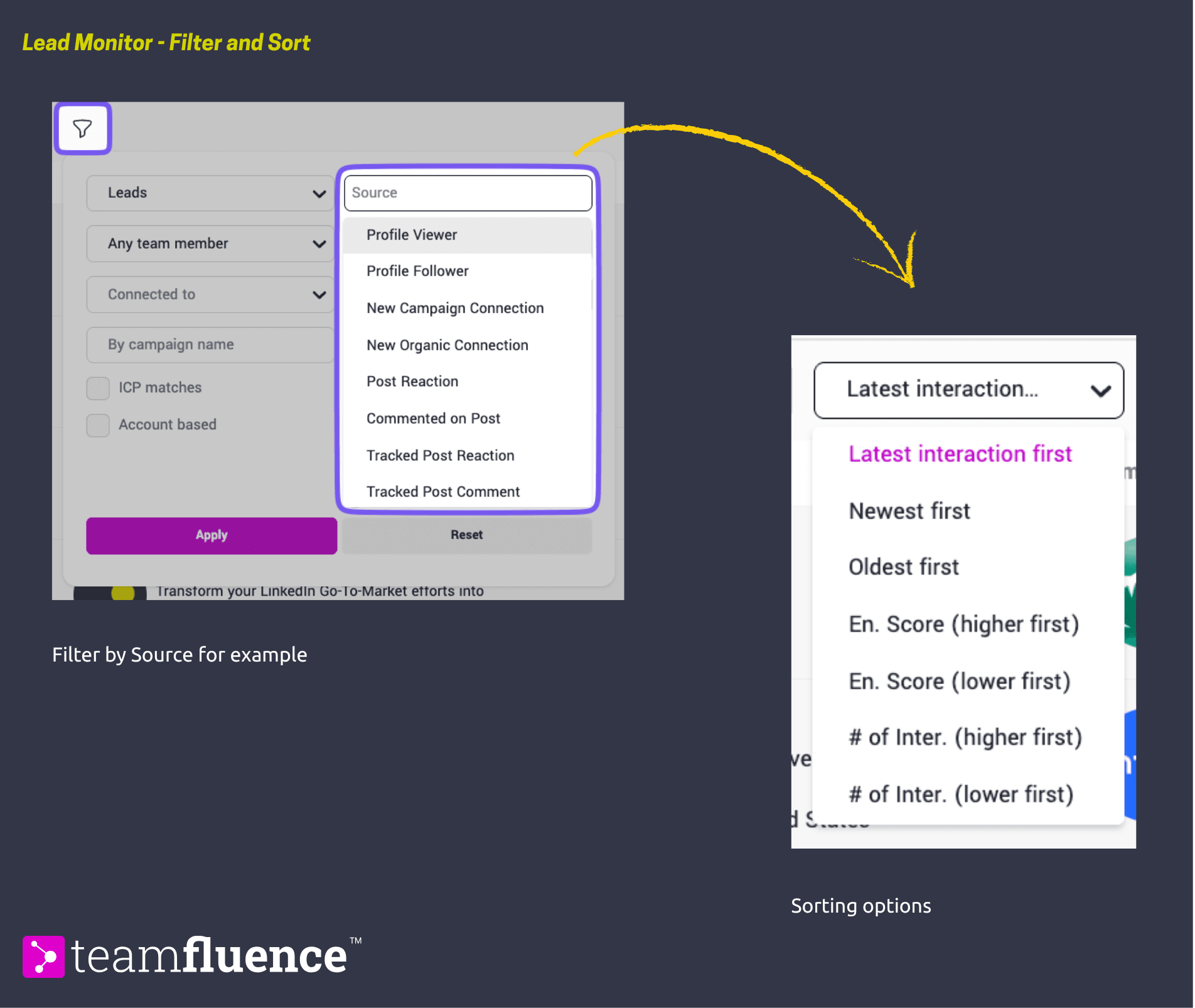
Your feed will update to show only leads who entered through the selected signal sources. You can combine the source filter with other filters - ICP match, target accounts, company size, tag, last activity date - to narrow your view further.
How signals build a lead record
Every signal creates or updates a lead record. If the same person triggers multiple signals over time - for example, they viewed a team member's profile and later reacted to a post - all interactions are consolidated under a single lead record with a full history.
The first touch column shows the original signal that first brought that person into your feed. The engagement score reflects the cumulative weight of all their interactions. You can customise how much weight each signal type carries
Configuring signal weights and tracked signals
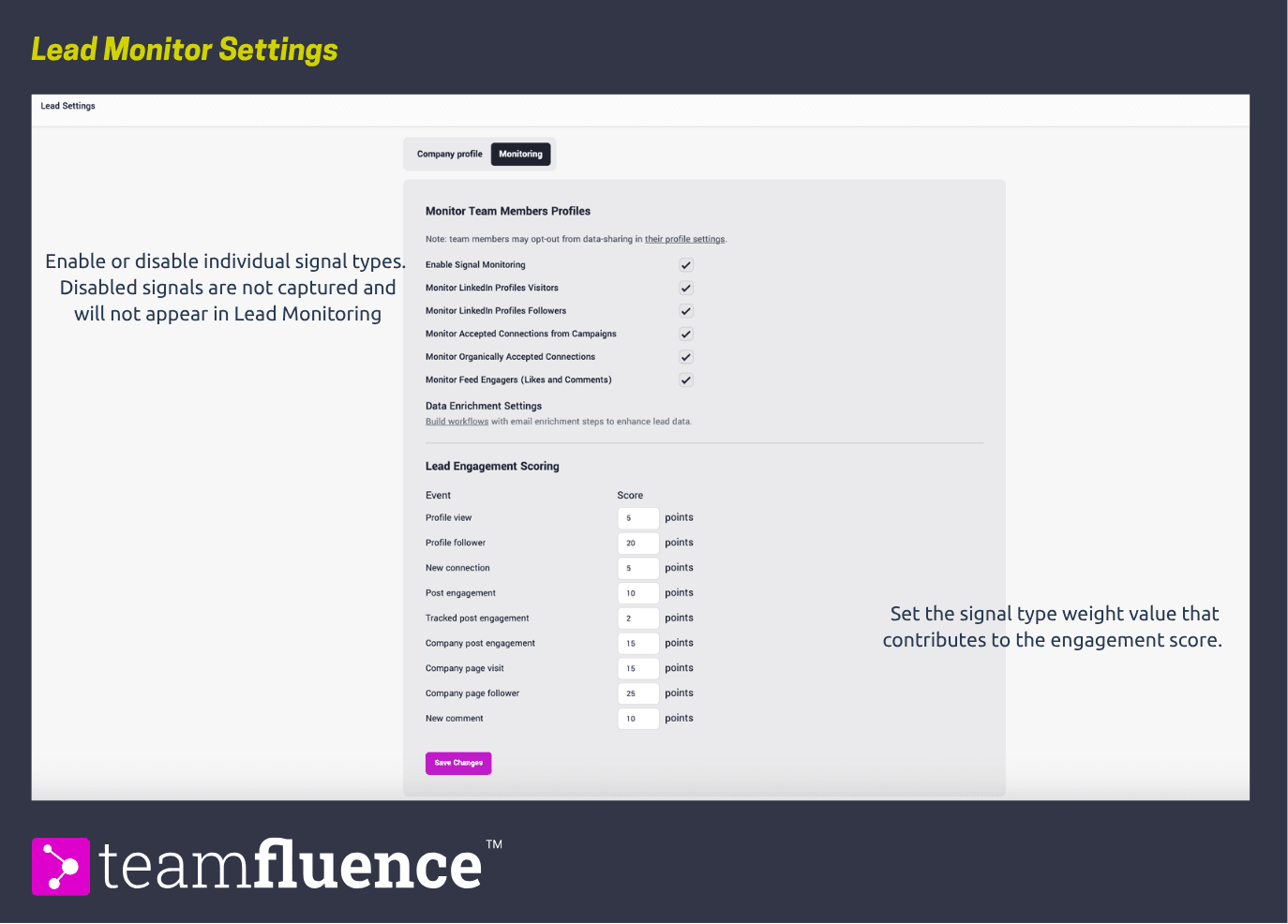
Not all signals carry the same relevance for every team. Teamfluence lets you control two things: which signals are tracked at all, and how much weight each one carries in the engagement score calculation. To adjust these settings, go to Leads → Settings → Monitoring Tab.
Signal tracking
You can enable or disable individual signal types. Disabled signals are not captured and will not appear in Lead Monitoring. This is useful if certain signal types are not relevant to your team and you want to keep your feed focused.
Signal weights
Each active signal type has a weight value that contributes to the engagement score. A higher weight means that signal has more influence on how a lead is scored relative to others. For example, if profile visits are more meaningful to your team than post reactions, you can increase the weight of profile visits accordingly. Changes to weights apply to new signals from that point onwards and do not retroactively recalculate existing engagement scores.