
Learn more about all the features offered by HubSpot integration
Teamfluence users can connect their HubSpot CRM (HS) and act on newly activated prospects. Once connected and configured, you will be able to get their recent updates and have a complete overview of your LinkedIn sourced prospects as your contacts.
Connect HubSpot
In order to authorize access to HubSpot inside your teamspace, you need to a have user permissions with the following scopes:
- Manage Contacts and create Contact properties (extend object schema)
- Manage Companies and create Company properties (extend object schema)
These authorization scopes are needed for integration to work and cannot be optional. If you don't have required permissions in HubSpot, ask your CRM administrator to connect the app.
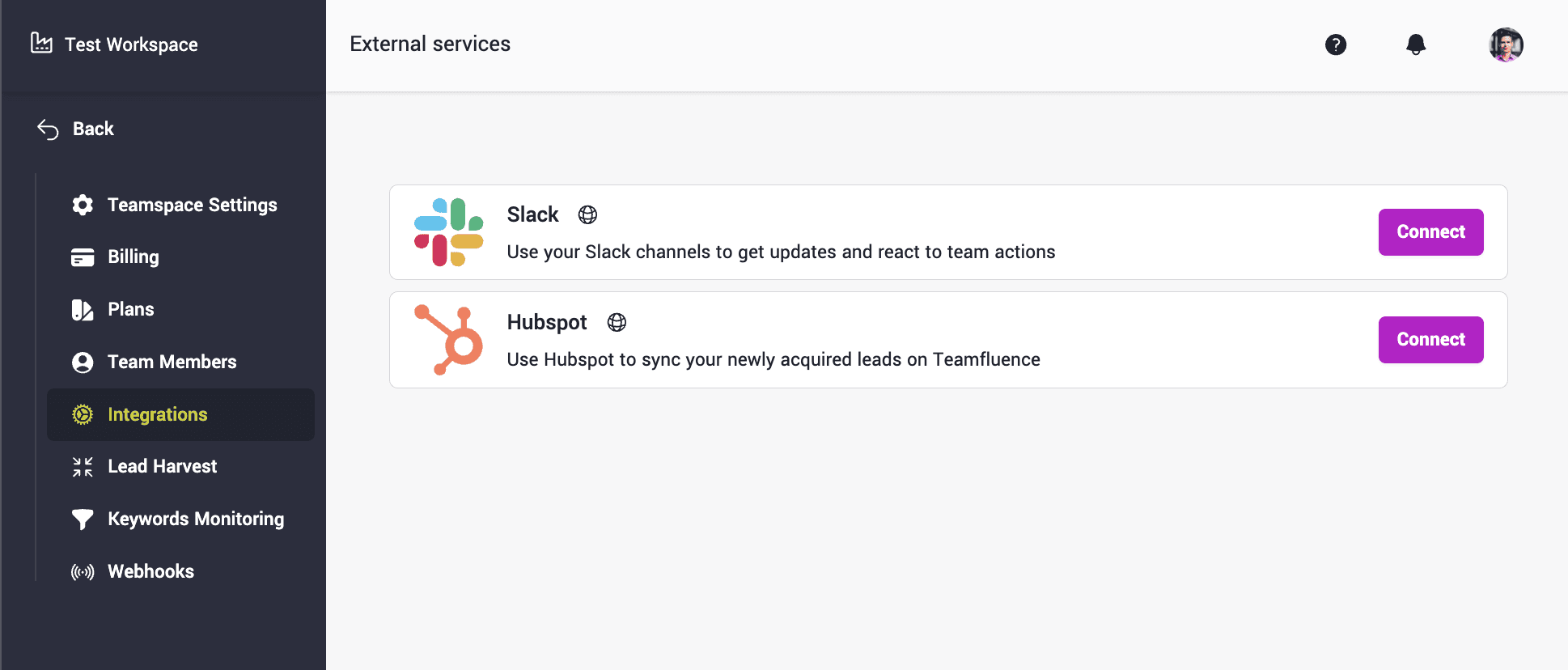
Navigate to Teamspace setting → Integrations page and select HubSpot app.
You will be redirected to HubSpot authorization page, where you'll need to confirm the action.
Configure the app
Once the app was authorized, click on "Manage" button and update settings according to your preferences.
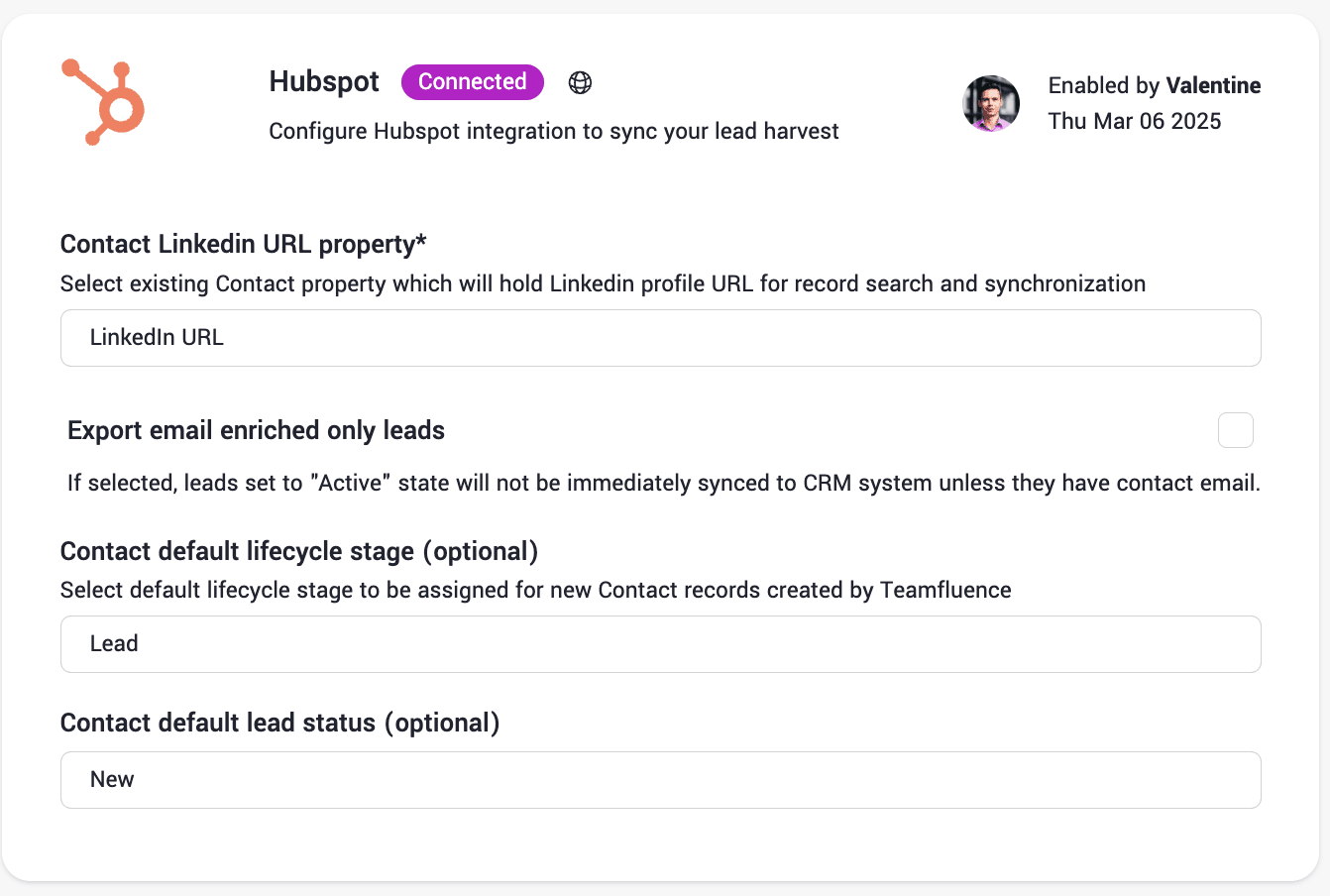
Contact LinkedIn URL property - make sure to select main Contact property, which will store LinkedIn profile URL for objects synchronization and matching.
Export email enriched only records
If selected, leads set to "Active" state will not be immediately synced to CRM. Teamfluence will try to enrich any activated lead with email first. Only email enriched leads will be sent to HubSpot, and others will be ignored.
If not selected (default), Teamfluence will push all newly activated leads to HubSpot and update the email field afterward if enriched.
Contact default lifecycle stage (optional) - corresponding stage in HubSpot you'd like to assign to a newly created Contact.
Contact default lead status (optional) - corresponding lead status in HubSpot you'd like to assign to a newly created Contact.
Contact properties
Once connected, Teamfluence app creates a new "Teamfluence Properties" group of properties.
Teamfluence URL (Lead details page URL in Teamfluence app)
Teamfluence lead source (LinkedIn source event that produced the lead). Possible options:
Profile Viewer- sourced from team member profile viewer;Profile Follower- source from team member followers;Campaign Connection- sourced from new connection campaign accepted request;New Connection- sourced from new organic connection on LinkedIn excluding connection campaigns (if enabled in settings);Commented on Post- sourced team member feed post comment;Post Reaction- sourced from team member feed post reaction;Tracked Post Reaction- sourced from tracked post reaction;Commented on Tracked Post- sourced from tracked post comment;Commented on Company page Post- sourced company page feed post comment;Reacted to a Company page Post- sourced from company feed post reaction;Visited Company page- sourced from company page visitors;Followed Company page- source from new company page follower;Comment Reaction- sourced from reaction to comment left by a team member;Comment on Comment- source from the response to a comment left by a team member;
Teamfluence ICP match score (Lead ICP match score)
Teamfluence engagement score (Lead engagement score, based on lead engagement scoring settings)