
Use your Slack channels to get updates and react to team actions.
You can automatically sync your team’s Teamfluence actions as well as everyone's LinkedIn contacts and network activity into Slack.
This includes:
- New LinkedIn connections (from organic outreach or Network campaigns)
- People who visit your LinkedIn profile
- Anyone who reacts to or replies to your comments
- Anyone who comments on or reacts to your posts
Method 1: Connect via Settings
- In your workspace, go to Settings → Integrations.
- Under the Slack Channel section, click Connect.
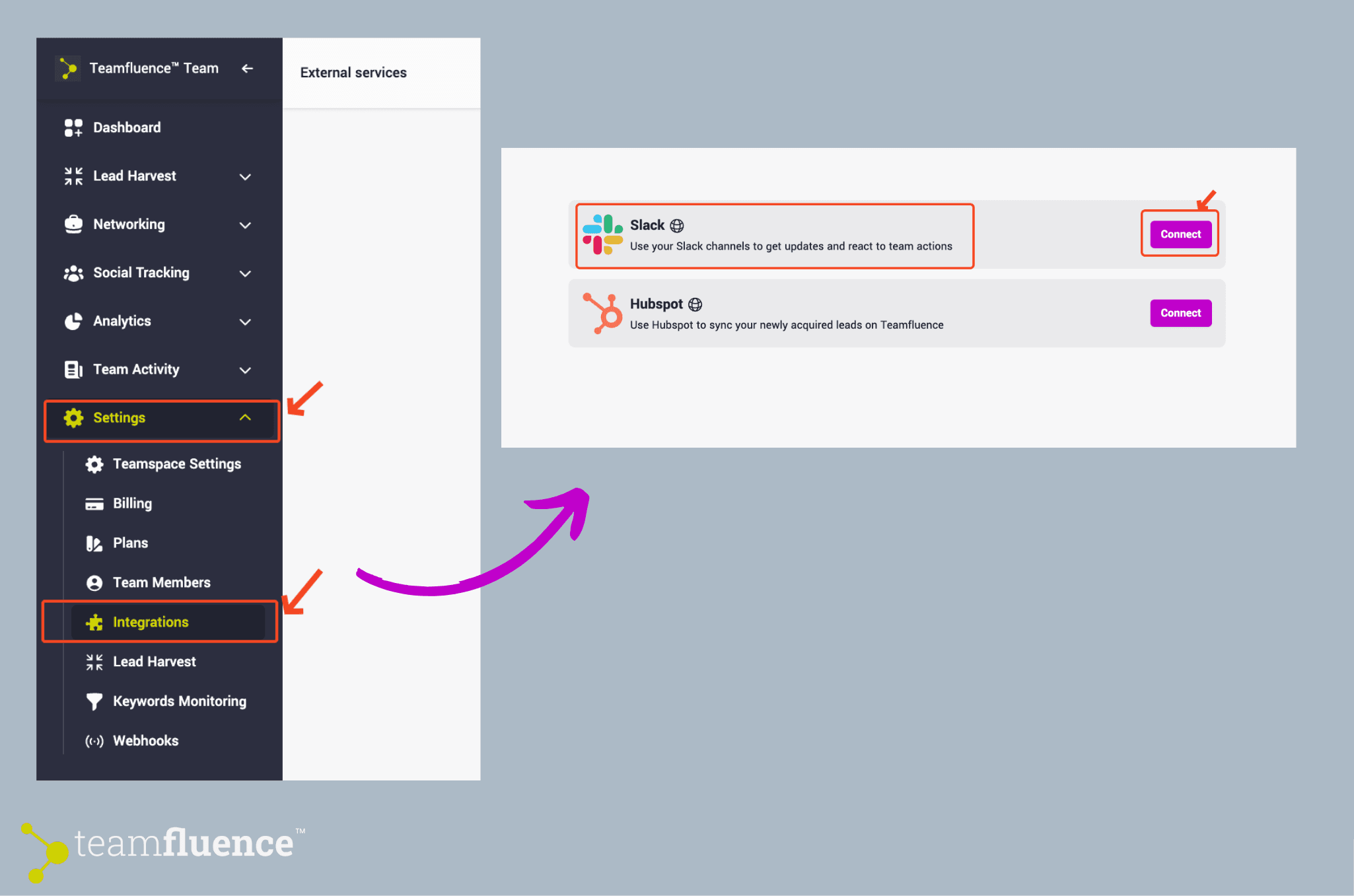
- Select the Slack workspace you want to send notifications to.
- After connecting Slack, manage your notification settings and choose which channels to send updates to.
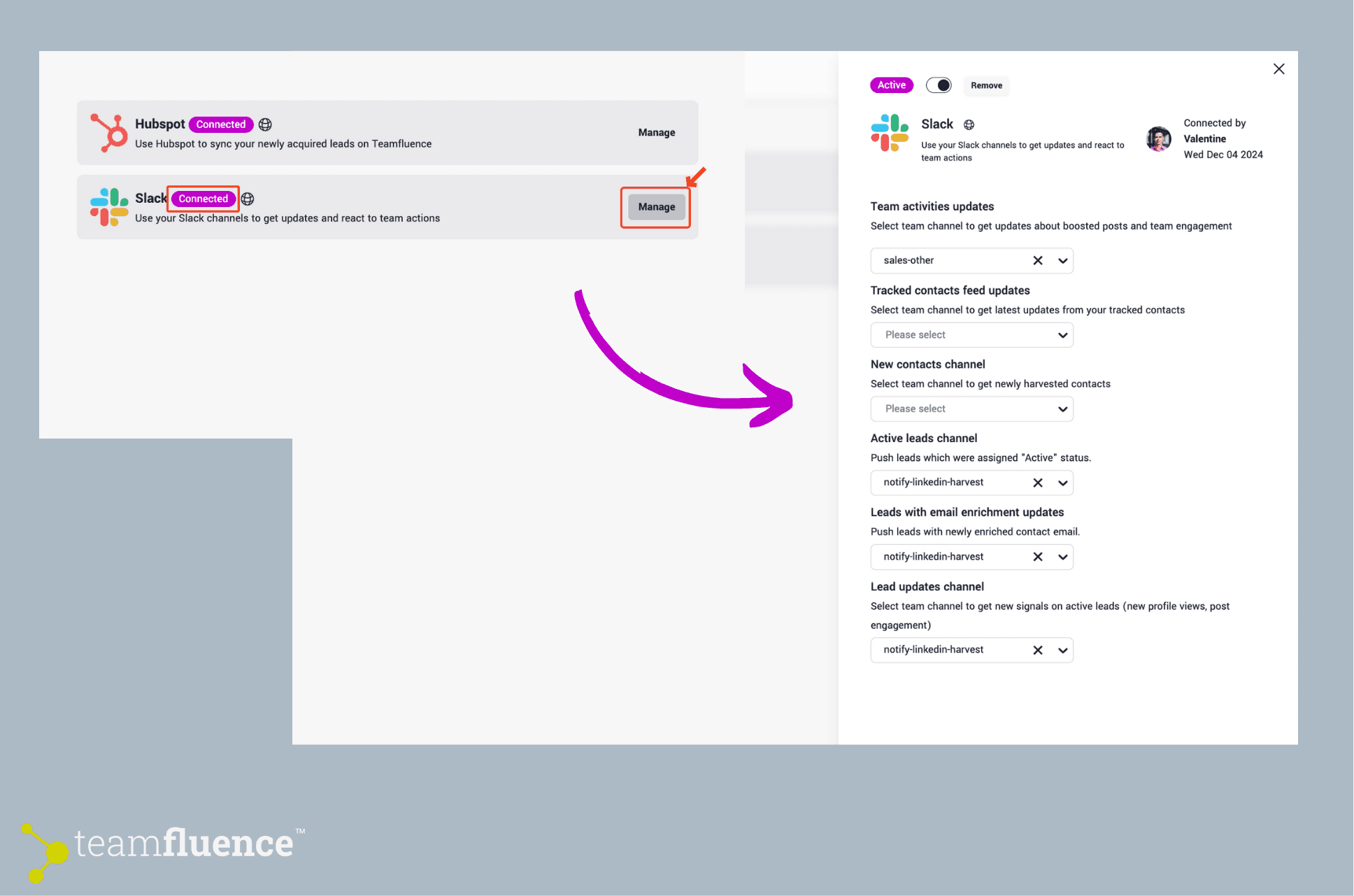
You can enable the following Slack notification types:
- Team Activity Updates: Alerts about boosted posts and your team's engagement.
- Tracked Contacts Feed: Notifications about updates from contacts you're monitoring.
- New Contacts Channel: Alerts for new leads entering your Harvest.
- Active Leads Channel: Pushes leads marked as "Active" status.
- Email Enrichment Updates: Notifies you when leads have newly enriched email addresses.
- Lead Updates Channel: Get signals on active leads like profile views or post interactions.
Method 2: Connect via Workflows
If you want Slack notifications to be conditional - sent only when leads meet specific criteria - use a Workflow instead of (or in addition to) the global Settings connection. This approach is useful when you want to, for example, notify a Slack channel only when a lead is an ICP match, or only when a lead reaches a certain engagement threshold.
How to set it up
Go to Workflows in your workspace.
Click New Workflow and give it a name.
Select a trigger event - for example, New Lead or New Engagement.
Add one or more filters to narrow which leads trigger the notification. Filters include:
- Tag assigned
- Lead stage
- Engagement score or number of engagement events
- ICP match
- Target account membership
- Connection status (connected or not connected with a team member)
Add a Send to Slack action as the final step in the flow.
Select the Slack channel to send the notification to.
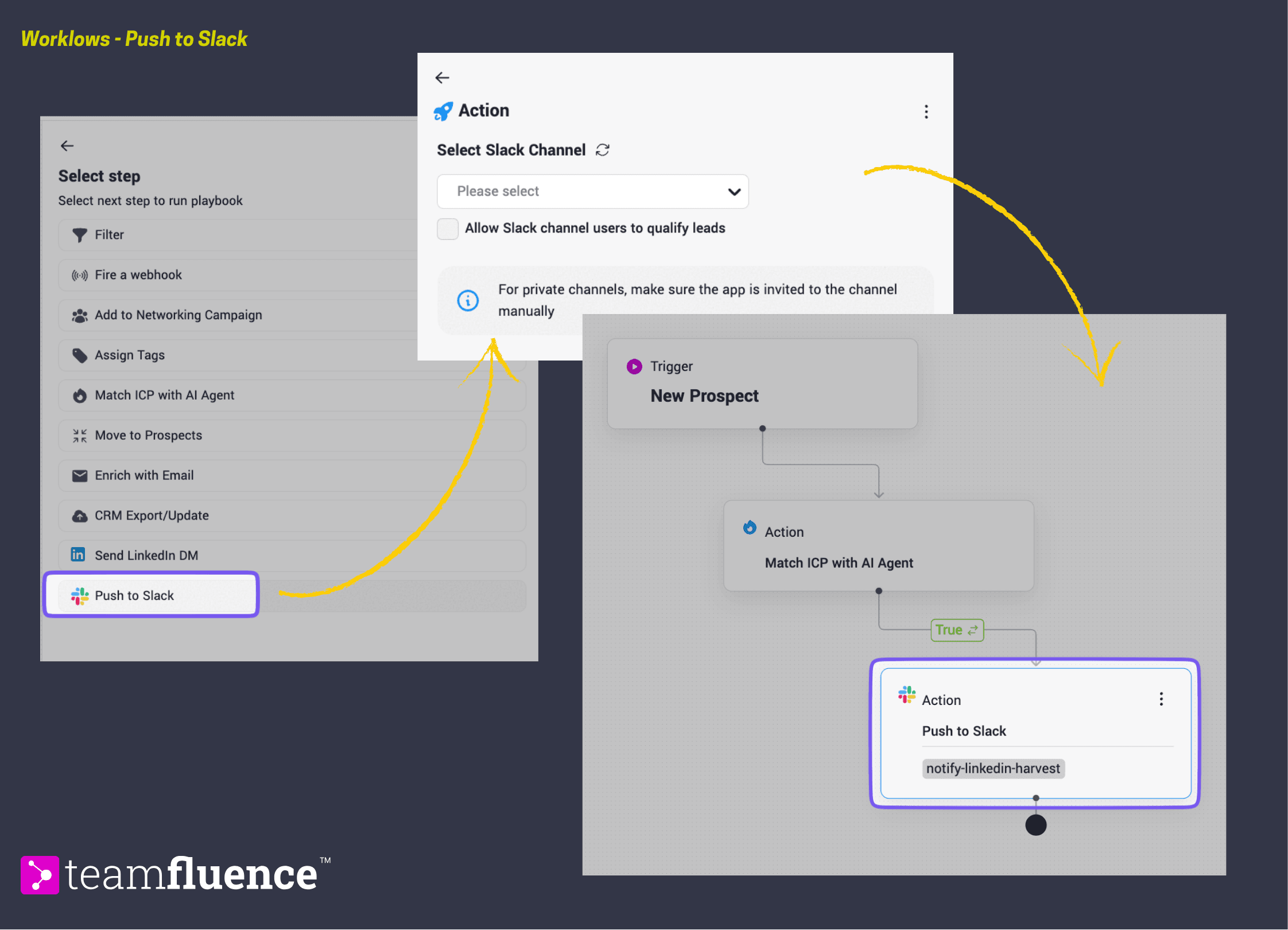
When to use this method Use the Workflows method when you need:
- Slack alerts only for leads that match your ICP
- Notifications scoped to a specific team member's pipeline
- Multi-step logic before a notification fires (for example, filter by connection status, then ICP match, then notify)