
If you are managing the Teamfluence extension on behalf of your clients - rather than having clients install it themselves - you will need a separate Chrome profile for each client. This guide explains how to set that up and keep it running reliably.
When this approach applies
This setup is for agencies who manage LinkedIn accounts on behalf of clients and handle the extension themselves. If your clients install and run the extension on their own browsers, you do not need to follow this guide. The preferred approach is always for clients to manage their own extension.
Why separate Chrome profiles are required
The Teamfluence extension connects to one LinkedIn account per browser profile. If you run multiple client LinkedIn accounts in the same Chrome profile, their data will mix. A separate Chrome profile for each client ensures:
- Each extension is connected to exactly one LinkedIn account
- Signals from different clients never overlap
- You can open and manage each client's session independently
Step 1: Create a Chrome profile for each client
- Open Chrome and click the profile avatar in the top right corner.
- Click Add to create a new profile.
- Name the profile after the client, for example "Client: Acme Corp".
- Do not sign in with a Google account unless you need it. A local profile is sufficient.
- Repeat for each client.
Step 2: Install the Teamfluence extension in each profile
Each Chrome profile needs its own installation of the extension.
- Switch to the client's Chrome profile.
- Go to the Chrome Web Store and install the Teamfluence extension.
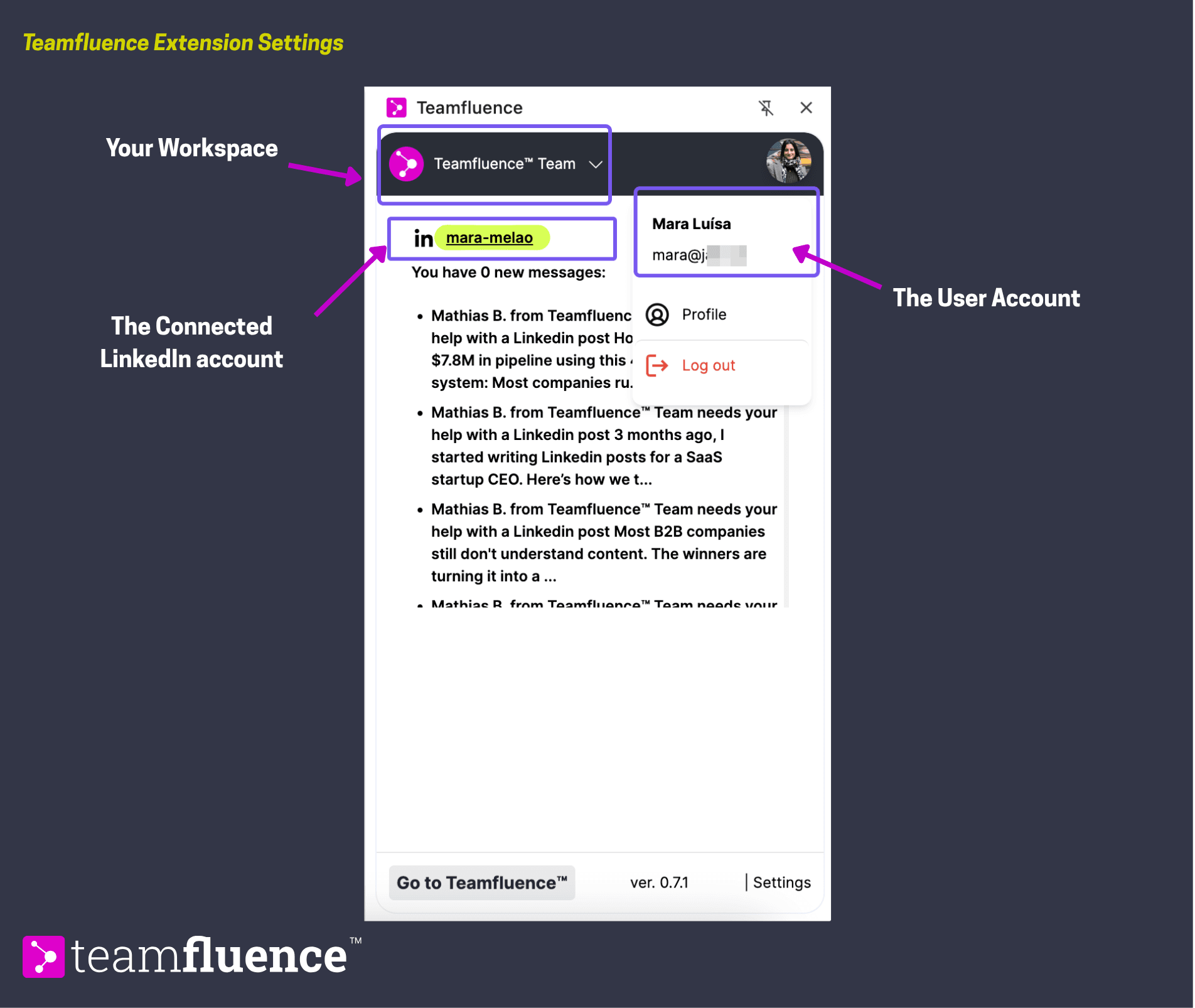
- Open the extension and log in to Teamfluence using the client's user account credentials.
- Connect the client's LinkedIn account when prompted.
- Verify the extension shows as connected.
Repeat for each client profile.
Step 3: Open each profile daily
This is the most important operational requirement when managing extensions on behalf of clients. The Teamfluence extension collects signals while the browser is open. If a Chrome profile is not opened, no data is synced for that client - profile visits, post reactions, and other signals from that day will not be captured.
Each Chrome profile must be opened at least once per day and left running for at least 30 minutes for data to sync reliably. Build this into your daily workflow or set a recurring reminder.
Switching between client profiles
To move between clients, use Chrome's profile switcher in the top right corner. Each profile maintains its own session - switching profiles does not affect any other client's data or extension state.
Troubleshooting
Signals not appearing for a client Check that the Chrome profile was opened today and that the extension icon shows as connected. If the extension is disconnected, re-authenticate by clicking the extension icon and logging in again.